- Home
- Main Features
- Cookie and Session Control
- How to Use Cookie Import in Multilogin
How to Use Cookie Import in Multilogin
Author Yelena V (Updated on June 11, 2026)
Updated on June 11, 2026
Who can use this feature?
- 👨💻 Account owners, managers, and operators
- 💰 Available for all subscription plans
The Role of Cookie Import
Cookies are small data files used by websites to record your information, such as keeping you logged in or tracking your browsing habits. In Multilogin, importing cookies can help you appear as a returning user rather than a new one. This is very useful for managing multiple accounts, testing, or pre-warming profiles. Using the built-in cookie import tool, you can easily import cookie data into any profile—no extensions or external tools are needed.
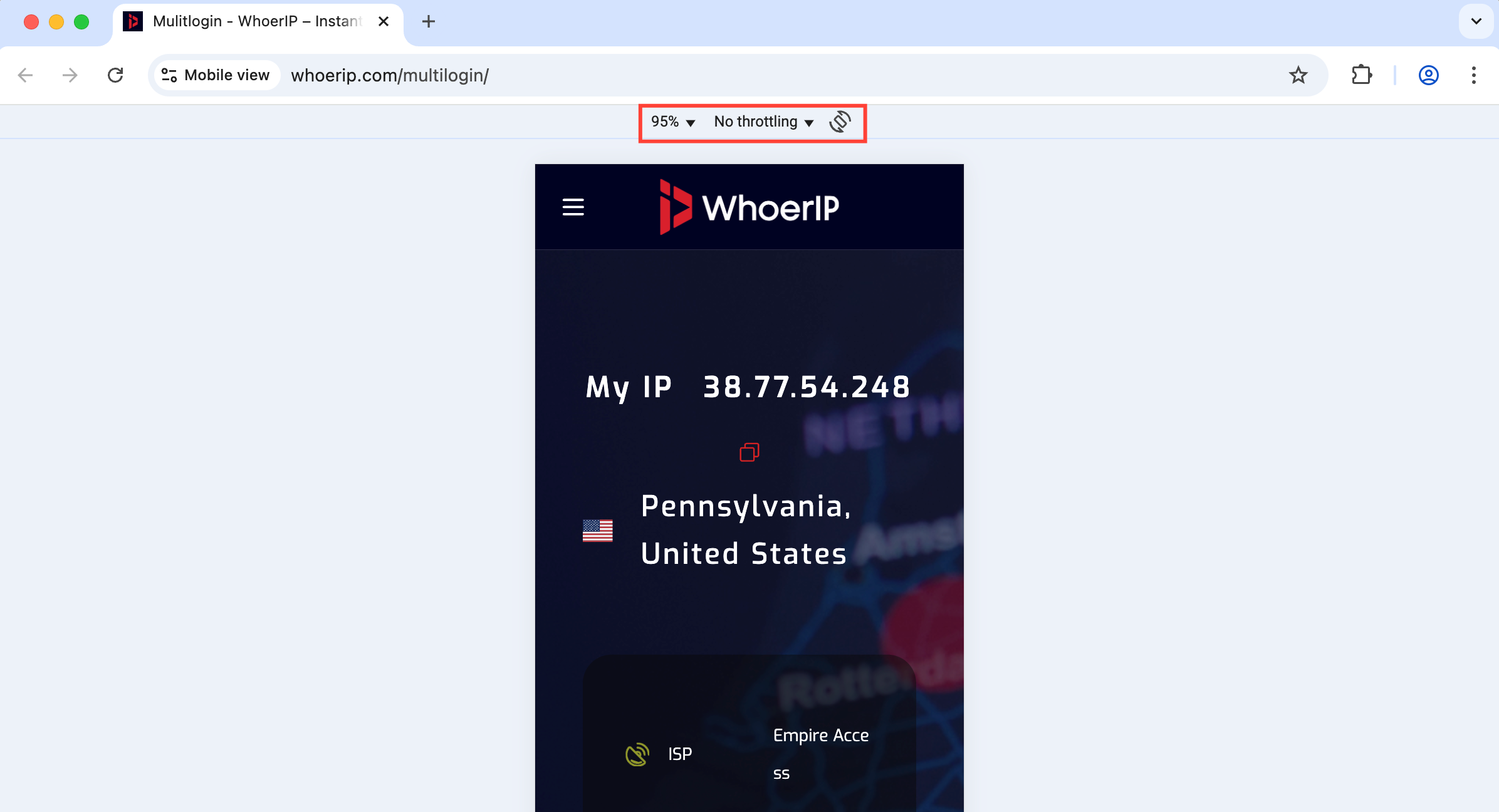
How to View Cookies in a Browser
The methods to view cookies in your browser are as follows:
- For Mimic, paste chrome://settings/content/all into the browser address bar
chrome://settings/content/all
- For Stealthfox, paste about:preferences#privacy into the browser address bar, then on the opened page select "Cookies" → "Manage Data"
about:preferences#privacy
Why Cookie Importing Is Useful
- Skip the login step: Access the website immediately without entering credentials
- Build trust: Make your profile appear more 'established' on the website
What are the limitations
To ensure your import goes smoothly:
- The file size must be less than 10 MB
- The format must be JSON – check using a JSON validator
- The Agent must be connected – check the status in the bottom right corner
- The browser core must be up to date – if the import option is missing, start the profile to update first
How to Import Cookies
Want to import the same cookie file into multiple profiles at once? Please use the checkboxes on the left to select them, and then follow these steps:
- Right-click on the profile in the profile list
- Click "Cookies" → "Import Cookies"
- In the pop-up window, you can: upload a file with cookies (JSON format), or directly paste the cookies as text
- Upload a file with cookies (JSON format), or
- Directly paste the cookies as text
- Check "I understand that importing cookies for the same site will overwrite existing cookies"
- Click "Import" – Done!
Professional Tips
- Use cookies from trusted sources to avoid suspicious sessions
- Import cookies combined with a global IP to achieve more realistic browsing behavior
- After importing, launch the profile and visit the website to confirm that the cookies have been applied
Frequently Asked Questions
What will happen if I import cookies for a website that already has cookies?
The new cookie will overwrite the existing cookie – so it can only be done if you agree!
Can I import cookies into the local configuration file?
Yes – but the premise is that the browser core of the profile is up-to-date and the agent is connected.
What should I do if my file cannot be uploaded?
Carefully check the file size (less than 100 MB) and format (valid JSON). Also, make sure the configuration file is up to date.
In this article
- The purpose of importing cookies
- How to view cookies in a browser
- Why cookie importing is useful
- What limitations exist
- How to import cookies
- Professional tips
- Frequently asked questions
- What happens if I import cookies for a website that already has cookies?
- Can I import cookies into a local configuration file?
- What should I do if my file cannot be uploaded?
Multilogin Community
Stay informed, share your thoughts, and interact with others!
Read more related content
Related Articles
- Master multi-account management methods: Proper use of Cookies
- How to export Cookies in Multilogin
- How to use pre-made Cookies in Multilogin
- How to run CookieRobot in the Multilogin interface
- How to start CookieRobot using Script Runner
- How to run CookieRobot in the Multilogin CLI