- Home
- Automating tasks via API
- Script runner and predefined scripts
- How to use Script runner to launch CookieRobot
How to Use Script Runner to Start CookieRobot
Author Yelena V (Updated on June 12, 2026)
Updated on June 12, 2026
CookieRobot can automatically collect cookies from the websites you choose, making your profile look more authentic without manual scraping! In this guide, we will walk you through how to use it to simplify the process.
Already familiar with automation or have completed some steps? Use the table of contents on the right to jump directly to the content you need. Let's get started!
Step 1: Set Up Your Postman
Before running the MultiloginX API endpoints and automation using Postman, make sure to update and connect your Agent.

Download and install Postman from their official page.
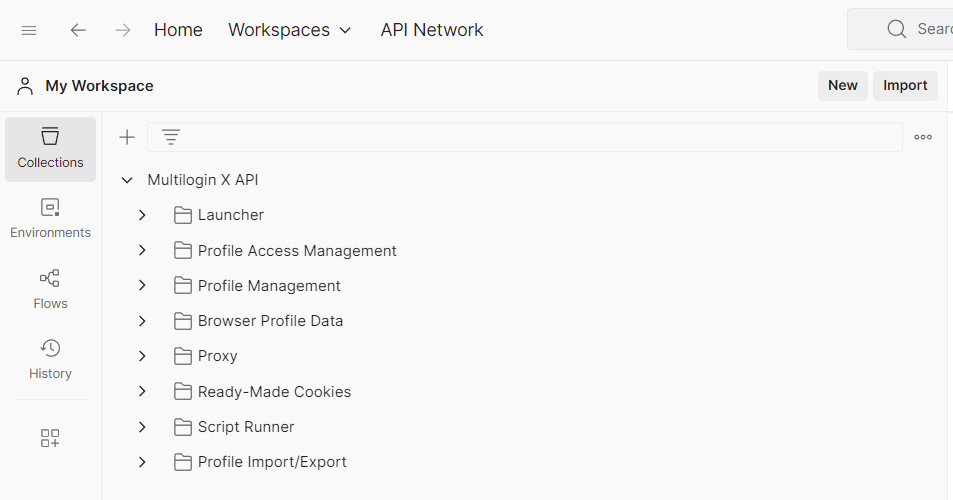
After installing Postman, open the Multilogin API page:
- In the top right corner, click "Run in Postman"
- Select "Postman for <your OS>"

Your Postman desktop will open. Import all API endpoints into your local collection:
- In "Import collection" → select your workspace
- Click "Import" → all endpoints will be available in the folder
Logging in through Postman
You need to log in with your credentials to generate an API token, which grants you access to API endpoints and the ability to perform actions.
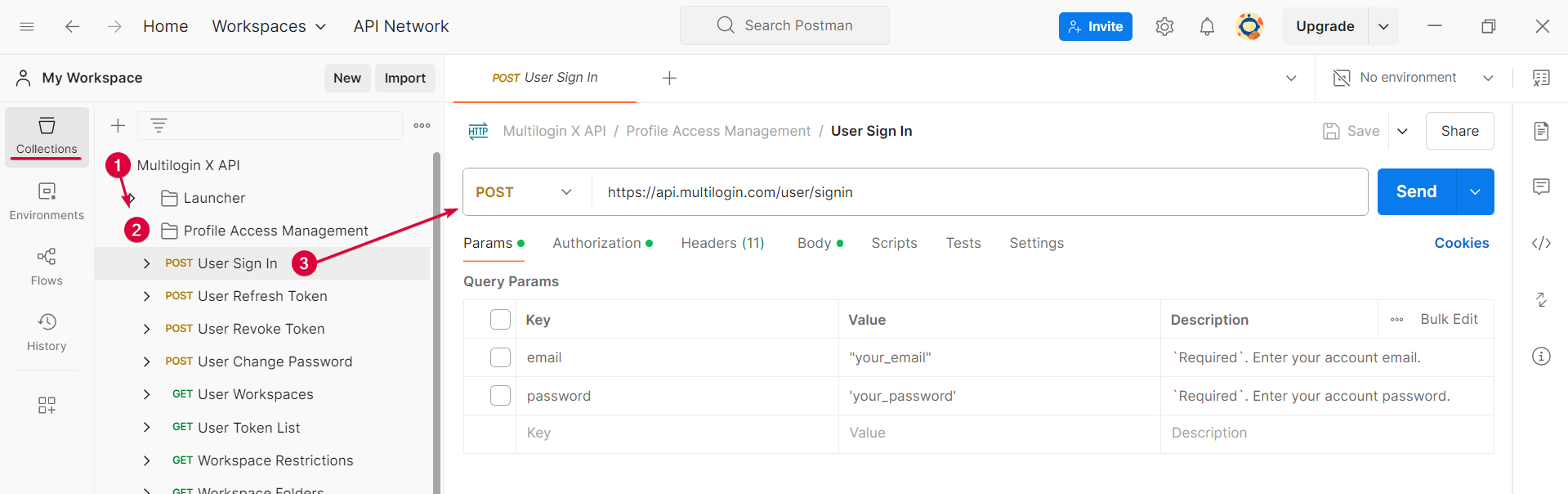
Find the user login endpoint
- Open 'Collections' → Expand the 'Multilogin API' folder
- Open the 'Profile Access Management' folder
- Select the POST user login endpoint (What is a POST request?)
Convert your password to MD5
You need to use the user login endpoint to get your access token, but there is a problem: your password needs to be encrypted using MD5.
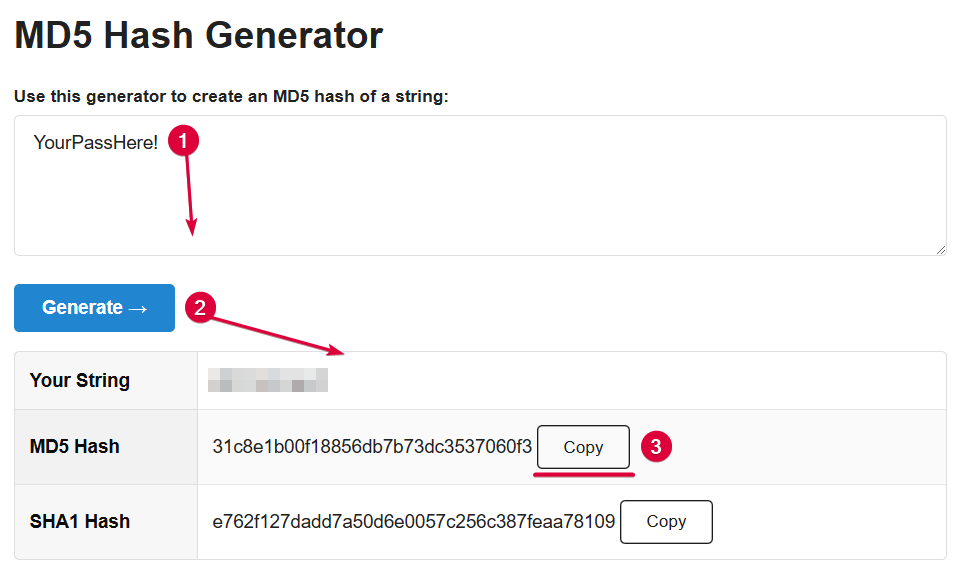
Here is how to get the encrypted password using an MD5 hash generator:
- Enter your Multilogin password
- Click "Generate"
- Copy your MD5 encrypted password
Get API Token
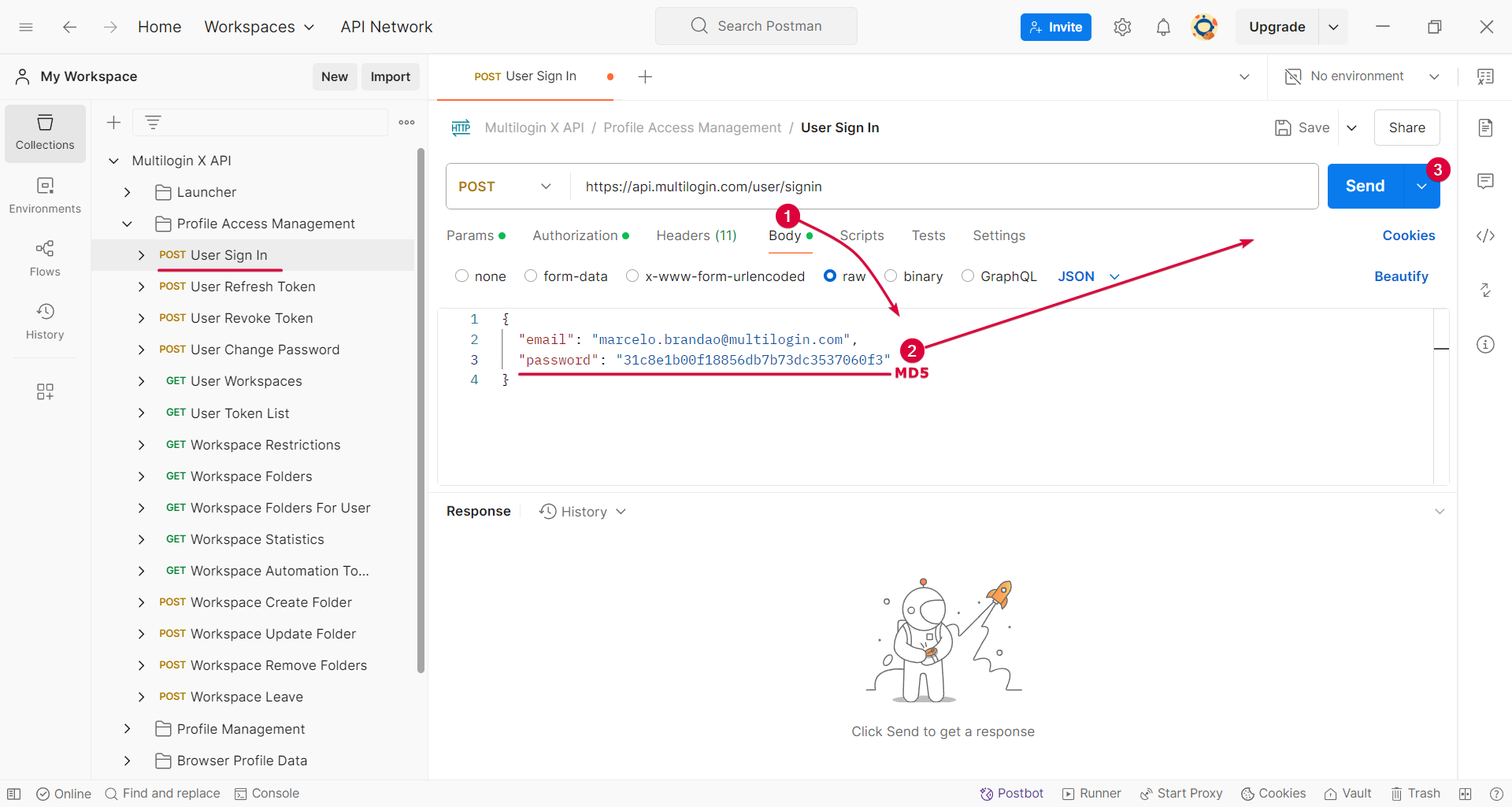
The regular token is valid for 30 minutes. Use the workspace automation token endpoint for longer duration options.
- When POSTing user login → go to the "Body" tab
- Fill in your email and MD5 password in "strings" format
"strings"
- Send the login request
- Check the access token in the response area below → copy everything inside the quotes
Step 2: Open Script Runner
Stay Updated: Script Runner requires Agent 1.37.4 or a newer version. If you’re not sure, follow the steps here to check your Agent version.
Now that you’re logged in and have your token, you can use the Script Runner endpoint to run your CookieRobot script!
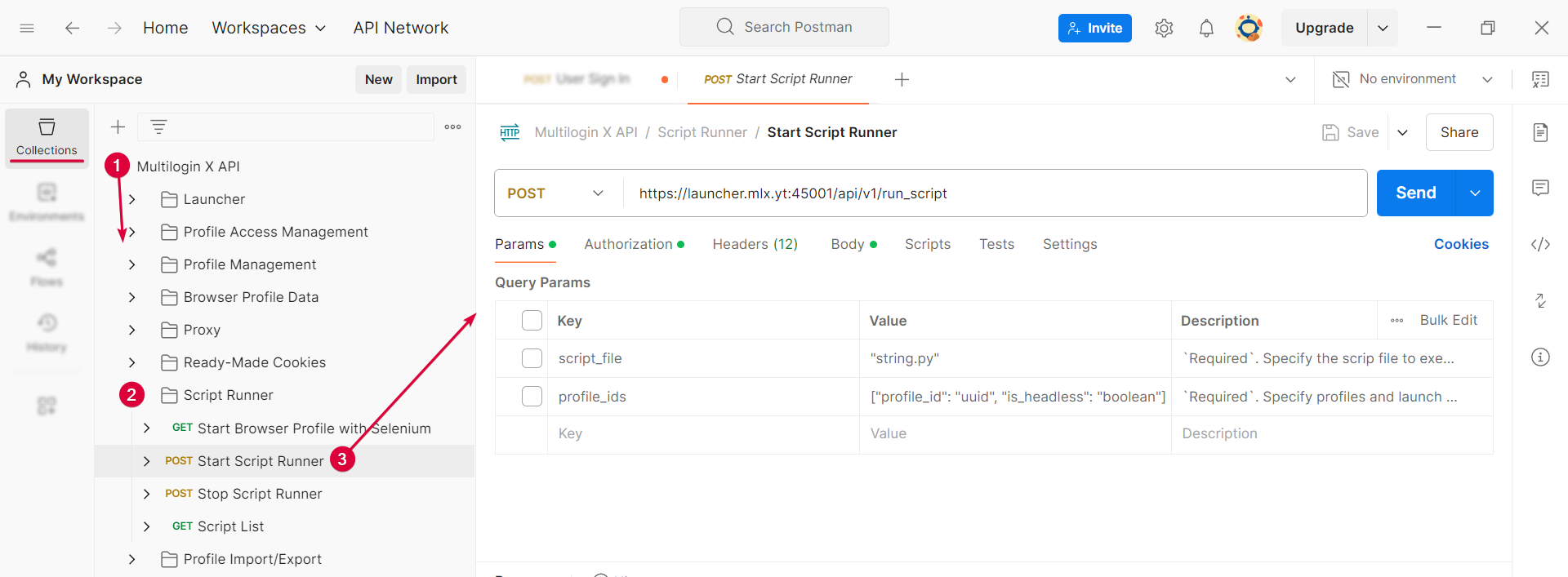
- Go back to “Collections” → “Multilogin API” folder
- Navigate to the “Script Runner” folder
- Open the POST Start Script Runner endpoint to configure a new API request!
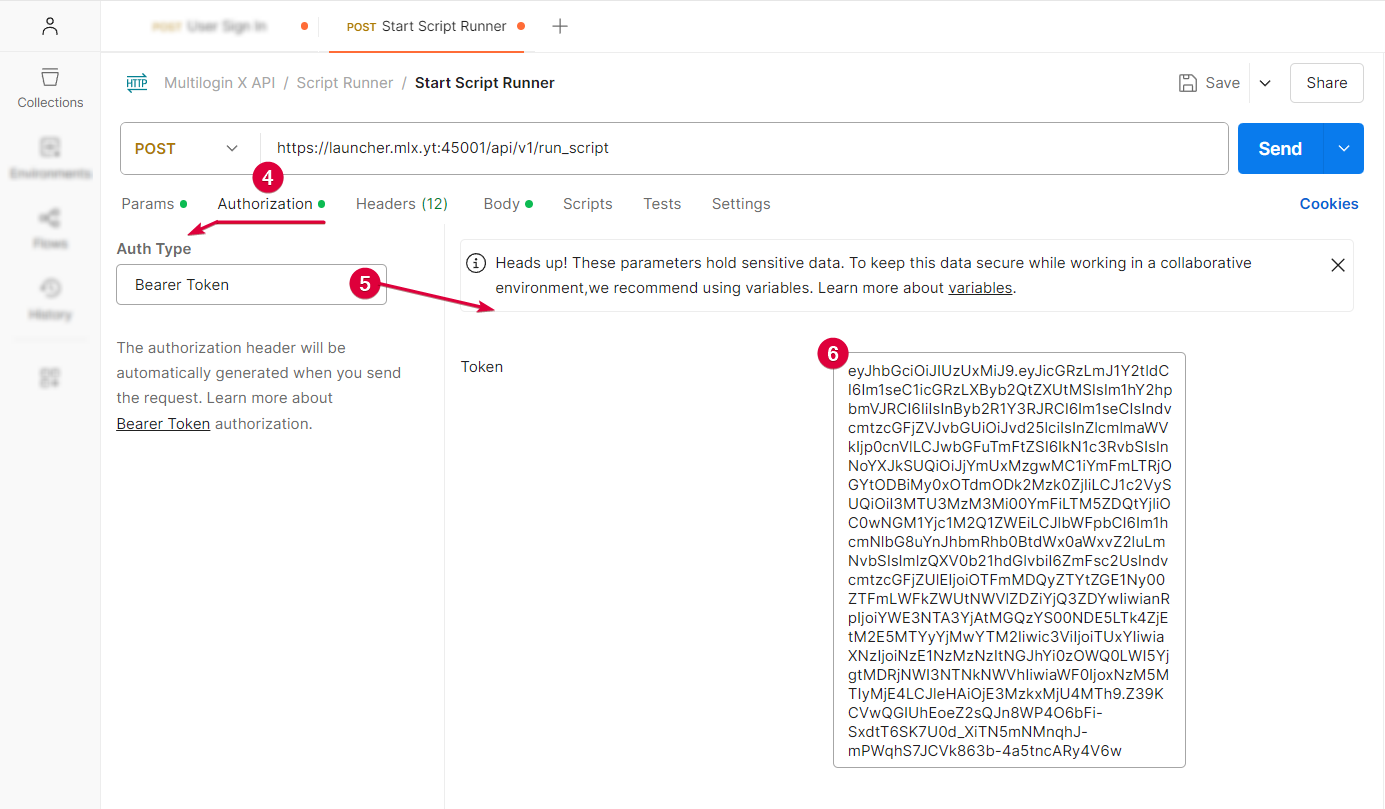
- From the “Params” tab, go to “Authorization”
- Select “Bearer Token” as the authentication type
- In the “Token” field on the right, paste the API token you copied earlier
Once you fill out the “Authorization” tab with the Bearer Token, you can send requests to start CookieRobot in Script Runner! 🔑
Add CookieRobot Script
After inserting the token into the 'Authorization' tab:
- Continue to the 'Body' tab
- Make sure the 'raw' option is selected
- Insert the CookieRobot request body (JSON) as shown:
{
    "script_file": "cookie_robot.py",
    "object_id": "1cf0aa65-1df9-4b28-a201-535f701acc24",
    "is_builtin": true,
    "profile_ids": [
        {
            "profile_id": "profile uuid"
        },
        {
            "profile_id": "profile uuid",
            "is_headless": true
        }
    ],
    "script_params": [
        {
            "name": "websites",
            "value": ["https://youtube.com","https://google.com","https://fb.com","https://amazon.com"]
        },
        {
            "name": "randomOrder",
            "value": true
        },
        {
            "name": "fractionMode",
            "value": 0.7
        },
        {"            "name": "processCookieConsent",
            "value": true
        },
        {
            "name": "closeBrowser",
            "value": false
        }
    ]
}
{
    "script_file": "cookie_robot.py",
    "object_id": "1cf0aa65-1df9-4b28-a201-535f701acc24",
    "is_builtin": true,
    "profile_ids": [
        {
            "profile_id": "profile uuid"
        },
        {
            "profile_id": "profile uuid",
            "is_headless": true
        }
    ],
    "script_params": [
        {
            "name": "websites",
            "value": ["https://youtube.com","https://google.com","https://fb.com","https://amazon.com"]
        },
        {
            "name": "randomOrder",
            "value": true
        },
        {
"name": "fractionMode",
            "value": 0.7
        },
        {
            "name": "processCookieConsent",
            "value": true
        },
        {
            "name": "closeBrowser",
            "value": false
        }
    ]
}
The name of the CookieRobot script is cookie_robot.py. It has been added to the "script_file" line, so there is no need to update it manually.
cookie_robot.py
"script_file"
The object_id value of CookieRobot is 1cf0aa65-1df9-4b28-a201-535f701acc24. You do not need to change this value.
object_id
1cf0aa65-1df9-4b28-a201-535f701acc24
Step 3: Customize Parameters

When starting CookieRobot, there are several customizable parameters that affect how the crawling process works. These parameters allow users to adjust settings such as target websites and crawling order. By fine-tuning these options in the "script_params" section, users can optimize the script's performance according to their specific needs.
"script_params"
The customizable CookieRobot parameters are highlighted in red in the screenshots and the image below:
“profile_ids”
"profile_ids"
A list of profile IDs, structured as follows:
- "profile_id" – a unique profile ID number
"profile_id"
- "is_headless" – (optional) running in headless mode may limit the profile's interaction with certain page elements
"is_headless"
“script_params”
“script_params”
contains a list of customizable parameters, simply represented as:
- “name” – the name of the parameter
“name”
- “value” – the specified value (string, integer, float, JSON, etc.)
“value”
“websites”
"websites"
Want to fetch cookies from multiple websites? Just list them here! Note that websites can be listed with or without www., http://, or https://.
www.
http://
https://
If nothing is provided in the "websites" parameter, the configuration file will use its default list:
"websites"
websites = [
  "https://aliexpress.com",
  "https://amazon.com",
  "https://ebay.com",
  "https://fiverr.com",
  "https://google.com",
  "https://reddit.com",
  "https://twitch.com",
  "https://twitter.com",
  "https://yahoo.com",
  "https://youtube.com",
  "https://en.wikipedia.org"
  ]
websites = [
  "https://aliexpress.com",
  "https://amazon.com",
  "https://ebay.com",
  "https://fiverr.com",
  "https://google.com",
  "https://reddit.com",
  "https://twitch.com",
  "https://twitter.com",
  "https://yahoo.com",
  "https://youtube.com",
  "https://en.wikipedia.org"We recommend collecting cookies from multiple sources to obtain a more authentic fingerprint. Check out how to collect cookies: our tip article provides more information. However, please consider keeping an appropriate amount of cookies. Most websites only use cookies to track your activities on their site, but large platforms may use tracking tools to track your activities across the web. In addition, we recommend maintaining a balanced number of proxy servers. The more websites in the list, the higher the risk of proxy server interruptions and real IP address leaks.
#### “randomOrder”
"randomOrder"
- Set to "true" → Shuffle and access websites randomly
"true"
- Set to "false" → Access websites in the order listed
"false"
#### “fractionMode”
“fractionMode”
Want to run only part of the websites, rather than running all websites by default? See how to use:
- Choose a floating-point number between 0.0 and 1.0 to set the proportion of sites to be scraped
- Make sure “randomOrder” is set to “true”
“randomOrder”
“true”
For example: if you use "fractionMode" = “0.5”, it will run 50% of the website list in random order
"fractionMode" = “0.5”
#### “processCookieConsent”
“processCookieConsent”
Due to privacy laws such as GDPR (What is GDPR), many websites display an “Allow Cookies” button, which requires user consent before setting tracking cookies.
- Set to “true” → CookieRobot will automatically find and attempt to click the consent button (default)
“true”
- Set to “false” → It will ignore cookie pop-ups, which is useful in the following cases: You are browsing non-EU websites that do not display cookie banners You are not concerned about GDPR compliance (e.g., using a global IP outside the EU)
“false”
- You are browsing non-EU websites that do not display cookie banners
- You are not concerned about GDPR compliance (e.g., using a global IP outside the EU)
#### “closeBrowser”
“closeBrowser”
If you want to close the profile after the script runs, you can change this parameter. Vice versa.
- Set to “true” → the profile will be closed (default)
“true”
- Set to “false” → the profile will remain open
“false”
## Step 4: Run CookieRobot
After configuring the parameters as needed:
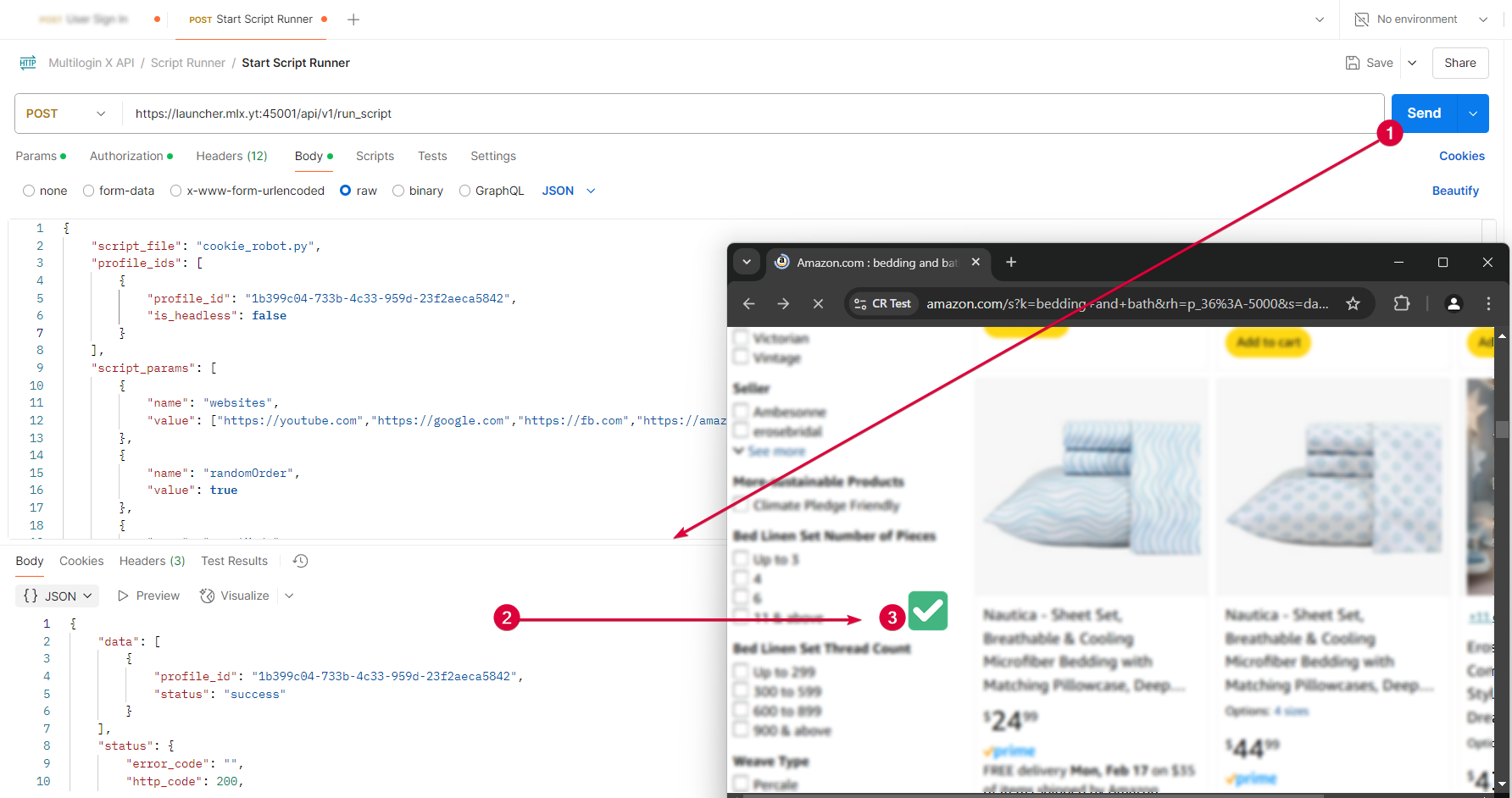
- Click "Send" to run the POSTStart Script Runner request
- Check the request response: status 200 means success!
- Your CookieRobot script will start the selected profile. If it is headless, you won't be able to watch the scraping process in real time! 🔍
If you get a 401 Unauthorized error when sending the request, your token may have expired: if this happens, repeat the steps in "Get API Token" to generate a new Bearer Token.
## In this article
- Step 1: Set up your Postman
- Log in through Postman
- Find the user login endpoint
- Convert your password to MD5
- Obtain the API token
- Step 2: Open Script Runner
- Add the CookieRobot script
- Step 3: Customize parameters
- “profile_ids”
- “script_params”
- “websites”
- “randomOrder”
- “fractionMode”
- “processCookieConsent”
- “closeBrowser”
- Step 4: Run CookieRobot
## Multilogin Community
Stay informed, share your thoughts, and interact with others!
## Read more related content
## Related Articles
- How to control kernel updates through the API
- How to use strict mode through the API