- Home
- Multilogin Getting Started Guide
- How to navigate the Multilogin interface
How to Browse the Multilogin Interface
Author Yelena V (Updated on March 16, 2026)
Updated on March 16, 2026
← Read first: How to Buy a Multilogin Subscription
To get started with Multilogin easily, you first need to understand the location of all its features. Here is a quick guide to help you find the main parts of the interface and smoothly complete your workflow.
Dark mode is here! Click the moon icon in the top right corner to switch.
Search/AI Quick Actions
At the very top, you will see the AI quick actions and search bar.
- By default, this bar serves as a search tool. Just enter anything (such as a profile name), and it will immediately filter your list.
- The Multilogin top bar does much more than search; it also allows you to run quick tasks using artificial intelligence (AI). Just enter a few words, and the system will handle the rest.
Sidebar
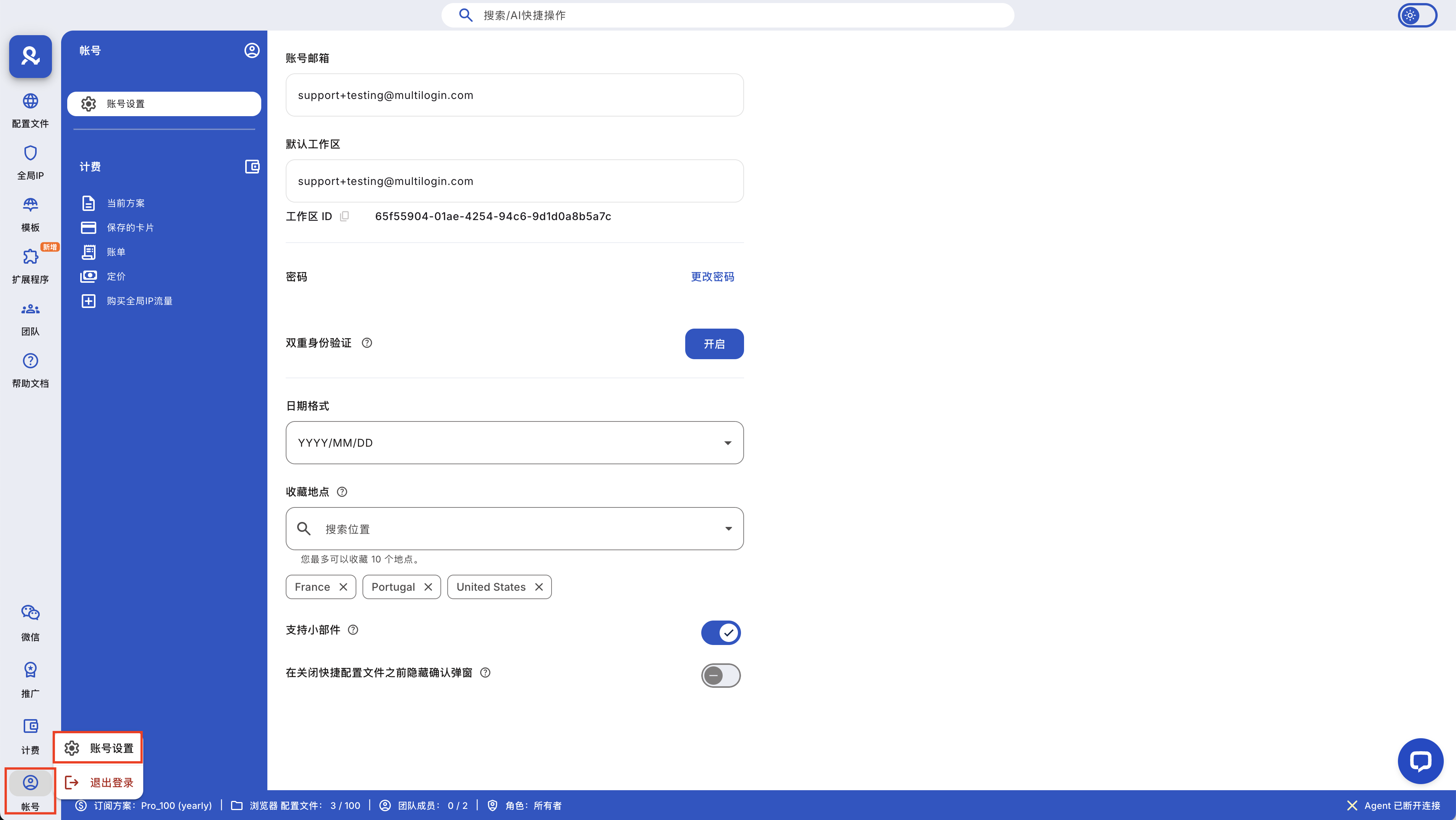
The leftmost sidebar is your navigation hub. It allows you to quickly access the following key sections:
- Profiles: The storage location for all your browser profiles
- Global IP: Manage global IP templates and supplement your Multilogin global IP traffic
- Templates: Predefine and apply common profile settings with one click
- Team: Manage team members and their access permissions
- Help Docs: Convenient links to tutorials, API information, and technical support
- Referral: Track and share your referral program links
- Telegram: Quick access to Multilogin's Telegram channel
- Billing: Manage your subscriptions and payments
- Account: Manage your account settings

Hover over or click on the icons to explore all possibilities.
Hover over the Multilogin logo at the top left to switch between different workspaces.
Left-side Menu

In each main section (such as "Profile" or "Team"), you will see a left-hand menu that allows you to explore further:
- In "Profile," you can switch between "Default," "Trash," and custom folders to see how many profiles are in each folder. Here, you will also see the "Running Profiles" section, where you can view a list of running profiles (regular and quick profiles), stop them in bulk, copy their IDs, or convert quick profiles into regular ones.
- In "Team," you can switch between "Active Members," "Pending Invitations," and "Expired Invitations." You can also click the icon in the top right corner to invite team members.
This menu keeps everything organized and easy to find.

Top Menu
Directly above the main workspace is the top menu bar. It has primary action buttons, such as 'Create Profile' or 'Quick Profile.' On the right side, you will see secondary action buttons. To activate them, use the checkboxes on the left to select one or more items:
- In 'Profiles,' you can edit and clone profiles, copy IDs, delete, start, stop profiles, and more.
- In 'Teams,' you can manage access permissions and remove team members.
Additionally, you will see a dropdown menu for the number of rows per page, which controls how many profiles or members you see at once, as well as pagination arrows for navigating large lists. This menu changes depending on the section you are in, always providing the appropriate tools for you.
Right-Click Menu
You can right-click any item in the list (whether it is a profile or a team member) to access a convenient menu with useful functions. For example, in the 'Profiles' section, the right-click menu allows you to:
- Control the window state (bring to front, minimize, maximize)
- Manage global IPs and cookies
- Edit, clone, or rename profiles
- Copy their ID
- Move them to a folder or the recycle bin
- And more
These options allow you to quickly take control and help you stay organized without navigating through multiple screens.
Status Panel
At the very bottom is your status panel—a snapshot of your current subscription and usage:
- Multilogin global IP traffic
- Your subscription details
- Number of existing browser profiles and the allowed number
- Number of existing team members and the allowed number
- Your role in the workspace (e.g., Owner, Manager, Operator, Starter)
- Agent connection status (important to ensure your profiles can start)
- Current browser core versions (Mimic and Stealthfox)
Please pay attention to this important information about your account and system health.
→ Read below: Multilogin Three-Step Getting Started Guide
In this article
- Search/AI Quick Actions
- Sidebar
- Left Menu
- Top Menu
- Right-Click Menu
- Status Panel
Multilogin Community
Stay informed, share your thoughts, and interact with others!
Read more related content
Related Articles
- Why Multilogin can be beneficial for your business
- Invite friends and earn rewards: Earn 15% for each successful referral
- Multilogin: Main features and advantages
- How to change account settings in Multilogin
- Common mistakes that may disrupt your Multilogin workflow