- Home
- Task automation via API
- Getting started with Multilogin automation
- How to automatically start Agent in Multilogin
How to Automatically Start an Agent in Multilogin
Author Yelena V (Updated on March 5, 2026)
Updated on March 5, 2026
To make the agent start automatically after each restart, please select your operating system and follow the steps.
Windows
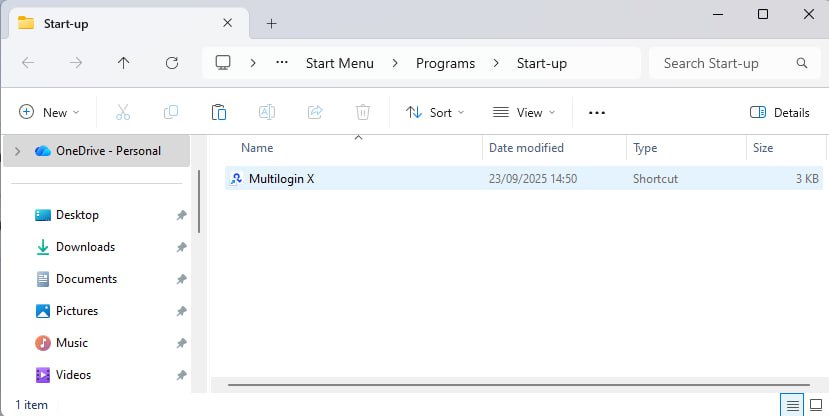
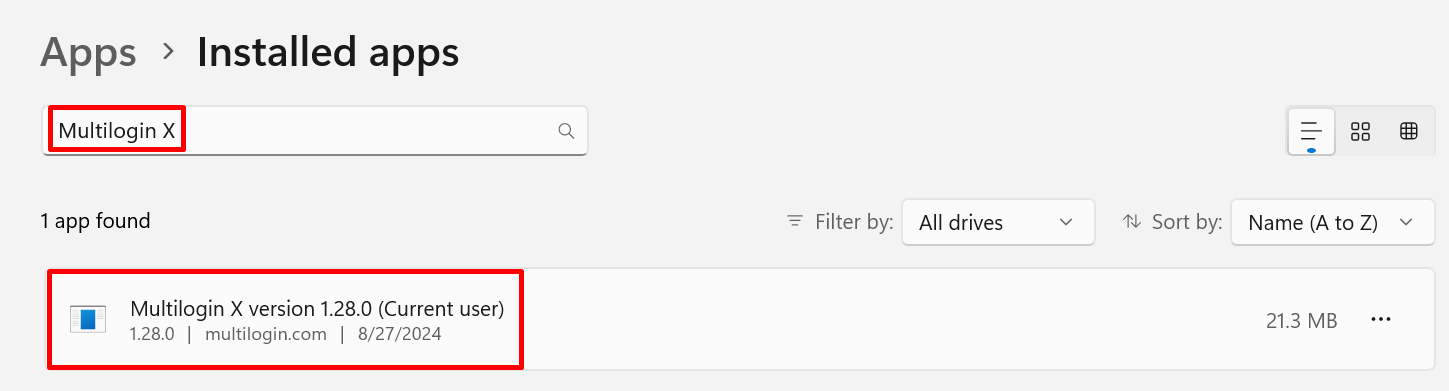
- Copy the application shortcut (you can find agent.exe on the desktop or in the following directory and create a shortcut for it: C:Users%username%AppDataLocalMultilogin
agent.exe
C:Users%username%AppDataLocalMultilogin
- Press Win R
Win R
- In the "Run" window, type shell:startup
shell:startup
- Paste the shortcut into the "Startup" folder
macOS
- Click the Apple menu → System Settings
- Select 'General' in the sidebar.
- Scroll and click Login Items and Extensions
- In 'Open at Login', click the ' ' button

- Click 'Applications' → 'Multilogin' → 'Open'

Linux
Please note, this article is written for Ubuntu systems. Other distributions are not officially supported.
- Click the "Show Applications" button (located at the bottom left)
- Click "Launch Application"

- Click "Add" → "Browse"

- Select "Other Locations", then go to the following directory: Computer → opt/mlx/, and select agent.bin.
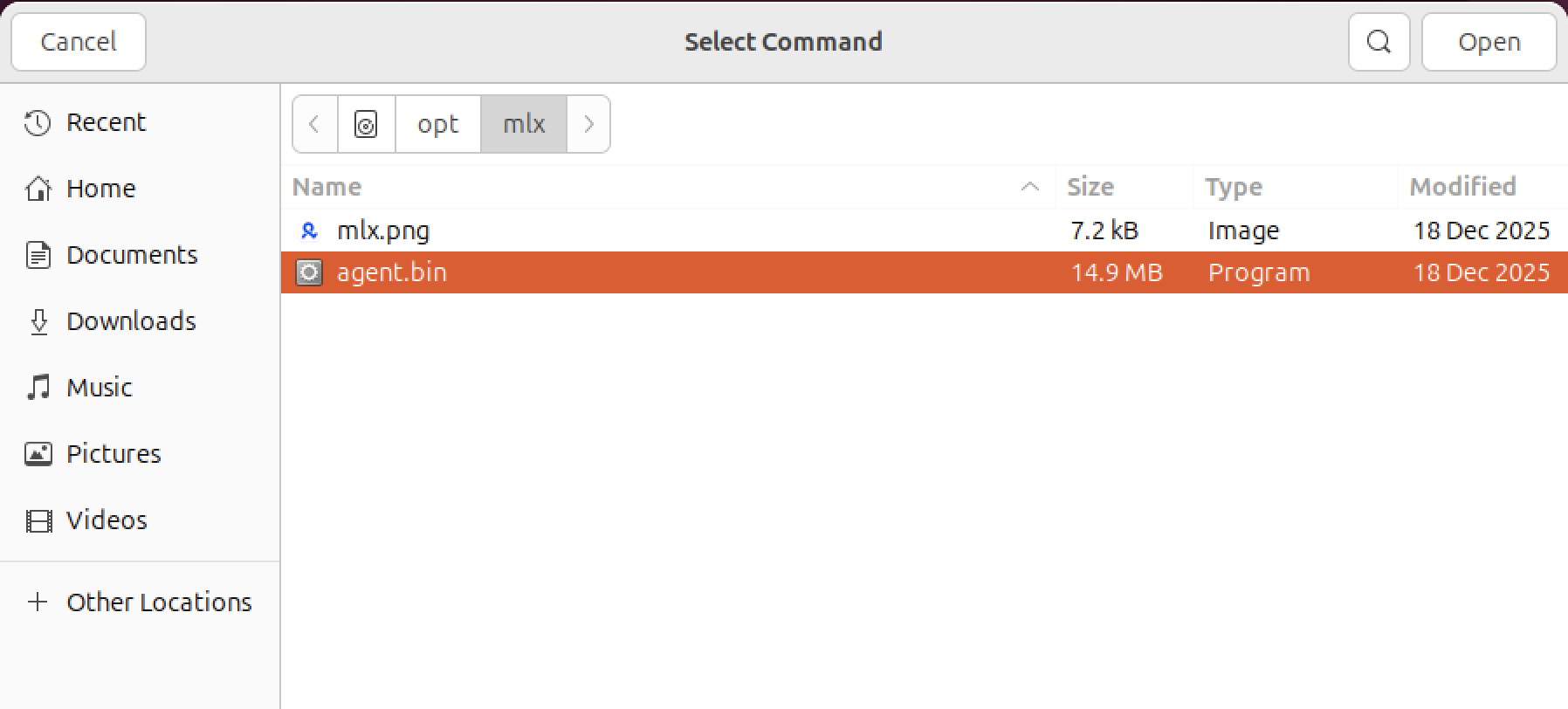
- Name the program, then click "Add".

Want to configure automatic startup for the server? Please read this article: Configuring the agent in headless mode and automatic startup on Linux
Multilogin Community
Stay informed, share your thoughts, and interact with others!
Read more related content
Related Articles
- How to connect an Agent in Multilogin
- How to fix Agent connection issues