- Home
- Main Features
- Agent and Launcher Connection
- How to Uninstall Agent in Multilogin
How to Uninstall an Agent in Multilogin
Author Yelena V (Updated on March 4, 2026)
Updated on March 4, 2026
Sometimes, uninstalling the Multilogin Agent is the best way to fix issues, perform a reinstallation, or remove it from devices that are no longer in use.
Whether you are troubleshooting, upgrading, or switching settings, here is how to properly uninstall the Agent on Windows, macOS, and Linux.
Windows
- Disconnect the Agent
- In the Start menu, click the gear icon ⚙️
- In Windows Settings, select "Apps"
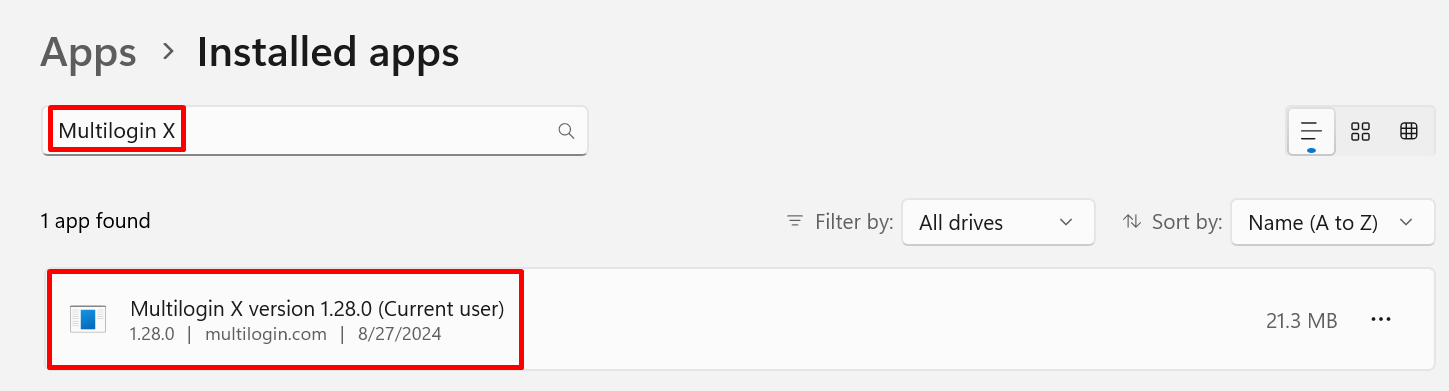
- Type "Multilogin" in the search bar
- Click the application name and select "Uninstall"
macOS
- Disconnect the Agent
- Go to Finder and select 'Applications'
- Right-click the Multilogin icon and select 'Move to Trash'
Linux
- Disconnect the Agent
- Run this command in the terminal: apt remove mlx
apt remove mlx
Multilogin Community
Stay informed, share your thoughts, and interact with others!
Read more related content
Related Articles
- How to check and update the Agent version in Multilogin
- How to connect the Agent in Multilogin
- How to disconnect and reconnect the Agent in Multilogin
- How the Agent and launcher work together in Multilogin
- How to automatically start the Agent in Multilogin
- How to manage Agent logs in Multilogin