- Home
- Main Features
- Profile Organization and Sorting
- How to Use the Profile Trash in Multilogin
How to Use the Profile Trash Can in Multilogin
Author Yelena V (Updated on June 11, 2026)
Updated on June 11, 2026
Who can use this feature?
- 👨💻 Account owners, administrators, and operators
- 💰 Available for all plans
What is a trash can used for?
Accidentally deleted a configuration file? Or not ready to delete it completely yet? The recycle bin provides you with a safe area, making it convenient for you to store deleted configuration files and preventing them from disappearing completely.
Why Trash Cans Are Useful
- Restore mistakes: Restore deleted profiles at any time
- Careful cleaning: Remove old profiles without immediately losing data
- Stay within plan limits: Deleted profiles still count toward your plan – Empty the trash to free up space
How to Delete a Configuration File
- Right-click the profile in the list
- Select the profile using the checkbox and use the top menu
- Click "Move to Trash"
- Click "Move" in the pop-up window to confirm
The profile will be moved to the "Trash" section.
How to Restore Configuration Files
- Go to the 'Trash' section: Use the button on the right side of the profile to select the profile with the checkbox and use the top menu
- Use the button on the right side of the profile
- Select the profile with the checkbox and use the top menu
- Click 'Restore Profile'
- Click 'Restore' in the pop-up window to confirm
The profile will be moved to its original folder.
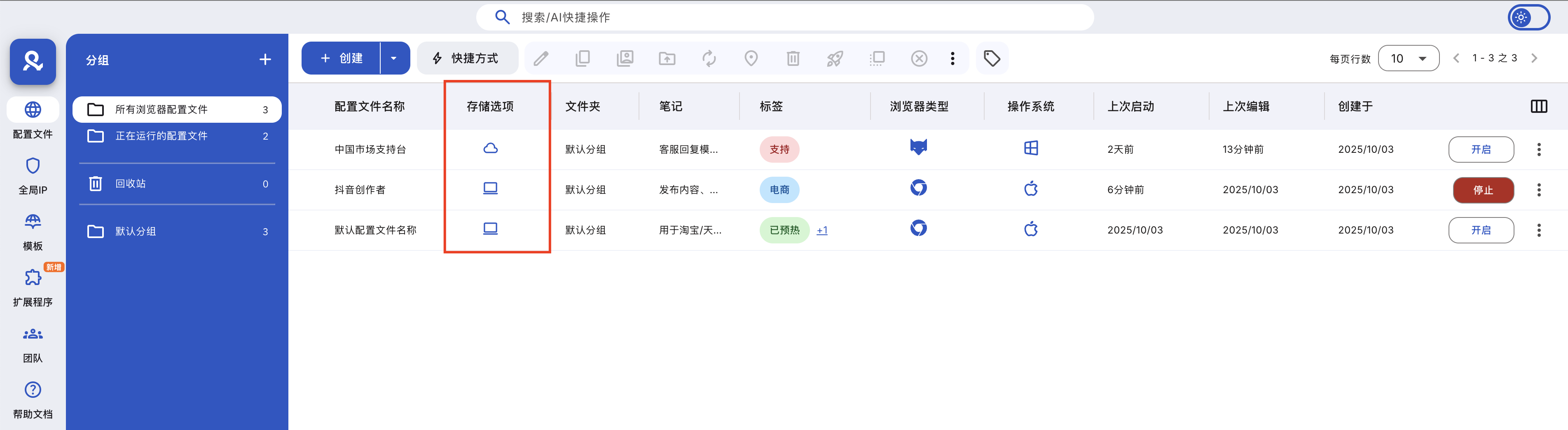
How to Permanently Delete Configuration Files
- Go to the 'Trash' section
- Select the profile using the checkbox
- Click 'Delete Profile' in the top menu
- Click 'Delete' in the pop-up window to confirm
This action is permanent. Once canceled, it cannot be undone.
How to Empty the Trash
- Go to the 'Trash' section
- Click 'Empty Trash' in the top menu
- Click 'Delete' in the pop-up window to confirm
This action is permanent. Once canceled, it cannot be undone.
Professional Tips
- Use the trash bin as a temporary storage space for inactive profiles
- Set up weekly cleanups to free up profile slots
- Be sure to check carefully before permanently deleting
Frequently Asked Questions
Do deleted profiles still count toward my plan?
Yes—empty the trash to free up space.
Can I restore the configuration files and all their data?
Absolutely! Everything will be perfectly intact after restoration.
Can I delete multiple configuration files at once?
Yes — use checkboxes and delete in bulk.
In this article
- What is a trash can used for
- Why is a trash can useful
- How to delete a configuration file
- How to restore a configuration file
- How to permanently delete a configuration file
- How to empty the trash can
- Professional tips
- Frequently Asked Questions
- Do deleted configuration files still count towards my plan?
- Can I recover a configuration file and all its data?
- Can I delete multiple configuration files at once?
Multilogin Community
Stay informed, share your thoughts, and interact with others!
Read more related content
Related Articles
- How to use profile folders in Multilogin
- How to find important files in Multilogin
- How to copy a profile ID in Multilogin
- How to manage running profiles in Multilogin
- How to quickly rename profiles in Multilogin
- How to use profile tags in Multilogin