- Home
- Solutions to Common Problems
- Frequently Asked Questions
- How to Fix Agent Connection Issues
How to Fix Agent Connection Issues
Author Yelena V (Updated on May 26, 2026)
Updated on May 26, 2026
Having trouble connecting to the Agent? Let's dive into all the troubleshooting steps together to get everything back on track.
Learn how to connect, disconnect, uninstall the global IP, and check its version in our Agent section.
Check System Requirements
System specs CN
Multilogin does not support the following older operating systems:
- macOS versions before Sonoma 14
- Versions before Windows 10
- Linux versions before Ubuntu 22
What to do:
Make sure your system meets the minimum requirements. You can quickly check the specific hardware and software requirements needed to run our program in the article "Can Multilogin run on your device?"
Sync System Timezone
Timezone CN
If you encounter problems when using certain features of Multilogin, such as profiles not working properly or information being mixed up, it may be because your computer's time zone is not correctly synchronized. Don't worry — here is the solution!
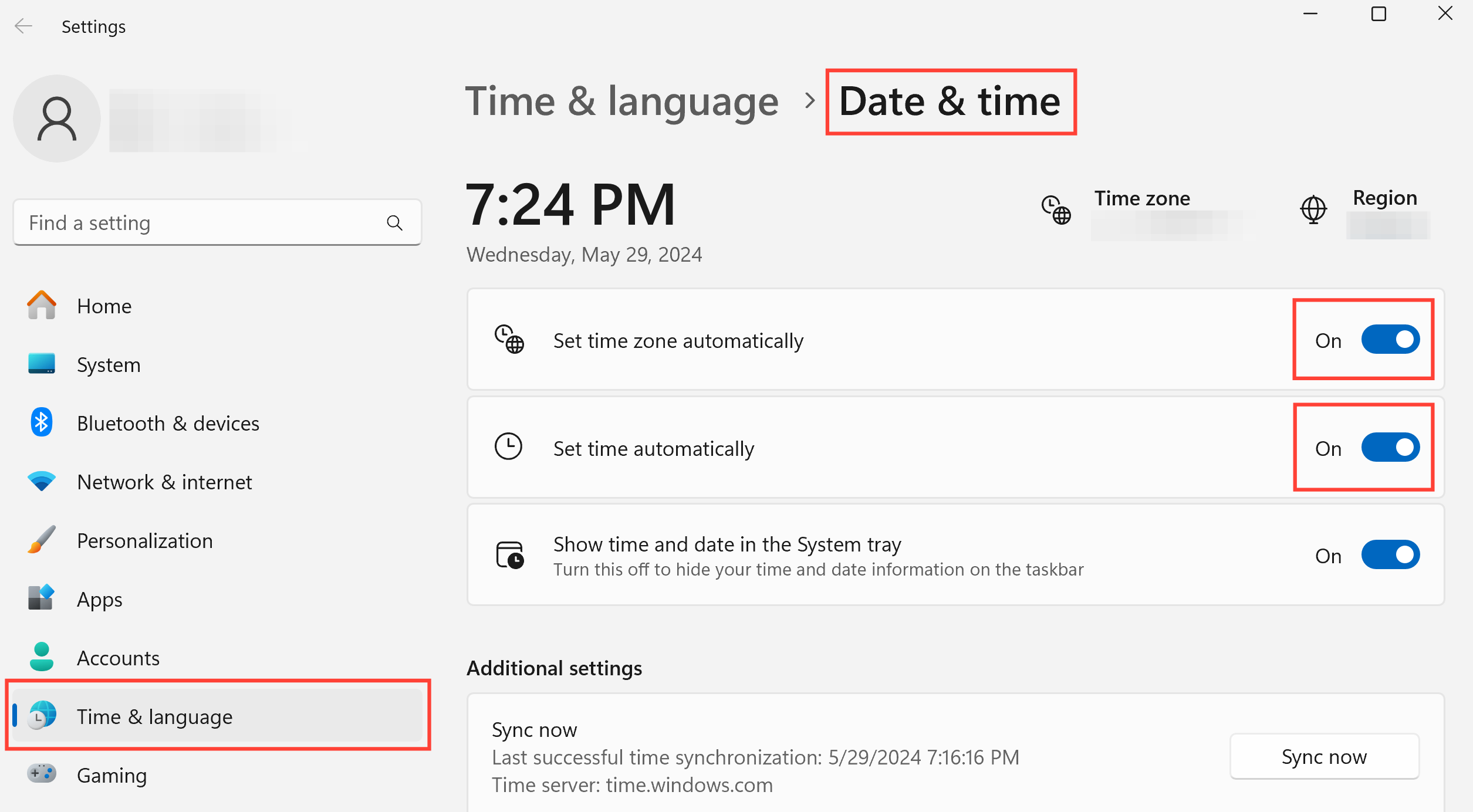
Windows
- Log out of your Multilogin account
- Click 'Start' → 'Settings' to enter Windows Settings
- Select the 'Time & Language' section → 'Date & Time'
- Enable the 'Set time zone automatically' and 'Set time automatically' settings, then click 'Sync now'
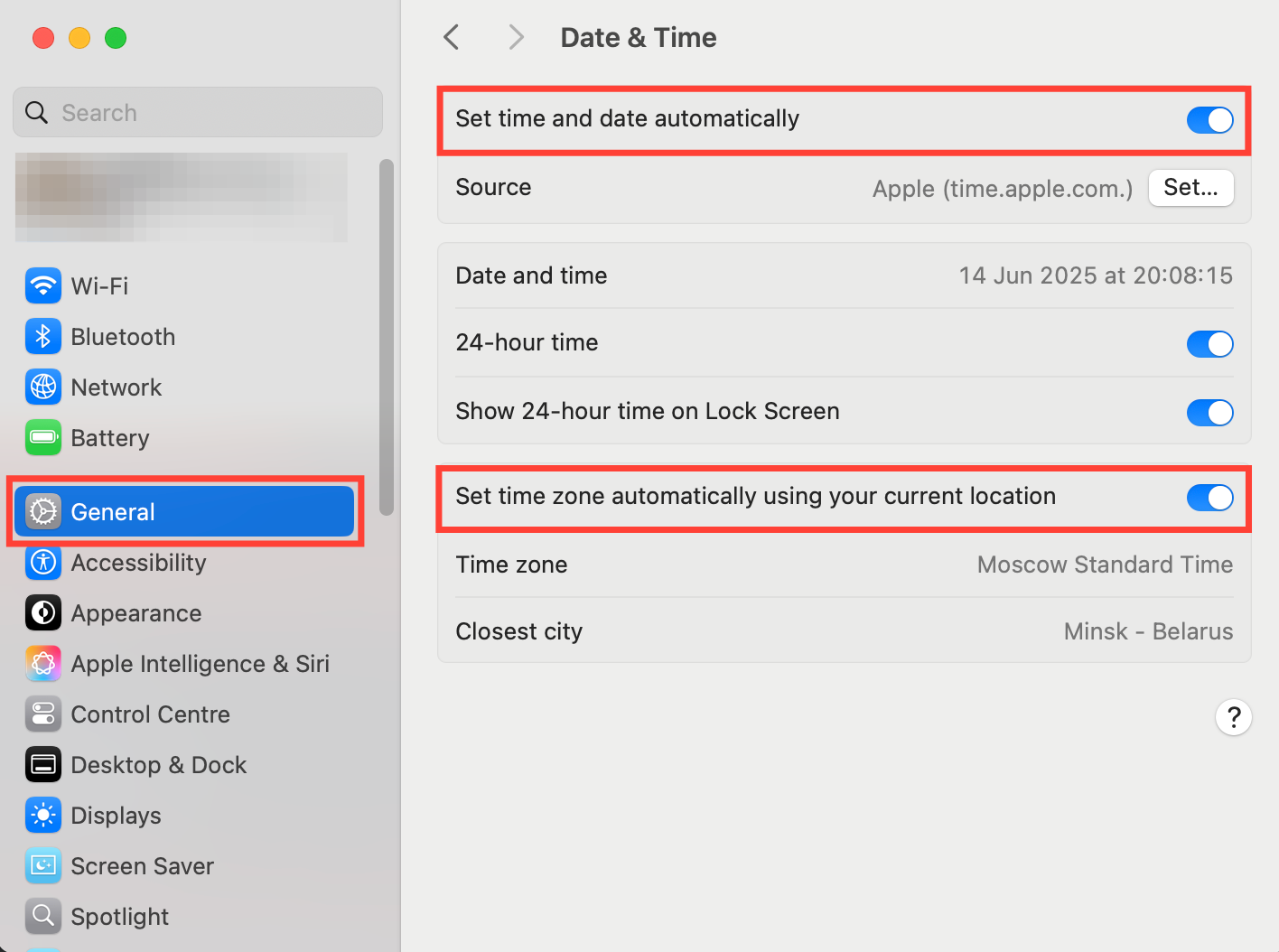
macOS
- Log out of your Multilogin account
- Go to 'System Settings' → 'General'
- Select the 'Date and Time' section
- Enable the 'Set time and date automatically' and 'Set time zone automatically using current location' options
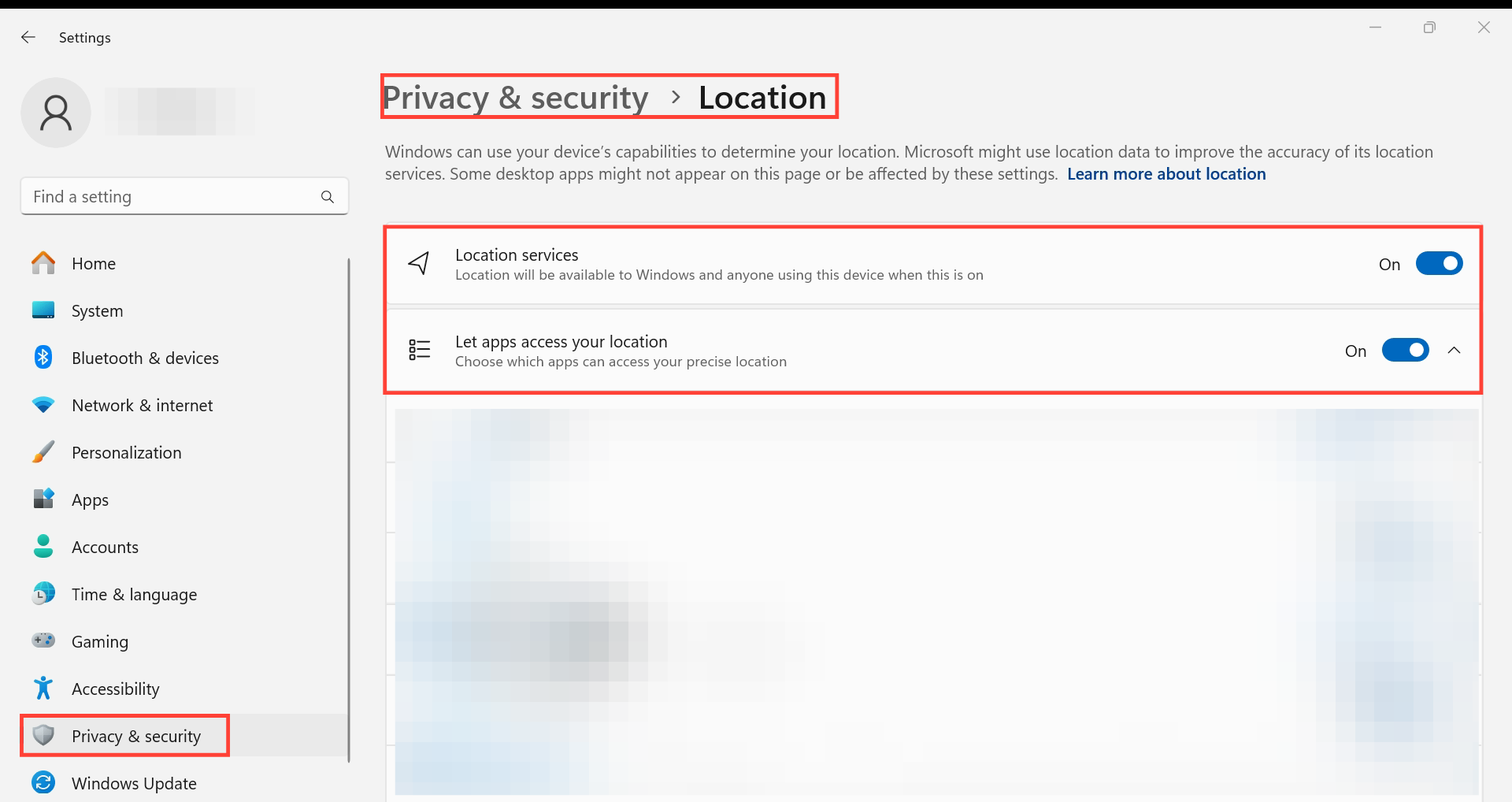
Unable to sync date or time because the 'Set time zone automatically' option is unavailable? Please go to your location settings and enable your original location information to activate this feature. Once done, the button will become available.
Windows
- Click 'Start' → 'Settings' to enter Windows Settings
- Select 'Privacy & Security' → 'Location'
- Enable the 'Location services' and 'Allow apps to access your location' options
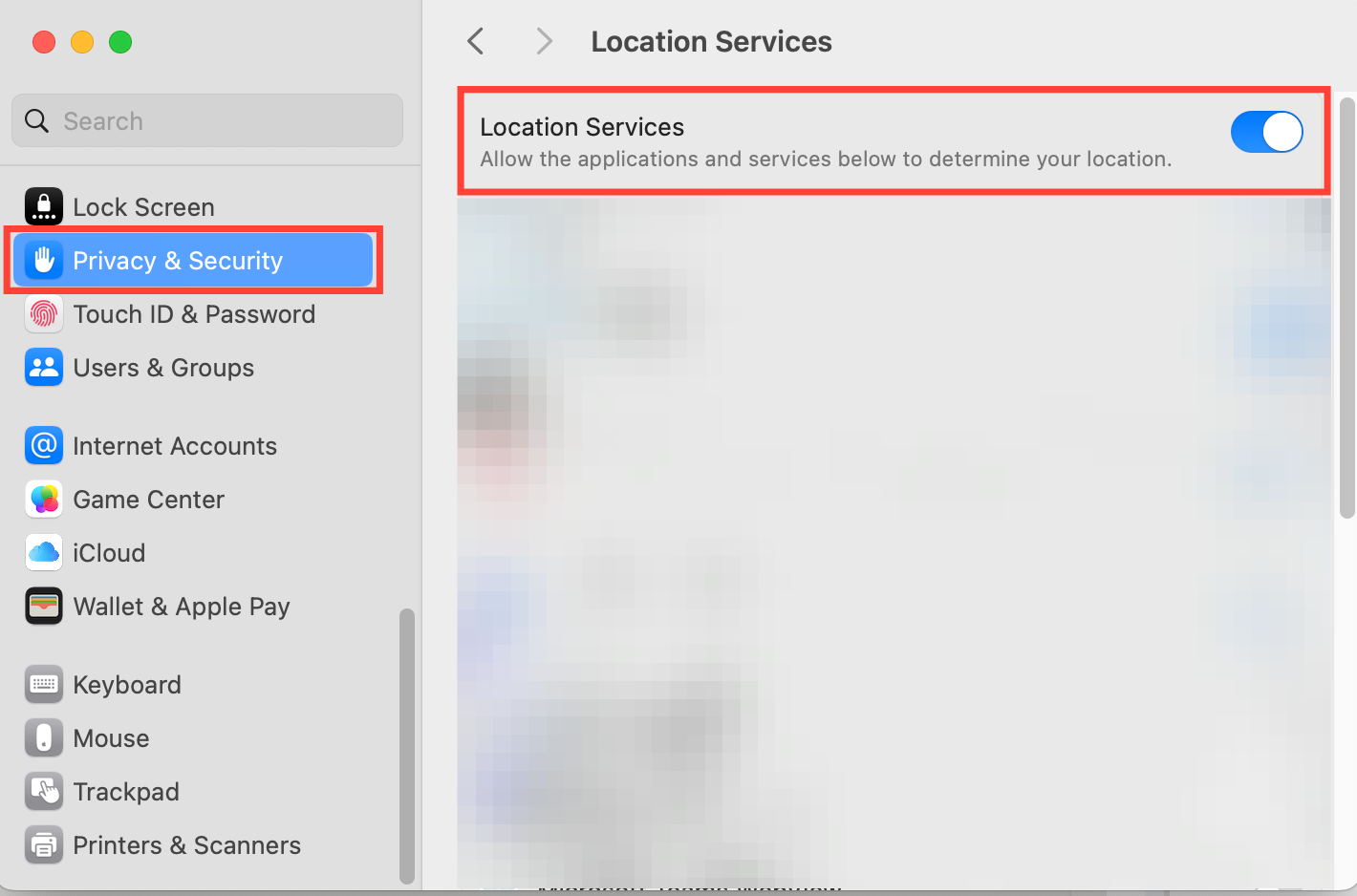
macOS
- Go to 'System Settings' → 'Privacy and Security'
- Turn on the 'Location Services' feature
Refresh Application Components
Deps CN
This operation is completely safe! It will refresh the components of the Multilogin program. No data will be lost during this process, so you can proceed with confidence! 😊
Please do not delete the mlx folder, as this may cause partial or complete data loss.
- Disconnect the agent app
- Go to the mlx folder:
Windows: C:Users%username%mlx
macOS: /Users/%username%/mlx
Linux: /home/%username%/mlx
- Windows: C:Users%username%mlx
C:Users%username%mlx
- macOS: /Users/%username%/mlx
/Users/%username%/mlx
- Linux: /home/%username%/mlx
/home/%username%/mlx
- Delete the deps folder
- Reconnect the agent app and wait for it to connect successfully
- Launch the profile – this will automatically start the component download process
Check Third-Party Applications
The Multilogin Agent has passed comprehensive certification and is safe and reliable. However, sometimes antivirus or firewall software may mistakenly flag such legitimate applications as threats, but we guarantee it is not malware.
How to fix:
- Disable or whitelist the Agent in your antivirus or firewall settings
- Turn off VPN or global IP tools (such as Proxifier and SocksEscort), as they may block Multilogin connections
For more information, please refer to the article 'How to fix Multilogin issues caused by antivirus software, VPNs, etc.'
Check ISP
ISP CN
Sometimes, Internet Service Providers (ISPs) may block the operation of the global IP in the profile or even the operation of the Multilogin software itself. Here are ways to test and solve this problem:
- Use a VPN: This can bypass ISP restrictions
- Switch networks: Use a different Wi-Fi, or use a mobile data hotspot
- Check your speed: If your current ISP speed is very slow, switching networks may also improve performance
If the problem is resolved through these steps, it is very likely caused by your ISP.
Check Browser
Still having problems? Try this:

- Switch browsers or use incognito mode: Connect through a different browser's global IP or open the current browser in incognito mode.
- Update your browser: If you can connect using another browser or incognito mode, update your original browser to the latest version.
- Check for interfering extensions: Review your browser extensions and disable any that might block or disrupt your network connection.
Stop Related Processes
Terminating processes related to the Agent is a good idea for the following reasons:
- Reset stuck processes: Sometimes the Agent or launcher can freeze or get stuck in a loop
- Fix resource conflicts: Running too many instances can cause crashes or slowdowns
- Resolve update issues: Old processes may interfere with recent updates or installations
- Clear malfunctions: Stopping processes clears memory and fixes temporary errors
Depending on your operating system, open Task Manager (Windows), Activity Monitor (macOS), or System Monitor (Linux), and then terminate the Agent and launcher processes.
Once stopped, you can restart Multilogin for a clean, error-free session!
Windows

macOS
Linux

Delete .lock File
.lock
.lock files are temporary files generated by applications to indicate that a file or resource is in use. You can delete them for the following reasons:
.lock
- Fix stuck applications: If an application crashes, leftover .lock files may trick the system into thinking the application is still running
.lock
- Prevent errors: These files may stop your application from starting or running properly
- Clear update issues: If an update or synchronization is interrupted, .lock files can block future attempts
.lock
Deleting .lock files is like pressing the reset button – it can clear the mess and get your application running smoothly again!
.lock

Windows
- Go to the mlx folder: C:Users%username%mlx
- Delete all .lock files
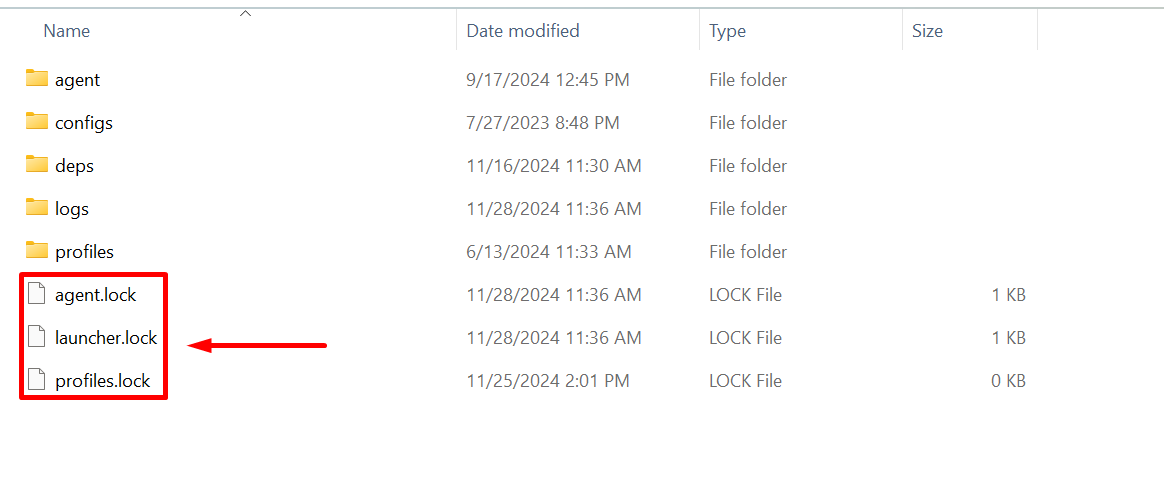
.lock
macOS
- Go to the mlx folder: /Users/%username%/mlx
/Users/%username%/mlx
- Delete all .lock files
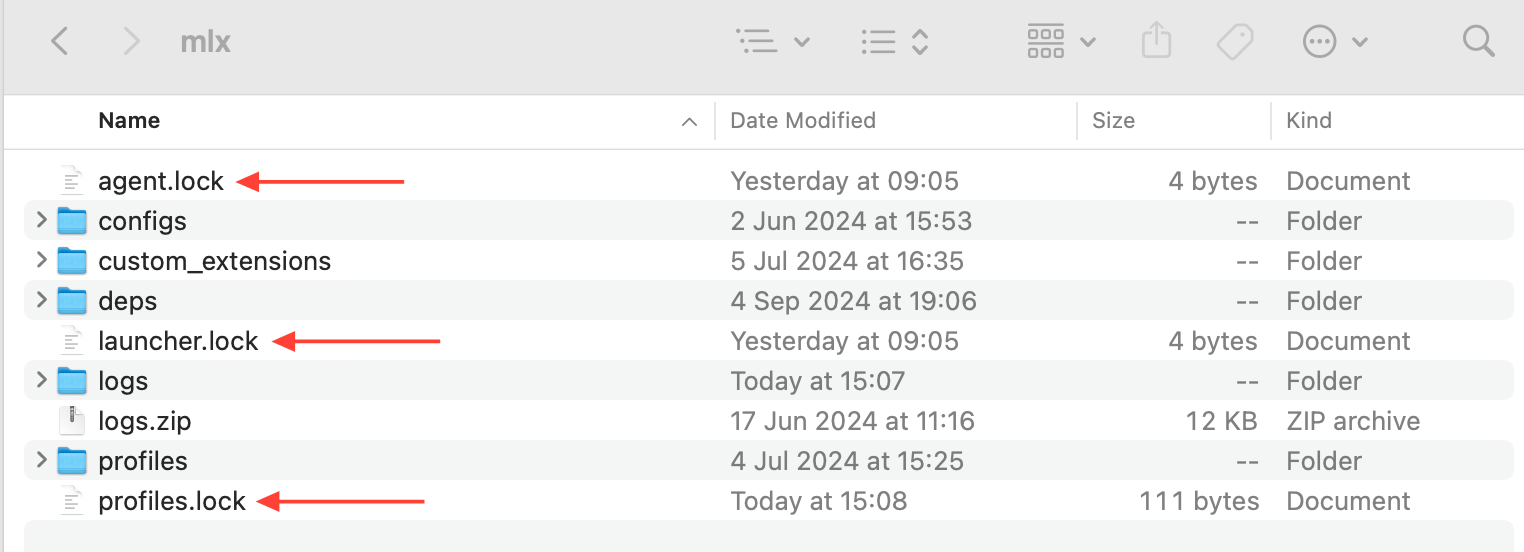
.lock
Check Local Network Access
If your agent cannot connect to the control panel, it may be because your browser or operating system is blocking access to the local network (127.0.0.1) — this is the internal route the agent uses for communication. Here are the solutions:

Browsers Based on the Chromium Engine
Chrome, Brave, Edge, Opera, Vivaldi, Arc
- Go to chrome://flags/#local-network-access-check
chrome://flags/#local-network-access-check
- Enable "Local Network Access Check"
- Restart the browser
Chrome, Brave, Edge, Opera, Vivaldi, Arc
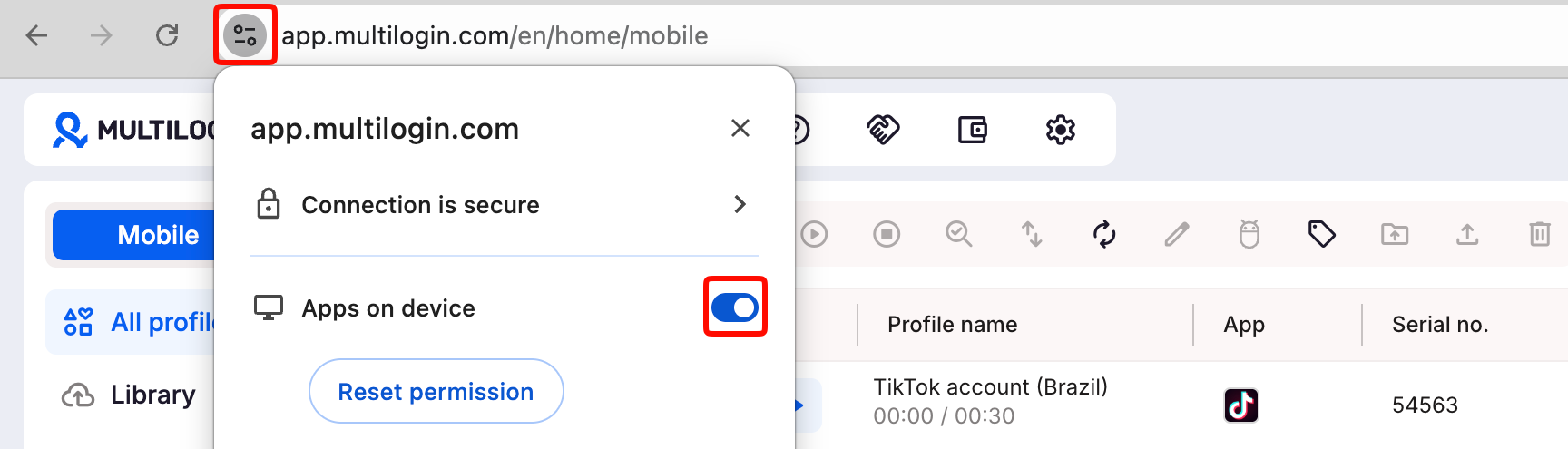
If your browser is based on Chromium version 142, please check the website permissions. Click the button on the left side of the address bar.
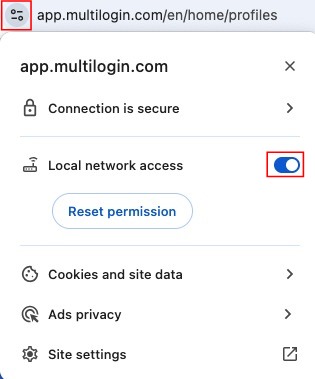
If your browser does not have these options, follow the instructions below:
- Go to chrome://flags/#local-network-access-check
chrome://flags/#local-network-access-check
- Enable "Local Network Access Check"
- Restart the browser
Firefox-based Browser
Firefox, LibreWolf, Zen Browser, Floorp, Waterfox
- Go to about:config
about:config
- Accept the warning
- Search for localnetwork, click " ", and set it to true
localnetwork
true
macOS
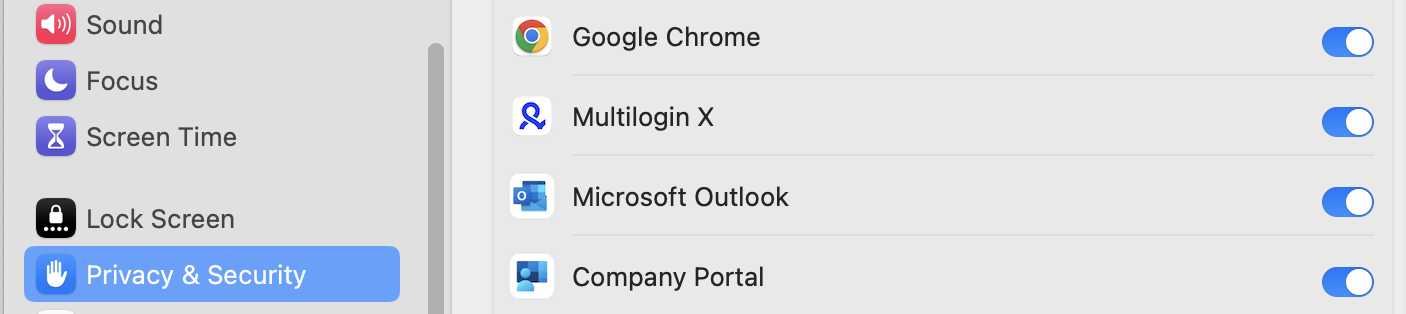
It is recommended to first check the steps for 'Chromium-based browsers' and 'Firefox-based browsers' (depending on the browser you are using).
- Go to 'Settings' → 'Privacy and Security' → 'Local Network'
- Enable access permissions for the browser and agent (Multilogin)
- Restart them
Enable apps on the device
Chrome might request additional permissions first, and only then can the console connect to the Agent. This permission is called 'Apps on your device.' It allows app.multilogin.com to communicate with apps running on your device, including the Multilogin Agent. If the permission is blocked, the Agent may not be able to connect.
app.multilogin.com
The enabling method is as follows:
- Open Multilogin in Chrome
- Click the icon to the left of the address bar
- Click 'Site Settings'
- Find 'Apps on your device'
- Set it to 'Allow'
- Refresh the Multilogin console
- Try connecting to the Agent again
Now, Chrome can communicate with the Agent.
Check Ports
Busy ports might be the culprit. The reasons are as follows:

- Port already in use: Another process (or another global IP instance) may be using the intended port.
- Port conflict: If the default port (45000) is occupied, the global IP will try the next available port.
What to do:
Make sure there are no conflicts starting from port 45000, so the Agent can run without issues!
Windows
- Open Command Prompt (press Win + R, type cmd, and then press Enter)
Win + R
cmd
Enter
- Run the command
netstat -ano | findstr :45000
netstat -ano | findstr :45000

- Identify the PID (Process ID) associated with the process running on port 45000.
If this command returns no process, it means the port is not in use, and the issue is caused by another reason. Please move to the next step.
- To terminate a process, run the command
taskkill /F /PID {PID of the process}.
taskkill /F /PID {PID of the process}
Make sure to replace {PID of the process} with the actual PID you obtained in step 3. Repeat these steps for ports 45001, 45002, etc., if necessary.
macOS and Linux
- Open the terminal
macOS: Press Command + Space, type "Terminal," then press Enter
Linux: Press Ctrl + Alt + T
- macOS: Press Command + Space, type "Terminal," then press Enter
Command + Space
- Linux: Press Ctrl + Alt + T
Ctrl + Alt + T
- Run the command
lsof -i :45000
lsof -i :45000
- Find the PID (Process ID) related to the process you want to terminate.
If this command does not return any process, it means the port is not in use, and the issue is caused by another reason. Skip to the next step.
- To terminate the process, run the command
kill -9 {PID of the process}
kill -9 {PID of the process}
Make sure to replace "{PID of the process}" with the actual PID you obtained in step 3. If necessary, repeat these steps for ports 45001, 45002, etc.
Restart Device
Sometimes, restarting can be very effective. If the above steps do not work, try quickly restarting the device and then perform the Agent connection steps again.
Not much help?
If the problem persists, please send us your log files, and we will investigate further for you.
Logs CN
- Reproduce the issue or wait for the error message to appear
- You can find your log files in the logs folder at these locations:
Windows: C:Users%username%mlx
macOS: /Users/%username%/mlx
Linux: /home/%username%/mlx
- Windows: C:Users%username%mlx
C:Users%username%mlx
- macOS: /Users/%username%/mlx
/Users/%username%/mlx
- Linux: /home/%username%/mlx
/home/%username%/mlx
- Send an email to support@multilogin.org and provide the following information: include a clear description of the problem and attach the log files
- Clear description of the problem
- Attach the log files
In this article
- Check system requirements
- Refresh application components
- Check third-party applications
- Check ISP
- Check browser
- Stop related processes
- Delete .lock files
- Check local network access
- Enable apps on the device
- Check ports
- Restart device
- Nothing helps?
Multilogin Community
Stay informed, share your thoughts, and interact with others!
Read more related content
Related Articles
- How to fix the issue of lost configuration file data
- How to fix the startup problem of Multilogin
- My application or configuration file runs slowly: how to resolve performance issues
- How to fix problems encountered when running Multilogin on macOS
- How to fix configuration file startup and global IP connection issues
- Account banned: what should I do?