- Home
- Solutions to Frequently Asked Questions
- Frequently Asked Questions
- Why isn't cookie import working?
Why isn't cookie import working?
Author Yelena V (Updated on March 16, 2026)
Updated on March 16, 2026
Having trouble importing cookies? Don't worry – here are the most common issues, why they happen, and how to fix them!
Question 1: Error 'The file cookie must be in JSON or Netscape format. Please try again.'
The reason this error occurs is that the formatter does not support nested JSON values, such as
"partitionKey":{"topLevelSite":"https://google.com"}
The fix is as follows:
Remove all occurrences of the "partitionKey" block from the JSON file, as shown in the screenshot below, then save and try importing the file again.
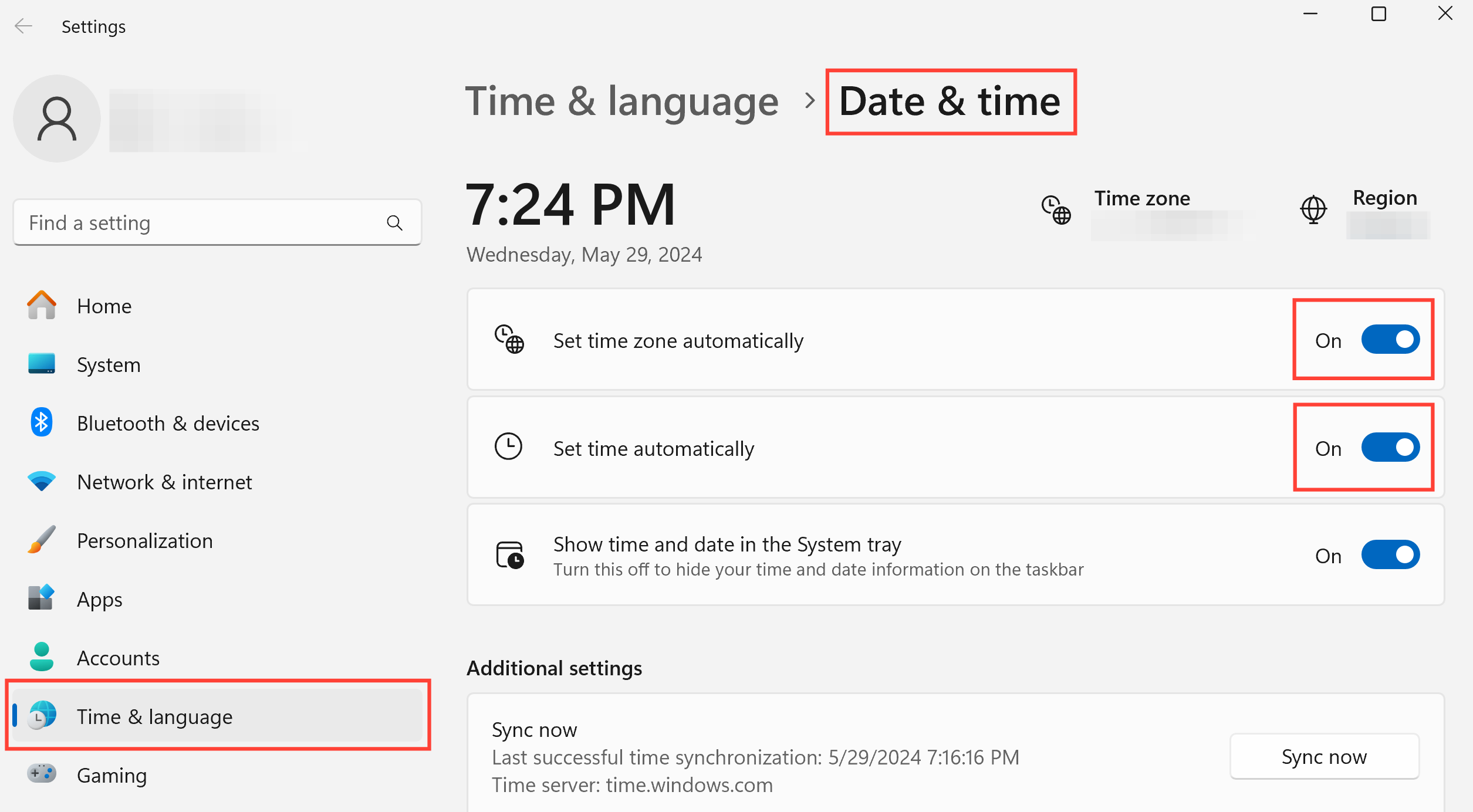
"partitionKey"
Question 2: Only some cookies were imported successfully
When importing cookies, only some cookies can be successfully imported — annoying, right? This is usually because some cookies are incorrectly formatted or there are minor issues during the import process.
Here’s how to fix it:
- Find the missing cookies: see which cookies failed to import
- Retry import: only re-import the missing cookies to save time
Here’s how to view cookies in your browser:
- For Mimic, paste chrome://settings/content/all into the browser address bar
chrome://settings/content/all
- For Stealthfox, paste about:preferences#privacy into the browser address bar, then on the opened page select “Cookies” → “Manage Data”
about:preferences#privacy
Question 3: Cookie Import Freezes or Fails
If the process freezes, or you see the "Unable to import Cookie" error, don't panic! This can happen if your Windows username contains non-Latin characters (such as Cyrillic) or if the Cookie file format is not supported.
The fixes are as follows:
- Try pasting manually: copy the Cookie as plain text and then paste it directly into the Cookie import window
- Check your username (Windows only): make sure it uses only Latin characters (for example, no special characters or Cyrillic letters)
If your Windows username contains non-Latin characters or spaces, rename the current user account or create a new account. Use the guide to check your Windows username.
Still not working?
Still unable to import cookies? Please contact our support team to find out the cause of the problem.
- Reproduce the issue or wait for the error message to appear
- You can find your log files in the logs folder at these locations:
Windows: C:Users%username%mlx
macOS: /Users/%username%/mlx
Linux: /home/%username%/mlx
- Windows: C:Users%username%mlx
C:Users%username%mlx
- macOS: /Users/%username%/mlx
/Users/%username%/mlx
- Linux: /home/%username%/mlx
/home/%username%/mlx
- Send an email to support@multilogin.org and provide the following information: a clear description of the issue and attach the log files as attachments
- A clear description of the issue
- Attach the log files
In this article
- Question 1: Error 'The cookie file must be in JSON or Netscape format. Please try again.'
- Question 2: Only some cookies were successfully imported
- Question 3: Cookie import freezes or fails
- Still not working?
Multilogin Community
Stay informed, share your thoughts, and interact with others!
Read more related content
Related Articles
- How to enable the webcam in a Multilogin profile
- How to fix the issue of StealthFox window being too small on Windows
- How to fix website loading issues in Multilogin