- Home
- Solutions to Common Problems
- Frequently Asked Questions
- How to Fix Inconsistent Profile Fingerprints
How to Fix the Problem of Configuration File Fingerprint Inconsistency
Author Chloe P (Updated on March 16, 2026) Updated on March 16, 2026
How to Check Configuration File Fingerprint
Check fingerprint CN
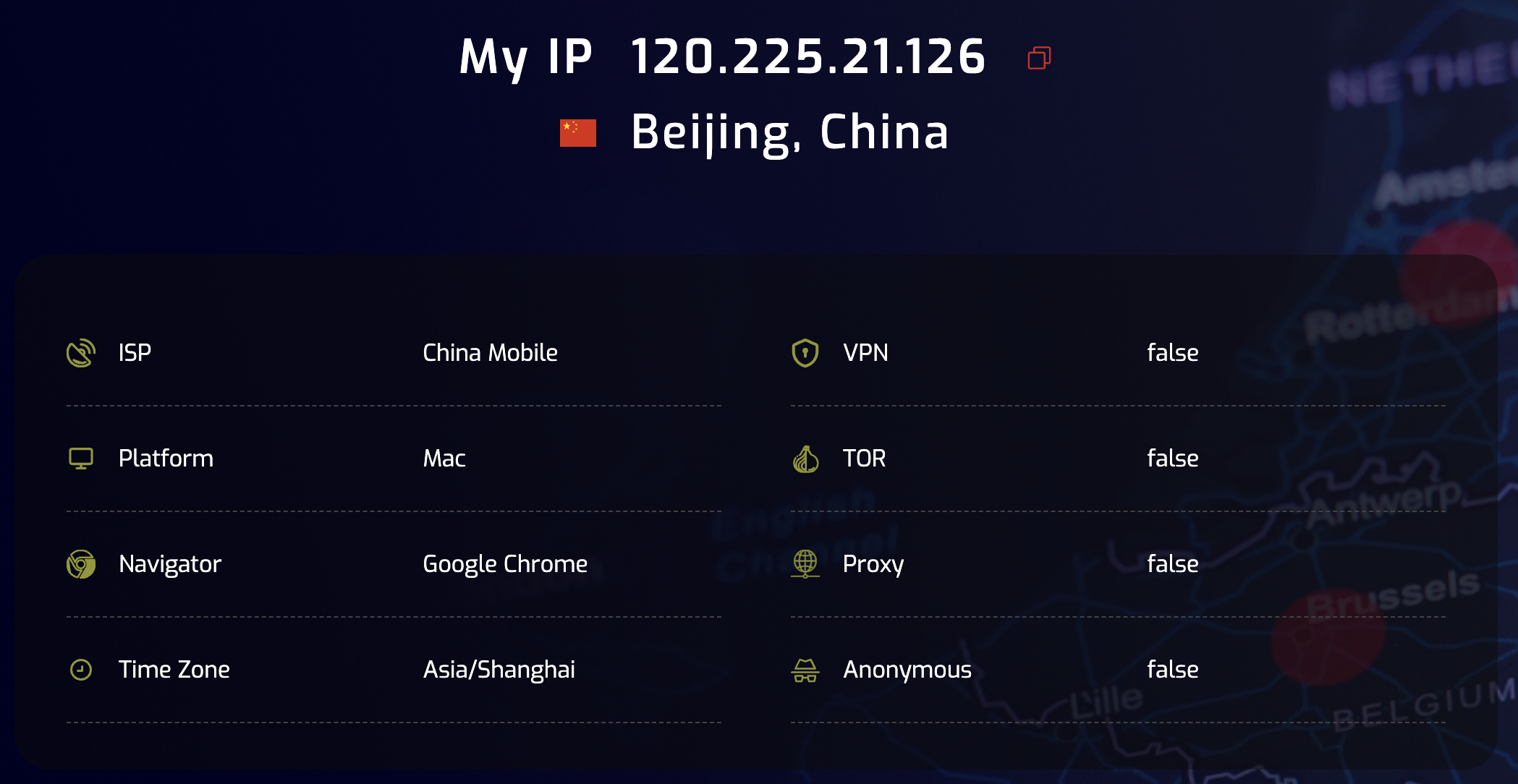
Ready to check if your profile fingerprint is secure? Checking your fingerprint is very simple, so let's get started right away!
Use these tools to check your browser fingerprint:
- Whoer IP: Check your IP address and make sure it matches your expected location (default Multilogin checker)
- MaxMind: Used to get the most accurate IP geolocation details
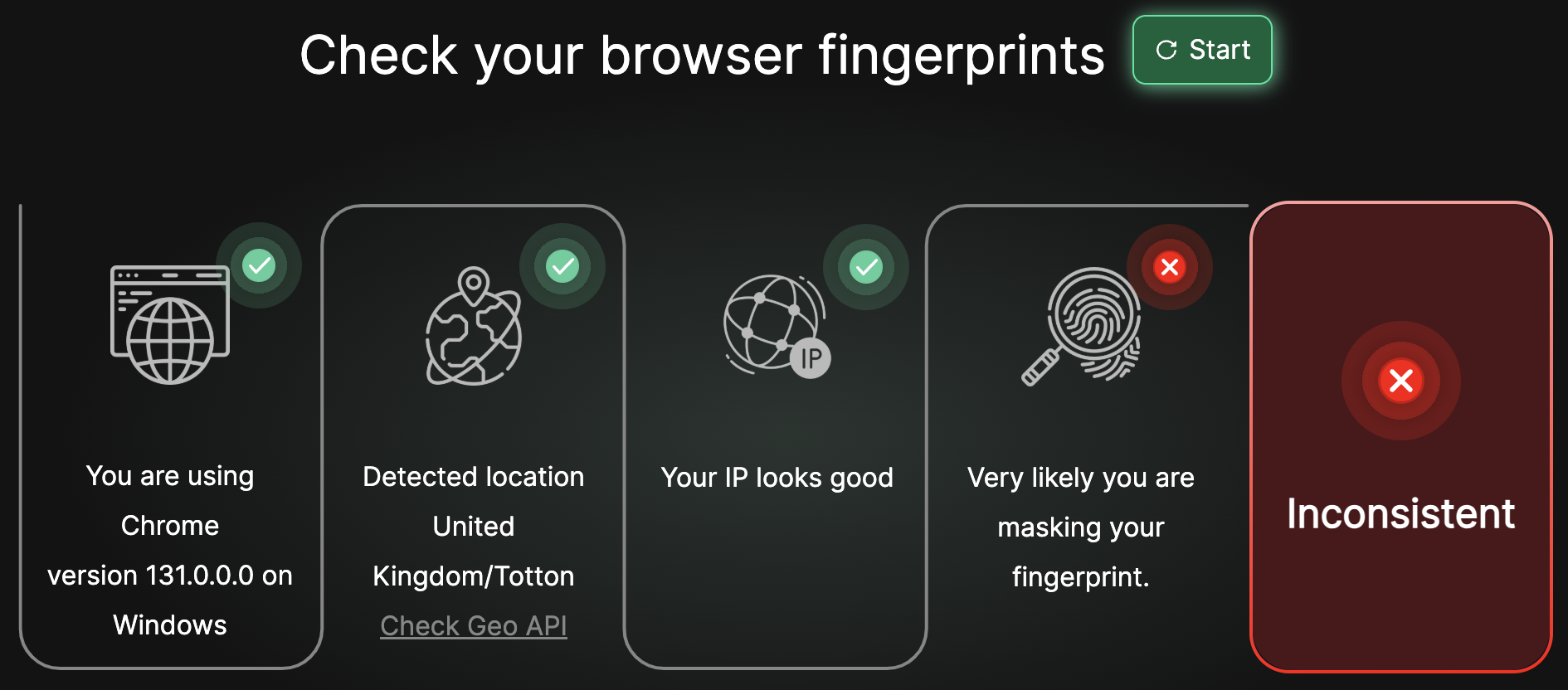
- Pixelscan: Get detailed information about your browser fingerprint
- BrowserLeaks: Detect any fingerprint inconsistencies that might expose your real identity
Can websites see that I visited the 'Whoer IP' page or other checkers?
No. If you’re concerned that a website could read its cookies and detect that you are a Multilogin user, we have good news for you!
Websites can only access cookies associated with their own domain. In other words, Multilogin cookies are only visible to Multilogin, while Facebook only recognizes its own cookies. This principle is called the "Same-Origin Policy" (SOP), a foundational concept dating back to the earliest web browsers.
Here’s how to check your fingerprint:
- Open your Multilogin profile
- Test your fingerprint using any of the tools mentioned above
- Look for inconsistencies in your IP address, browser version, or operating system
- Adjust settings in Multilogin to fix any mismatches
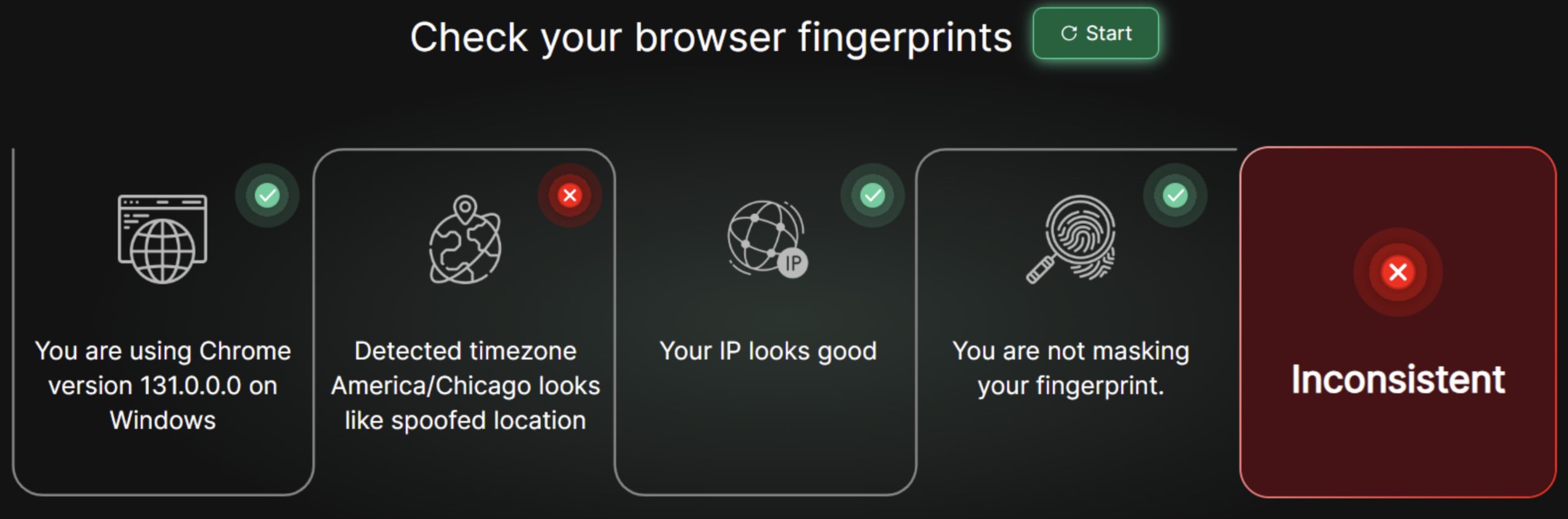
How to Handle Fingerprint Warnings
Fingerprint warning? Don't worry—it just indicates that there might be an issue with your settings. Investigating and fixing them is easier than you think.
Hardware Warning
This occurs when your actual operating system (OS) does not match your profile settings.
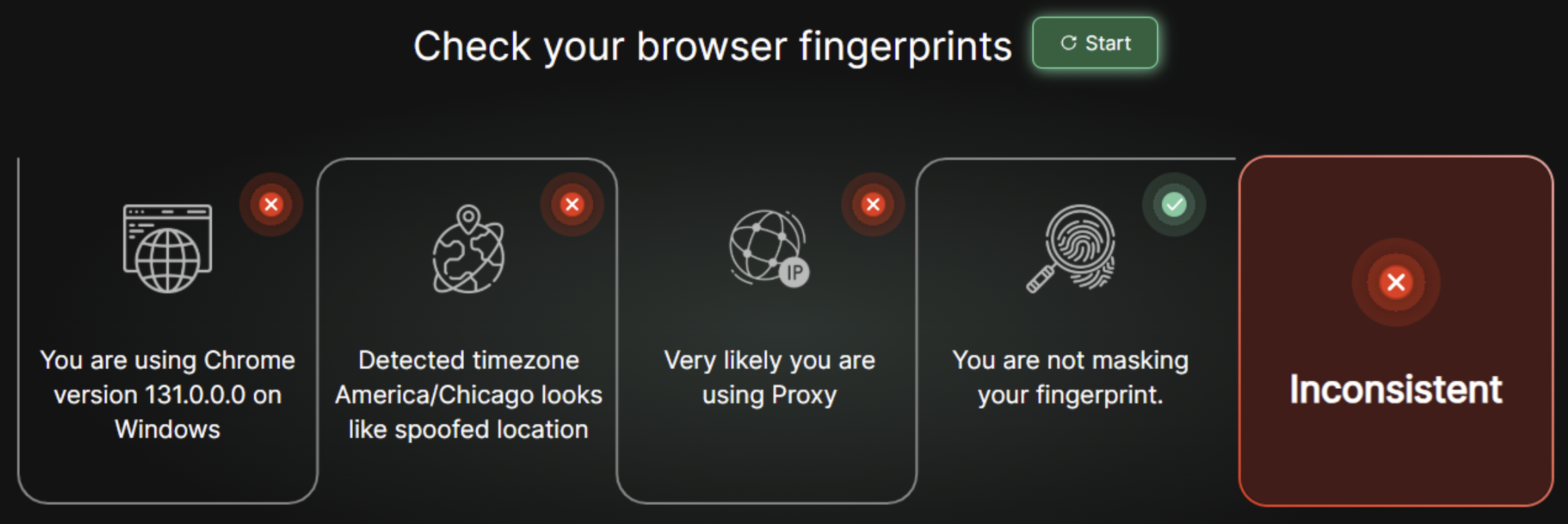
- For optimal stealth: Use your native operating system in the fingerprint settings (for example, if your native operating system is Windows, select Windows as your profile OS)
- Optional mix: If your fingerprint OS does not match your real OS, the reliability of the fingerprint will be reduced
Location and IP Warning
These are usually caused by global IP issues.
- Quick fix: Use a top-tier residential or mobile global IP to completely mask your location (we recommend using our built-in solution – Multilogin Global IP)
- Pro tip: Avoid using free or low-quality global IPs—they will only cause more problems

Browser Version Warning
Using outdated browser versions may make you look out of place (not a good thing), and it can even lead to certain website accounts being suspended.
- Keep it updated: Always use the latest browser core version
- Check your User-Agent: Ensure it matches the latest browser version and your emulated operating system
Customizing your User-Agent in the “Navigator” section? Cool, but be careful. Mismatches between the browser version and the emulated operating system may trigger warnings. Only adjust these settings if you know how to use fingerprinting.
Following these steps can improve your security and help you avoid unnecessary warnings.
In this article
- How to check the configuration file fingerprint
- How to handle fingerprint warnings
- Hardware warnings
- Location and IP warnings
- Browser version warnings
Multilogin Community
Stay informed, share your thoughts, and interact with others!
Read more related content
Related Articles
- How to fix profile data loss issues
- How to fix Multilogin startup issues
- My application or profile is running slowly: how to resolve performance issues
- How to fix issues when running Multilogin on macOS
- How to fix Agent connection issues
- How to fix profile startup and global IP connection issues