- Home
- Main Features
- Profile Organization and Sorting
- How to Manage Running Profiles in Multilogin
How to Manage Running Profiles in Multilogin
Author Yelena V (Updated on June 11, 2026)
Updated on June 11, 2026
Who can use this feature?
- 👨💻 Account owners, administrators, and operators
- 💰 Available for all plans
Purpose of the Running Profile
Running configuration files—whether regular configuration files or quick configuration files—is the key to your work. Multilogin now allows you to easily view and manage all active configuration files in one place.
Why the Running Configuration is Useful
- Complete control: View all running profiles in one place to avoid confusion
- Increased efficiency: Stop or save multiple profiles with just a few clicks
- No data loss: Allows you to save quick profiles to retain session information for future use
- Better organization: Filter and sort profiles to focus on what you need right now
How to View the Overview of Running Profiles
- Go to the 'Profiles' tab
- Click 'Run Profile'
- View the complete list of currently running profiles (General and Quick)
- Use the selector at the top to filter by General or Quick profiles
How to Control the Configuration File Window State
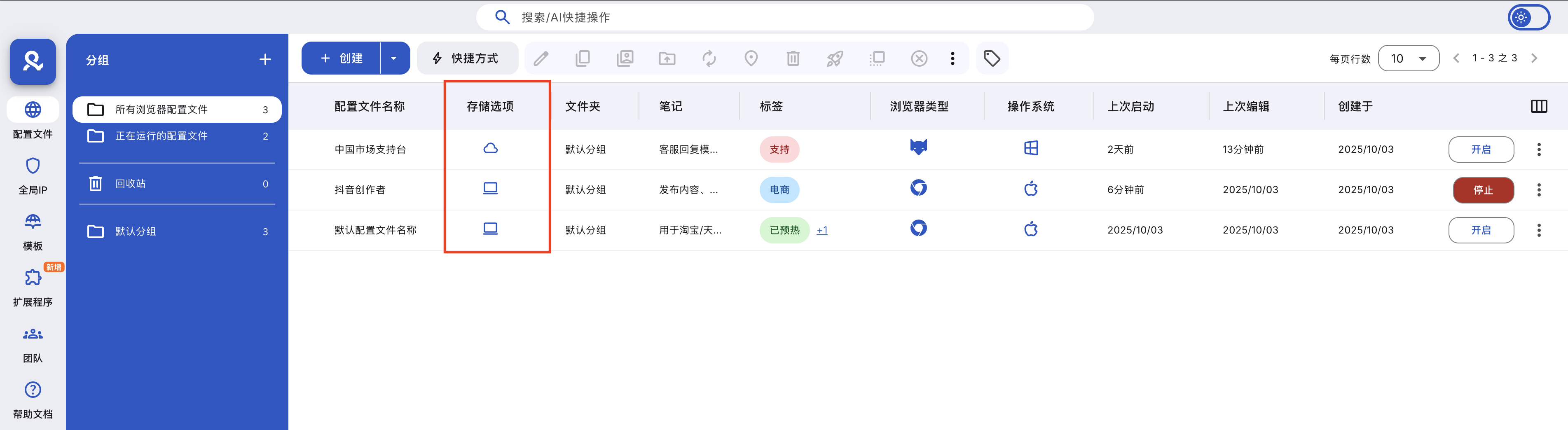
- Go to the 'Profiles' tab
- Click on 'Running Profiles'
- Right-click a profile and select 'Window State'
- Choose one of the following options: 'Bring to Front', 'Minimize', 'Maximize'
How to Stop Running a Configuration File
- Go to the 'Profiles' tab
- Click 'Run Profile'
- Stop a profile: Click the 'Stop' button to the right of any running profile to close it. Select multiple profiles using checkboxes, then click 'Stop' in the top menu to close all profiles at once.
- Click the 'Stop' button to the right of any running profile to close it.
- Select multiple profiles using checkboxes, then click 'Stop' in the top menu to close all profiles at once.
How to Copy Configuration File ID
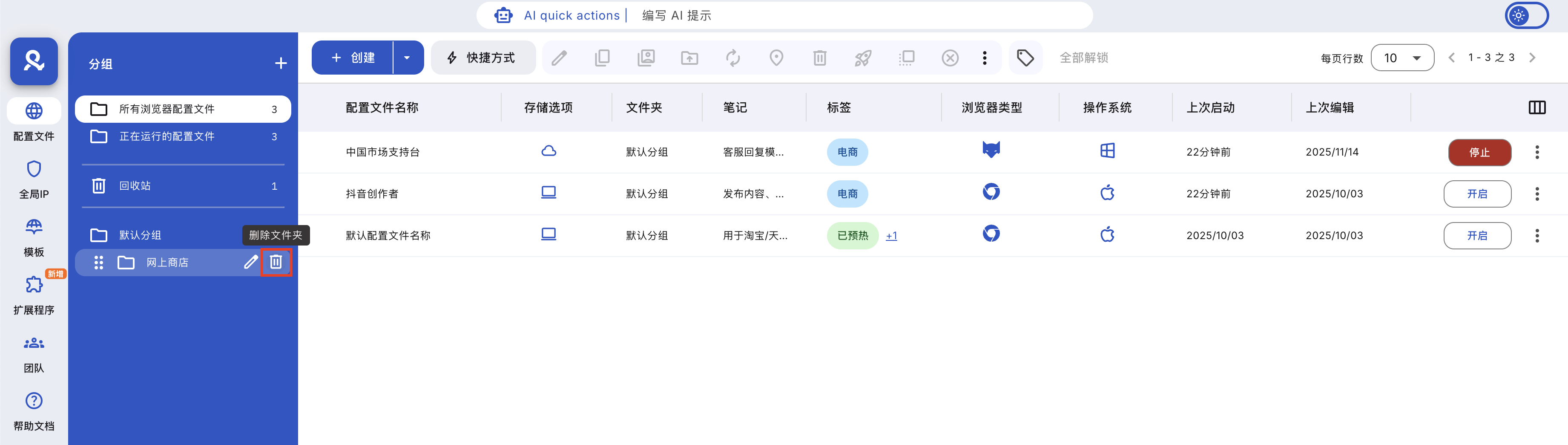
- Go to the 'Profiles' tab
- Click 'Run Profile'
- Copy Profile ID: Right-click the running profile and select 'Copy Profile ID'. Use the checkboxes to select multiple profiles, then click 'Copy Profile ID' in the top menu.
- Right-click the running profile and select 'Copy Profile ID'
- Use the checkboxes to select multiple profiles, then click 'Copy Profile ID' in the top menu
The list of IDs will be copied to your clipboard, separated by commas.
How to Save a Quick Profile as a Regular Profile
Quick profiles are temporary and will be deleted when stopped – but now you can save them:
- Go to the "Profiles" tab
- Click "Run Profile"
- Save the quick profile as usual: right-click the running quick profile, then click "Save as Regular Profile". Use the checkbox to select the running quick profile, then click "Save as Regular Profile" in the top menu.
- Right-click the running quick profile, then click "Save as Regular Profile"
- Use the checkbox to select the running quick profile, then click "Save as Regular Profile" in the top menu
Saved profiles are moved to local storage by default – you can switch to cloud storage later in the profile settings.
Frequently Asked Questions
What happens to the quick profile if I stop without saving?
It will be deleted along with all data. Saving it first will preserve the session and local storage.
Can I save multiple quick profiles as regular profiles at once?
Sure! Just check the checkbox, and then use the 'Save as Default Profile' option.
Where are the saved configuration files stored?
By default, saved profiles are transferred to the local storage on your computer, but you can switch to cloud storage anytime in the profile settings.
Can I copy the IDs of multiple running profiles?
Of course! Use the checkboxes to select the profiles, and then click 'Copy Profile ID' to get all the IDs at once.
In this article
- Purpose of the running profile
- Why the running profile is useful
- How to view an overview of the running profile
- How to control the profile window state
- How to stop the running profile
- How to copy the profile ID
- How to save a Quick Profile as a regular profile
- Frequently Asked Questions
- What happens if I stop a Quick Profile without saving?
- Can I save multiple Quick Profiles as regular profiles at once?
- Where are saved profiles stored?
- Can I copy the IDs of multiple running profiles?
Multilogin Community
Stay informed, share your thoughts, and interact with others!
Read more related content
Related Articles
- How to use profile folders in Multilogin
- How to find important files in Multilogin
- How to use the profile trash in Multilogin
- How to copy profile IDs in Multilogin
- How to quickly rename profiles in Multilogin
- How to use profile tags in Multilogin