- Home
- Main Features
- Configure Behavior and Identity
- Browser Profile Settings: Fingerprint Configuration
Browser Profile Settings: Fingerprint Configuration
Author Chloe P (Updated on June 11, 2026)
Updated on June 11, 2026
Who can use this feature?
- 👨💻 Account owners, managers, and operators
- 💰 Available for all subscription plans
Fingerprint settings allow you to gain deeper insight into how your browser profile behaves, such as screen resolution, media devices, graphic data, and more. These settings affect your browser fingerprint and can help you better blend in with your browser or fully customize your profile according to your needs.
Note: Unless you truly understand what you are doing, we do not recommend changing these settings. Our system has generated secure and optimized default settings to ensure your profile is safe, reliable, and runs smoothly.
If you are ready to take full control, switch to the "Fingerprint" section in your profile and carefully explore these advanced options. A simple guide below provides the function of each setting and how to use them reasonably.
WebRTC
WebRTC is a browser plugin that allows web applications to connect quickly and directly. However, because WebRTC uses the UDP protocol, it will bypass the global IP set in your configuration file. Even if you use a global IP, this may still allow websites to obtain your actual public local IP address and media devices.
Camouflage Mode
In this mode, the system aligns public and local IPs with your global IP. It works as follows: when you start the profile, it first connects to our server. We detect the actual external IP, report it back to us, and set it as the WebRTC IP. If your global IP changes during the session, we will adjust promptly to ensure everything stays in sync.
Custom
Selecting this option allows you to manually set the desired WebRTC IP – it should usually match the IP of your global IP.
Real Mode
In this mode, websites will see your real WebRTC IP. This feature is useful if you are using a VPN or a 4G/5G connection (rather than a global IP).
Disabled Mode
The website will not be able to read your WebRTC parameters because they will consider the WebRTC plugin to be disabled.
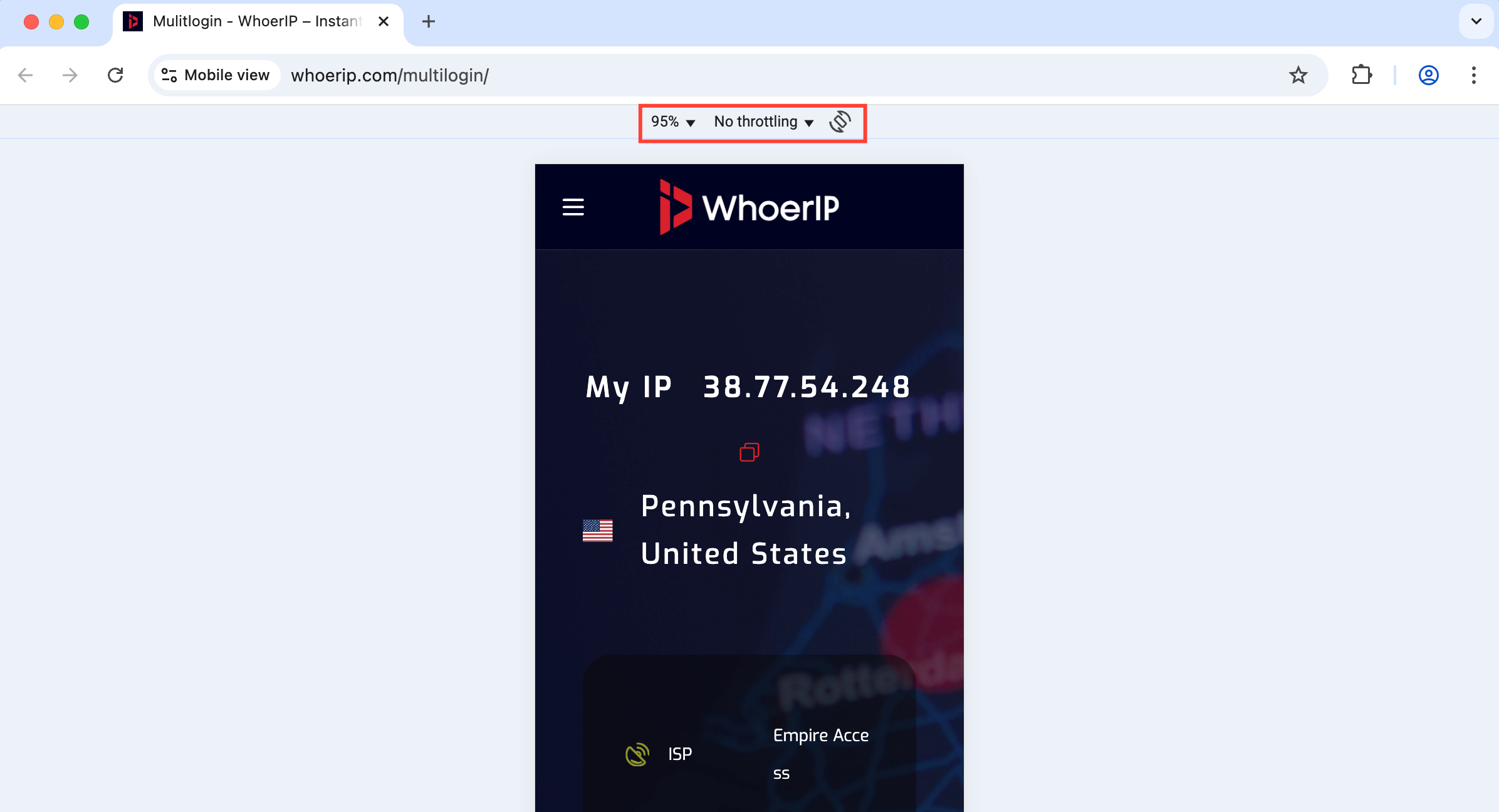
Time Zone
Websites can detect your time zone in two ways:
- By running your IP through the IP2Geo database
- By using a JavaScript script to check your computer's locale through the browser
Then, the system will compare these results. If they do not match, it may mean that the global IP server you are using is in a different time zone from your computer. In Multilogin, you can use the following settings to ensure these results are consistent.
Camouflage Mode
If you want your profile's time zone to automatically match your global IP, just stick with the default option 'Masked'.
Custom
Selecting this option allows you to manually choose the desired time zone from the drop-down list.
Real Mode
If you need the website to view your actual time zone, please set it to 'Real' — your system time zone will be displayed.
Geographic Location
Browsers can allow websites to use an API to find your geographic location.
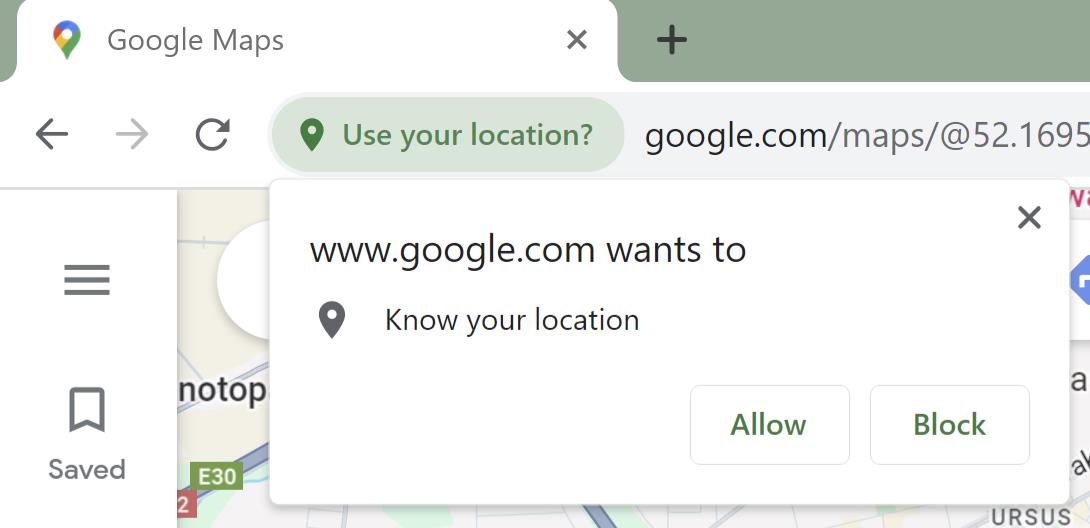
The process is as follows: when a website calls this API, the browser will prompt you to accept or deny the request and remember your choice.
Since the location associated with an IP address may change, the browser uses reliable tools to obtain updated information—Google Maps API. They may send data points such as your IP address and available Wi-Fi networks to Google and receive the returned coordinates.
Geolocation Access
This selector controls the behavior of the pop-up that asks whether you want to share your location. Sharing information with websites can enhance trust. It should be noted that a website may capture your location information on a certain page (for example, a map) and then cross-check it with other location clues (such as your IP address) on other pages or even on different domains.
Prompt Mode
Whenever a website asks for your location information, the browser will pop up a window asking you to confirm whether you want to disclose this information. Here, you can choose to allow or block access. This is the default setting for most browsers, allowing you to have control over everything.
Allowed Mode
Your geographic location will be automatically shared with any website that requests it.
Blocked
All websites will automatically deny access to your location.
Geographical Location Data
Camouflage Mode
In this mode, the system will align the coordinates with your global IP parameters. It works as follows: when you launch the profile, it first connects to our server. We detect the actual external IP and retrieve geographic location information from the updated IP2Geo database. To add some variation, we apply a small random offset. Then, this adjusted geographic information is shared with the websites you are authorized for. It's that simple!
Custom
Generally speaking, we do not recommend manually setting the geographic location parameters, as this may cause a mismatch between the location and IP data. However, in certain cases, this option can still be useful. Enter your coordinates in the "Latitude" and "Longitude" fields. The "Accuracy" field tells the website the precision of these coordinates, in meters.
Browser Language
This attribute helps websites recognize your preferences and adjust their content language (if available). The browser interface language is the same as your operating system language. To change the browser interface language, first change the system language of your computer.
Camouflage Mode
By default, we set the most common attribute—the English language.
Custom
You can set your parameters in two ways:
- Visit browserleaks.com/ip in your preferred browser, copy the Accept-Language value, and paste it into the custom field
- Click 'Select Value', choose the desired language, and adjust the order as needed
For best results, select the language corresponding to your global IP. For example, if your global IP location is Vietnam, choose Vietnamese.
Real Mode
If you need the website to see your actual Accept-Language and locale values, please use this option.
Screen Resolution
Analyzing screen resolution is a common method for browser fingerprinting. The following tips can help you avoid risky signals:
- Do not use a resolution higher than the original resolution: websites may check for discrepancies between the declared resolution and the available screen area.
- Stay consistent within the team: keep the profile resolution within the minimum screen range used by the team (if your device is 4K and your colleagues have Full HD, set the resolution to 1920×1080 or lower).
- Do not minimize the window: when Multilogin launches a profile, it maximizes according to the resolution set in the profile; it is best not to minimize the profile since most users have their browsers maximized.
Camouflage Mode
You will get a random screen resolution from our fingerprint generator.
Custom
Set the required parameters using the above prompts.
Real Mode
The website will see your real screen parameters.
Font Data
Font fingerprinting refers to identifying users based on the fonts they have and how they are displayed in the browser. Websites usually use two methods to achieve this.
Font Specifications
Font specifications are the unique characteristics of a font (size, spacing, and character shapes) that can help websites identify your device.
Font List Enumeration
This method uses CSS self-checking and measures the width of a phrase displayed by the browser in a specific font. If the width matches, it indicates that the font is installed; otherwise, it is considered missing. Websites can effectively determine the fonts you have installed by cycling through various font options and widths.
Camouflage Mode
You will receive an optimized font list for your operating system based on the browser profile.
Real Mode
The website will see your real font data.
Media Devices
WebRTC is a browser plugin that enables audio and video communication on web pages. To achieve this, it uses your media devices, such as microphones, cameras, and headphones. However, there may be risks involved in this process—please continue reading to find out why!
Device Enumeration
Websites can use WebRTC to check all of your devices and list your device inventory. Although this list may not be able to accurately pinpoint you, it still helps create your digital profile.
In Multilogin, you can customize the number of different devices within the following limits:
- 📷 Video input (number of webcams): 0–1
- 🎤 Audio input (number of microphones): 0–4
- 🔊 Audio output (number of speakers or headphones): 0–4
In theory, users can have more devices. However, we deliberately set these limits to reflect the devices that most people typically use.
Camouflage Mode
You will get optimized parameters from our fingerprint generator.
Custom
You can choose your own set of media equipment based on the above suggestions.
Real Mode
In this mode, the website will check the real parameters of your media devices. This is very useful if you want to use the camera or microphone in your browser profile.
Navigator
JS.Navigator is a set of JavaScript objects used to store various parameters and their values related to the device it works with. Because these parameters have unique characteristics (especially when used in combination), websites may use these parameters for user fingerprinting and tracking.
Camouflage Mode

You will receive optimized parameters that work collaboratively according to the operating system and browser type specified in the profile.
Custom
If you decide to set the User-Agent, Platform, HardwareConcurrency, and OSCPU values yourself, make sure they match. These values are closely related, and if there is a mismatch, many websites may consider it a serious warning signal.
Real Mode
The website will check your actual Navigator parameter values based on the operating system and browser type specified in the configuration file.
User-Agent
User-Agent is a short string containing multiple values. Let's try it out: using the following example, the website will collect the following details about your device:
Mozilla/5.0 (Windows NT 10.0; Win64; x64) AppleWebKit/537.36 (KHTML, like Gecko) Chrome/120.0.0.0 Safari/537.36
Mozilla/5.0 (Windows NT 10.0; Win64; x64) AppleWebKit/537.36 (KHTML, like Gecko) Chrome/120.0.0.0 Safari/537.36
- Browser type: Google Chrome
- Browser engine: Chrome 120
- Operating system type: Windows
- Operating system version: NT 10.0
It is completely normal for User-Agent values to look similar across different profiles. Our goal is to help you emulate regular users and blend into real device groups with similar fingerprints.
Platform
The Platform parameter refers to the platform on which the browser is compiled. Some examples of platform values include Win64, Mac Intel, and Linux 686.
Hardware Concurrency
The HardwareConcurrency parameter indicates how many CPU processors your device has available for running threads. In Multilogin, we limit its range to the most common values: 2, 4, 6, 8, 12, and 16.
OSCPU
The OSCPU parameter refers to your operating system version. This parameter can be found in Firefox-based browsers (Stealthfox in Multilogin). For example:
- Windows NT 10.0; Win64; x64
- Intel Mac OS X 10.14
- Linux x86_64
WebGL WebGPU Metadata
WebGL and WebGPU metadata are like the artistic signature of your browser profile. It reveals detailed information about how your device creates graphics on the web, such as the brand and specific model of the graphics tools. Websites use this signature to identify and remember you online.
Camouflage Mode
You will get optimized WebGL vendor and renderer parameters from our fingerprint generator. In addition, this mode also features WebGPU masking functionality.
Custom
WebGL Parameters
Manually set the required parameters:
- WebGL Vendor: The company responsible for creating the graphics technology used in web browsers
- WebGL Renderer: The graphics hardware of your device, such as the graphics card model
WebGPU Parameters
You can set your own device and vendor ID values for WebGPU. Here are some tips:
- Use real values from the website devicehunt.com
- Use up to 4 characters: 0-9 and AF
Note OS-specific requirements:
- For M-series Mac devices, enter "0" in the "Device ID" field
- Linux systems do not support manual settings
If the "Vendor ID" and "Device ID" fields are left blank, the WebGPU metadata will be set to "real".
Real Mode
The website will see your actual WebGL and WebGPU parameters.
WebGL Graphics
WebGL is a JavaScript technology that allows websites to create 3D graphics on web pages. At the same time, websites can use it in two ways to identify your identity:
- WebGL fingerprint: They check the entire WebGL browser report, sometimes converting it into a hash for faster analysis
- WebGL image: They request to draw and hash a hidden 3D image, because the final result depends on the device's hardware and its computation
Noise Mode
When a website requests graphics reading, our blocking algorithm intervenes. It adds random but consistent noise, making your fingerprint appear 100% unique under statistical analysis.
The key point to remember is: even if the noise remains the same, readings will still differ if you launch the same profile on different devices.
See the example below to understand how the hash value changes when the same profile runs on two different devices.
Real Mode
In this mode, websites will see your actual WebGL readings.
Canvas Graphics
The Canvas API is designed to draw 2D graphics and animations on web pages through JavaScript and HTML. However, like WebGL, Canvas can add additional uniqueness for browser fingerprinting. According to a study by Princeton University, more than 5% of websites use it for fingerprinting. The specific process is as follows: websites ask your browser to draw a hidden canvas image. The image displays slightly differently on different devices but remains consistent under the same settings. Then, the image is converted into a hash value, serving as additional entropy for identification.
Noise Mode
When a website requests to read graphics, our masking algorithm intervenes and adds random yet consistent noise. This makes your fingerprint appear 100% unique in statistical analysis.
It should be noted: even if the noise pattern remains the same, readings will still vary if you launch the same profile on different devices.
See the example below to understand how the hash values differ between two devices.
Real Mode
In this mode, websites will see your actual Canvas readings. Multilogin has noise detection turned off by default, so websites can read your real canvas fingerprint. Guess what? This is actually a good thing! Many popular websites panic over completely different or tampered fingerprints, as this could trigger security checks or result in being blocked. But the problem is—canvas fingerprints are not unique. Many people share the same device settings. By using your real fingerprint, you can blend in with the crowd, ensure everything goes smoothly and easily, and avoid unnecessary warning signals.
Disabled Mode
Disabling the Canvas API at the browser level can prevent websites from reading your canvas fingerprint. However, this is a traditional approach and is not recommended for regular use.
AudioContext
AudioContext fingerprinting is a hash derivative of your device's audio settings. The specific process is as follows: a website will ask your browser to simulate a sine function and simulate how it plays audio files according to your settings and hardware. Then, this sine function is converted into a hash value, becoming an additional detail in the browser fingerprint.
Real Mode
In this mode, websites will see the real audio fingerprint of your device. It is recommended that you choose this mode because many devices produce the same results. Allowing websites to view these fingerprints helps you blend in with other users who have the same settings.
Noise Mode
Multilogin adjusts the audio stack at the browser level, adding continuous noise to make your fingerprint appear 100% unique under statistical analysis. Key points: Even if the noise pattern remains the same, the readings will still differ if the same profile is launched on different devices. See the example below to understand how the hash values differ between two devices.
Port Scan Protection
When a computer application is active, it opens a port—a communication endpoint. The port number can be any number between 0 and 65535. For example, TeamViewer opens ports 80, 443, and 5938. Some fingerprint checkers can perform Nmap scans to check for open ports. It should be noted that due to legal restrictions, ordinary websites usually do not use this feature.
Camouflage Mode
The website will not see any actual ports open on your system. Instead, it will see the masked values provided by our fingerprint generator.
Custom
In this mode, all ports will be blocked except for the whitelisted ports. Please add these ports to the custom field and separate them with commas.
Real Mode
The website will see your real port.
In this article
- WebRTC
- Time zone
- Geolocation
- Geolocation access
- Geolocation data
- Browser language
- Screen resolution
- Font data
- Font specifications
- Font list enumeration
- Media devices
- Device enumeration
- Navigator
- User-Agent
- Platform
- Hardware concurrency
- OSCPU
- WebGL WebGPU metadata
- WebGL graphics
- Canvas graphics
- AudioContext
- Port scan protection
Multilogin Community
Stay informed, share your thoughts, and interact with others!
Read more related content
Related Articles
- How to update the browser core in Multilogin
- How to use mobile Android profiles in Multilogin
- How to understand browser profiles in Multilogin
- How to use Mimic (and the older Stealthfox) in Multilogin
- Browser profile settings: General
- Browser profile settings: Global IP