- Home
- Main Features
- Configuration Management and Operations
- How to Use the Configuration File Template Manager
How to Use the Profile Template Manager
Author Yelena V (Updated on June 11, 2026)
Updated on June 11, 2026
Who can use this feature?
- 👨💻 Account owners and managers
- 💰 Available for all subscription plans
What is a Configuration File Template Manager?
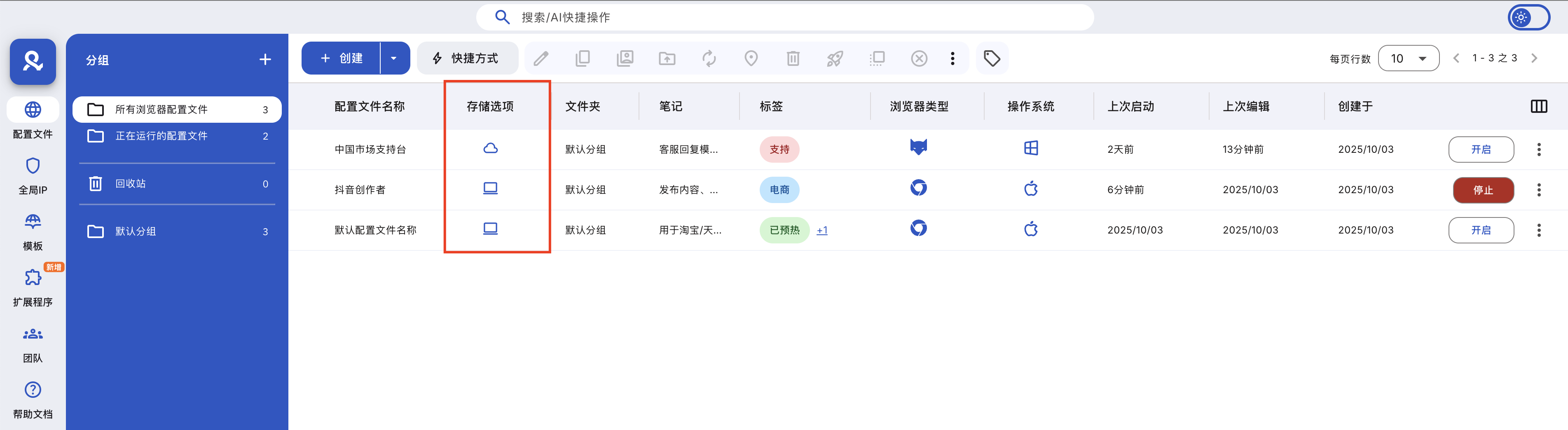
The configuration file template manager helps you create and reuse browser configuration files without having to repeat the same settings (global IP, fingerprints, operating system, etc.) each time. It's like having ready-made blueprints prepared for your browsing sessions.
Benefits of a Configuration File Template
- Save time: No longer need to repeatedly fill in the same fields
- Maintain consistency: Ensure settings are the same across different profiles
- Reduce errors: Decrease the likelihood of mistakes when setting up profiles
- Faster onboarding: New team members can use ready-made templates directly
- Bulk create profiles: Very suitable for workflows involving large-scale operations
How to Use Configuration File Templates
How to Create a Configuration File Template
- Go to the 'Templates' section in the left menu
- Click 'Create'
- Adjust the settings you need
- Click 'Create Template'
How to Set the Default Configuration File Template
- Set as default: Click 'Set as default' next to the template you want to automatically apply to all new profiles
- Remove default: Click 'Reset' next to the same template
How to Edit or Rename Configuration File Templates

- Edit template: Select the template → click 'Edit' in the top menu, or right-click the template → select 'Edit'
- Rename template: Right-click the template → click 'Rename' → enter a new name → press Enter
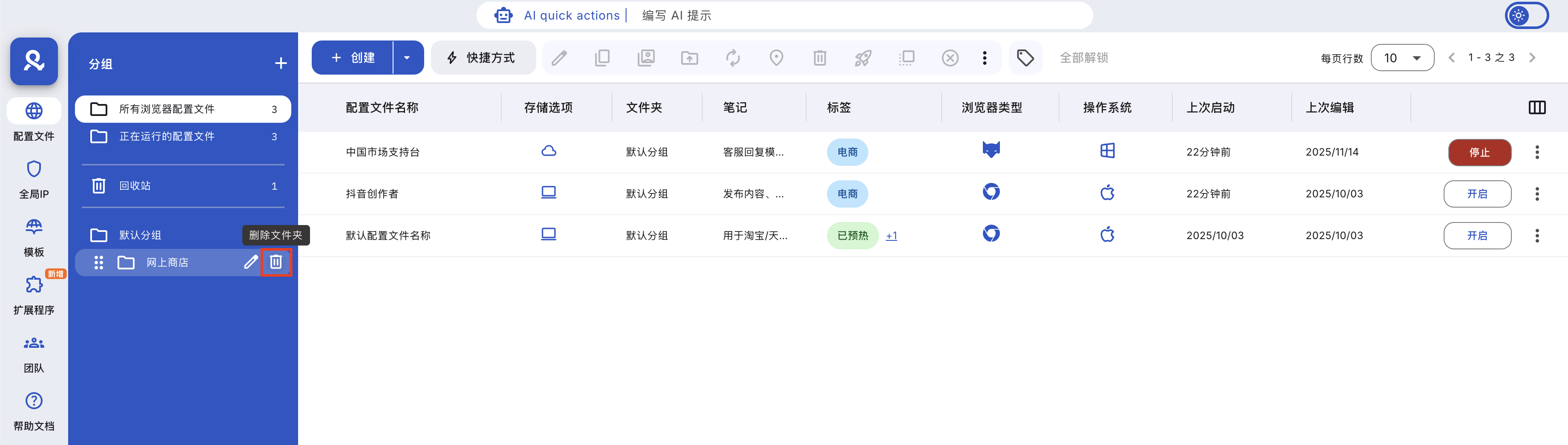
How to Delete a Configuration File Template
Delete a template by moving it to the trash. In the trash, you can:

- Restore the template
- Permanently delete the template
- Empty the trash to remove all templates at once
How to Create a Configuration File from a Template
Regular Configuration File

- Click the arrow icon next to the 'Create' button in the 'Profile' section
- Select 'From Template'
- Choose a template and click 'Create' to confirm
Quick Configuration File
- Click 'Quick' on the main dashboard
- Use the 'Template' selector to apply the template you need
- All settings will be filled in automatically – you can still make adjustments before launching the profile
How to Save an Existing Configuration File as a Template
- Open the profile settings and click 'Save as Template'
- Click 'Create Profile' or 'Update Profile'
- The profile settings will be saved as a template in the 'Templates' section
Frequently Asked Questions
If I edit the template, will the configuration files created from that template be automatically updated?
No. Once a configuration file is created, it remains independent. This can prevent bans caused by sudden changes in configuration file settings. Exception: tags and comments are synchronized between templates and configuration files.
If I create profiles from a template, will they have identical fingerprints?
It depends on the settings of the profile template. If the settings are hidden, the profiles will have different fingerprints. However, if set to 'custom' or 'real mode,' these profiles will share the same fingerprint.
In this article
- What is a profile template manager?
- Benefits of profile templates
- How to use profile templates
- How to create a profile template
- How to set a default profile template
- How to edit or rename a profile template
- How to delete a profile template
- How to create a profile from a template
- How to save an existing profile as a template
- Frequently Asked Questions
- If I edit a template, will profiles created based on that template update automatically?
- If I create profiles from a template, will they have exactly the same fingerprint?
Multilogin Community
Stay informed, share your thoughts, and interact with others!
Read more related content
Related Articles
- How to create and start your first profile in Multilogin
- How to start and stop profiles in Multilogin
- How to use the right-click menu in Multilogin
- How to save quick profiles like normal in Multilogin
- How to use cloud and local profile storage in Multilogin
- How to use quick profiles in Multilogin