- Home
- Main Features
- Configuration Management and Operations
- How to Use Quick Profiles in Multilogin
How to Use Quick Profiles in Multilogin
Author Chloe P (Updated on June 12, 2026)
Updated on June 12, 2026
Who can use this feature?
- 👨💻 Account owners, administrators, and operators
- 💰 Available for all plans
The Purpose of Quick Configuration Files
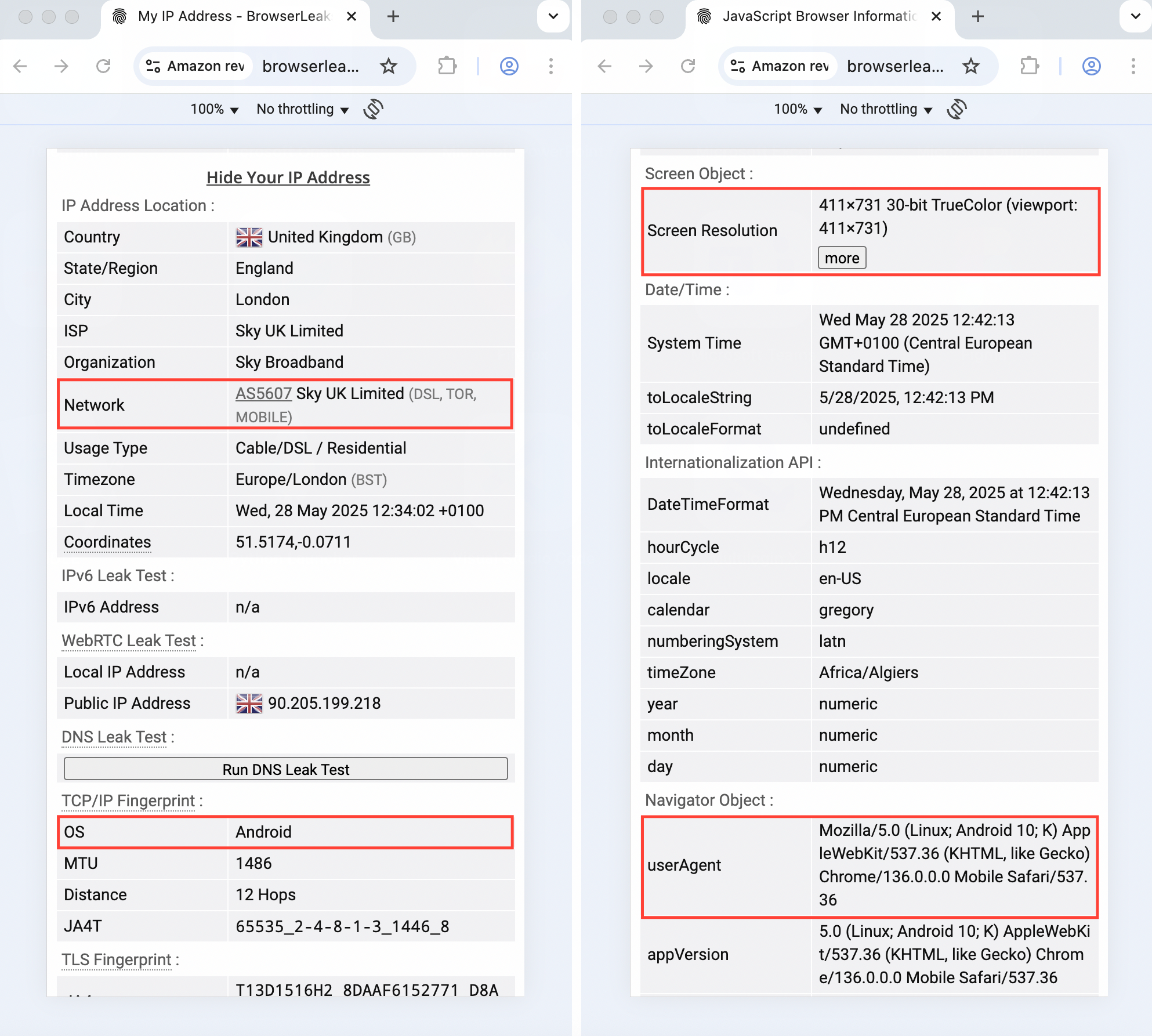
Quick profiles are lightweight, disposable browser profiles that disappear once closed. They are perfect for tasks that don't require saving any content, such as testing, temporary logins, or private browsing. You can launch up to 25 quick profiles at a time.
Why Quick Profile Configuration is Useful
- Perfect for testing: no need to mess up your main profile list
- Private design: leaves no trace when turned off
- Fast and simple: setup completed in seconds without a full configuration
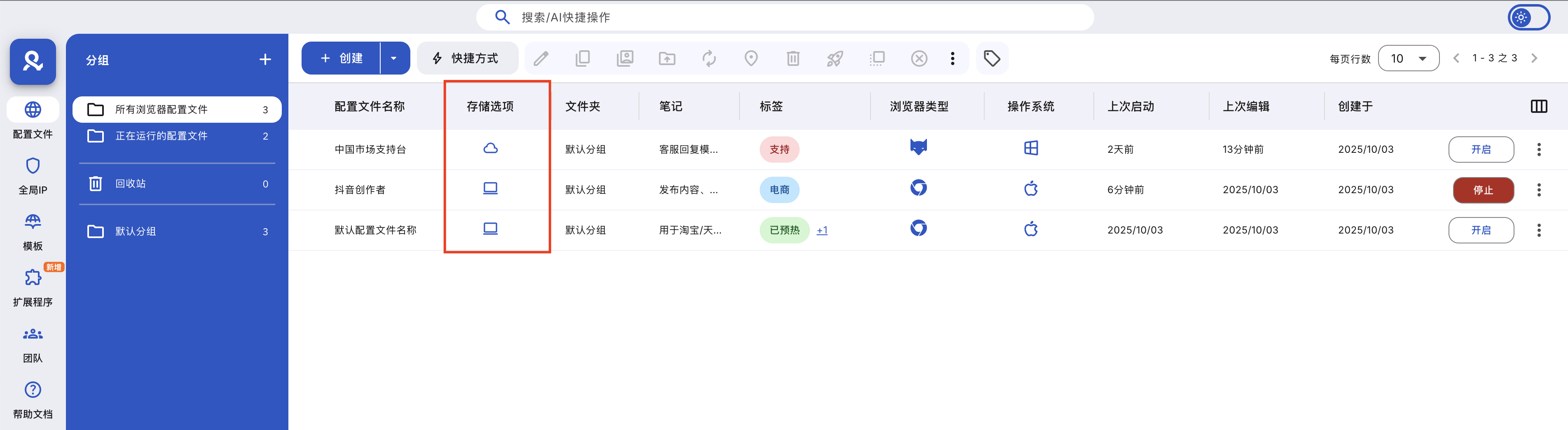
How to Create a Quick Profile
Click the 'Quick' button in the main window and follow the steps below.
Configuration File Template
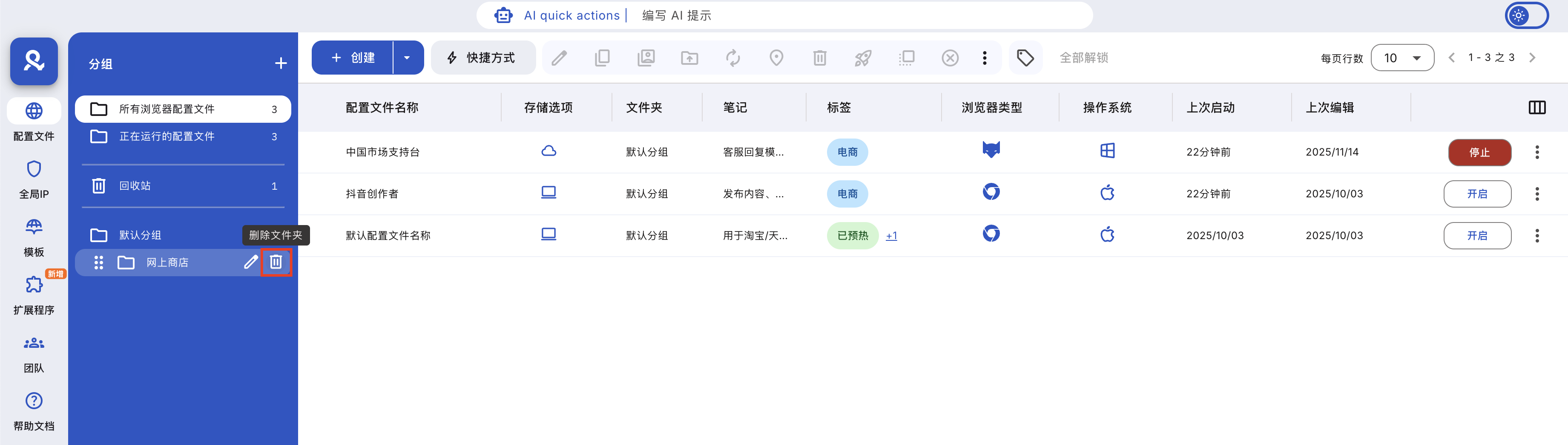
If needed, you can choose a profile template here. Our profile template manager allows you to save custom settings (such as global IP, fingerprints, operating system) and apply them with one click. It is perfect for high-volume workflows or maintaining team consistency.
Prefabricated cookies
Multilogin allows you to import pre-made cookies into your profiles, making them immediately show versions with history and take effect. It's perfect for managing multiple accounts or quickly starting automation features.

➡️ Check the full guide and start using pre-made cookies now.
Number of Configuration Files
You can start up to 25 quick profiles at a time. Just set a number here.

Operating System
Choose an operating system that matches your actual device, such as macOS, Windows, or Linux. This helps maintain the consistency of your browser fingerprint and reduces suspicion. Want to browse the web like on a mobile phone? Choose Android, and no matter what computer you use, you can enjoy a mobile-like experience!
Browser

You have two powerful browser engines designed for privacy: Mimic (based on Chrome) and Stealthfox (based on Firefox). Both browsers come with advanced fingerprint protection features, keeping you undetectable from the moment you launch the browser.
Switch, test, and expand according to your workflow. ➡️ Explore the complete guide to both types of browsers to find the one that suits you best.
Screen Resolution

Analyzing screen resolution is a common method for browser fingerprinting. The following tips can help you avoid danger signals:
- Do not use a resolution larger than the native resolution: websites may check for discrepancies between the declared resolution and the available screen area.
- Stay consistent within the team: keep the profile resolution within the minimum screen range used by the team (if your device is 4K and colleagues have Full HD, set the resolution to 1920 × 1080 or smaller).
- Do not minimize the window: when Multilogin launches a profile, it maximizes according to the resolution set in the profile; it is best not to minimize the profile because most users have their browsers maximized.
Masked

You will get a random screen resolution from our fingerprint generator.
Customs
Set the required parameters using the above prompts.

Real
The website will see your real screen parameters.
Startup Tab Behavior
With this feature, you can restore your previous tabs every time you launch a profile or open up to 10 custom startup URLs – perfect for skipping the routine and getting straight to work.
➡️ View the full guide and set up custom URLs in seconds.
Global IP
➡️ Go to the Multilogin article on profile settings: In the global IP section, get a complete breakdown of each IP block option you have.
How to Avoid Data Loss When Using Quick Profiles
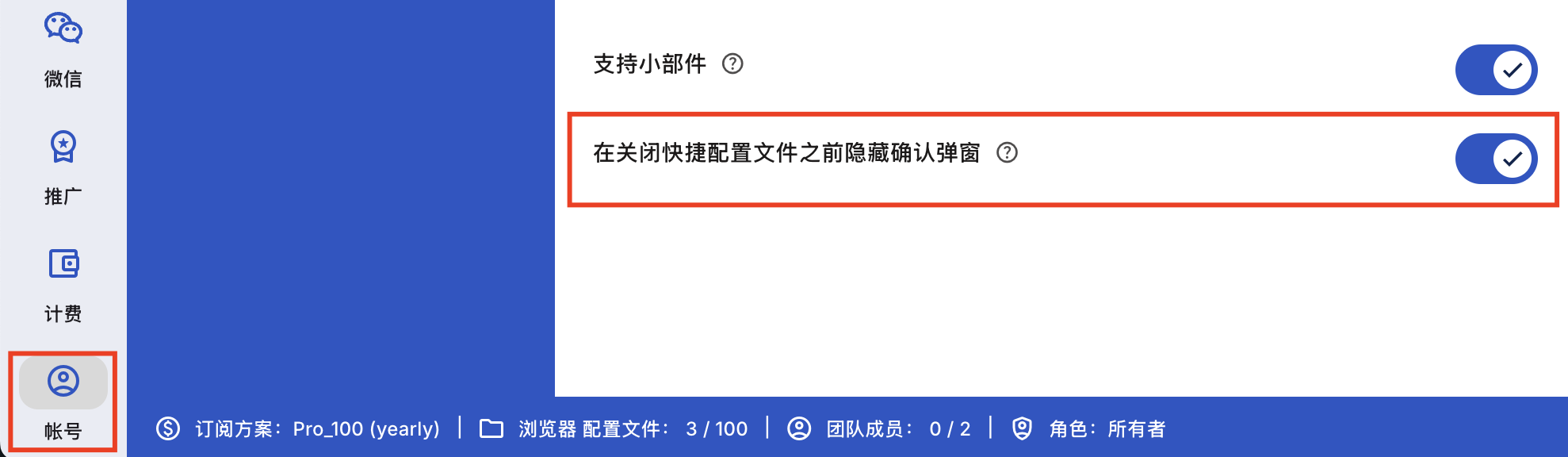
Every time you close a quick profile, it will be deleted along with all its data. By default, when you click "Stop," a confirmation popup will appear. You can choose to close and delete the profile, or cancel and save it as a regular profile first.
Don't want to see this popup every time you close a quick profile? You can turn it off in your account settings.
Professional Tips
- Use quick profiles to check websites without tracking
- Great for temporary accounts or login testing
- Add multiple start URLs to save time on launching key pages
Frequently Asked Questions
Can I recover a quick profile that has been closed?
No—it will be deleted once it stops.
Can I use custom fingerprint settings?
Quick configuration profiles do not support custom fingerprint settings. For customization, please use the regular configuration profile.
In this article
- The purpose of quick profiles
- Why quick profiles are useful
- How to create a quick profile
- Profile templates
- Pre-set cookies
- Number of profiles
- Operating system
- Browser
- Screen resolution
- Startup tab behavior
- Global IP
- How to avoid data loss when using quick profiles
- Professional tips
- Frequently Asked Questions
- Can I recover a closed quick profile?
- Can I use custom fingerprint settings?
Multilogin Community
Stay informed, share your thoughts, and interact with others!
Read more related content
Related Articles
- How to create and launch your first profile in Multilogin
- How to start and stop profiles in Multilogin
- How to use the right-click menu in Multilogin
- How to save quick profiles like usual in Multilogin
- How to use cloud and local profile storage in Multilogin
- How to switch profile storage types in Multilogin