- Home
- Main Features
- Connection between Agent and Launcher
- How to Check and Update the Agent Version in Multilogin
How to Check and Update the Agent Version in Multilogin
Author Yelena V (Updated on March 4, 2026)
Updated on March 4, 2026
Keeping the Multilogin Agent up to date is not only a good idea but also essential. Each new version contains the latest fixes, optimizations, and performance improvements, ensuring a smoother and safer experience.
Running an outdated Agent may mean missing out on key improvements or even encountering issues that have already been resolved.
How to Check the Agent Version
Not sure which version of Multilogin Agent you have? Here is a simple guide to find it in just a few steps on Windows, macOS, or Linux.
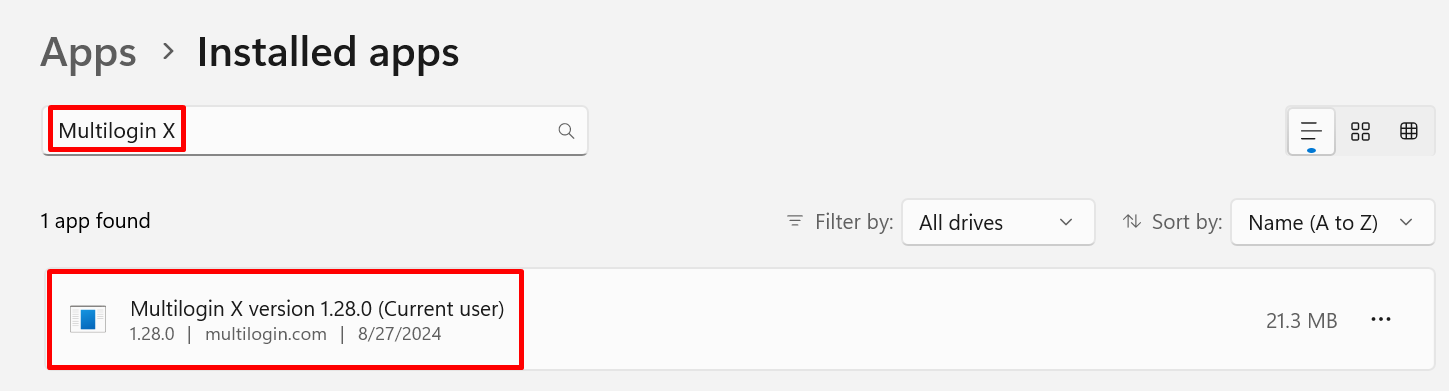
Windows
- In the Start menu, click the gear icon ⚙️
- In Windows Settings, select "Apps"
- Type "Multilogin" in the search bar

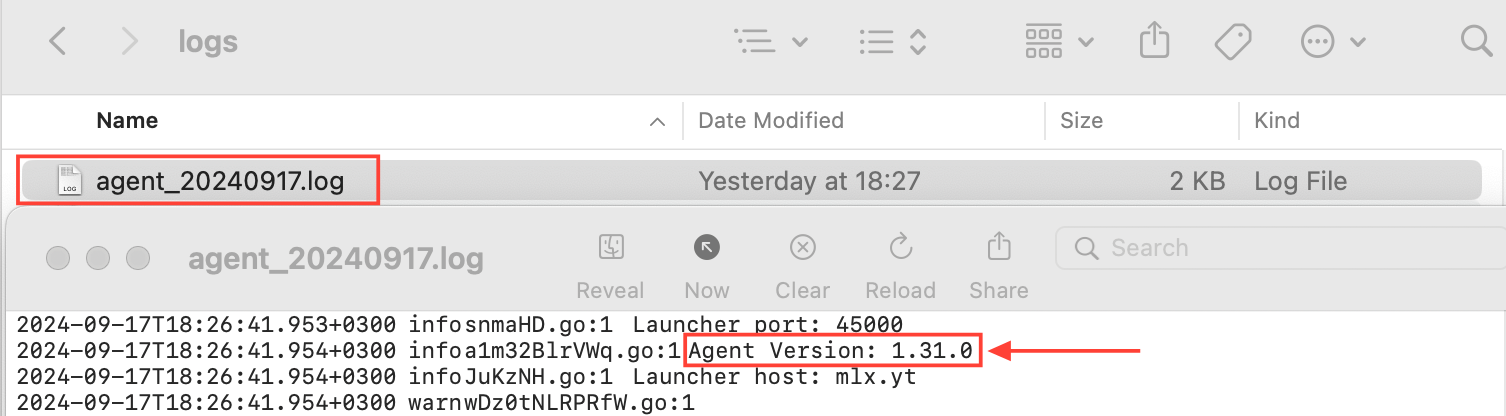
macOS
- Go to this directory in the file manager: /Users/%username%/mlx/agent
/Users/%username%/mlx/agent
- Open the latest agent.log file and check the version
agent.log
Linux
In the terminal, run the command mlx -v:
mlx -v
How to Update the Agent Version
You can easily update the Agent version by disconnecting, re-downloading, and reconnecting the Agent. Learn how to do this in our article 'How to Disconnect and Reconnect the Agent in Multilogin'.
In this article
- How to check the Agent version
- How to update the Agent version
Multilogin Community
Stay informed, share your thoughts, and interact with others!
Read more related content
Related Articles
- How to connect an Agent in Multilogin
- How to disconnect and reconnect an Agent in Multilogin
- How Agents and the launcher work together in Multilogin
- How to automatically start an Agent in Multilogin
- How to uninstall an Agent in Multilogin
- How to manage Agent logs in Multilogin