- Home
- How to Get Started with Multilogin
- How to Create and Launch Your First Profile in Multilogin
How to Create and Launch Your First Profile in Multilogin
Author Chloe P (Updated on June 11, 2026)
Updated on June 11, 2026

Who can use this feature?
- 👨💻 Account owners, managers, and operators
- 💰 Available for all subscription plans
Creating a profile in Multilogin is very quick and convenient:
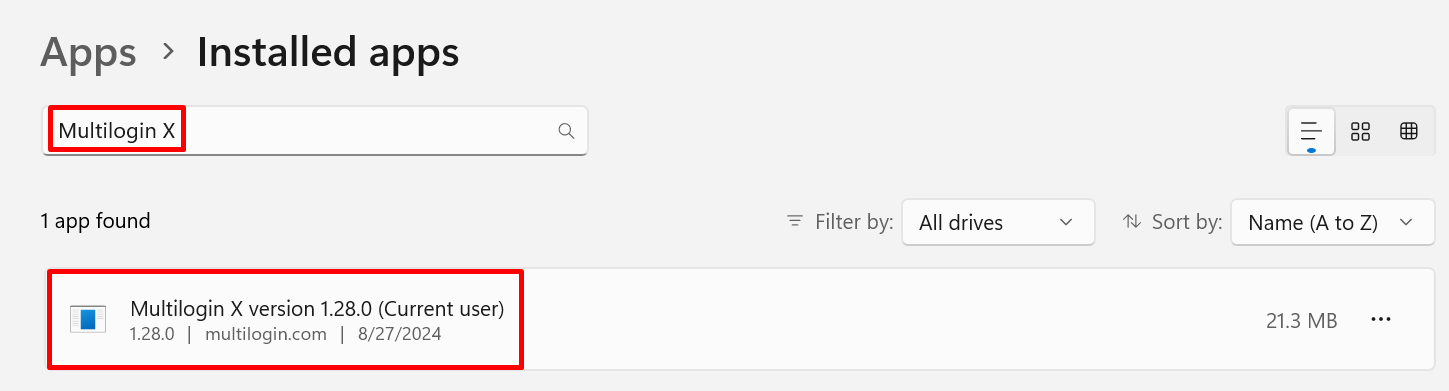
- Click the 'Create' button on the left side of the screen
- Click the down arrow next to it to pre-select the storage type
Then follow the steps below.
Step 1: Configure General Settings
The 'General' section of Multilogin is the starting point for everything. From naming your profile and adding comments to selecting the appropriate browser, storage, cookies, and so on, each setting helps streamline your workflow and reduce errors.
➡️ For a complete and easy-to-follow guide on these fundamentals, check out our detailed article: The General Section in Profile Settings.
Step 2: Configure Global IP Settings

"The 'Global IP' section offers flexible and convenient options to help protect your real IP. Use a dedicated global IP for each profile to avoid detection and safeguard your account security.
Content:
- Use Multilogin's built-in global IP to obtain premium IPs and advanced control
- Add your custom global IP (HTTP, HTTPS, SOCKS5) in seconds
- Use global IP templates for quick, repeatable setup, saving time
- Or skip it—but be aware of the risks of skipping a global IP

➡️ Check the full guide to choose the best IP masking solution for your workflow."
Step 3: Configure Fingerprint Settings (Optional)
Fingerprint settings allow you to gain an in-depth understanding of how your browser profile behaves, such as screen resolution, media devices, graphics data, and more. These settings affect your browser fingerprint and can help you better blend in with browsers, or fully customize your profile according to your needs.

Note: Unless you truly understand what you are doing, we do not recommend changing these settings. Our system has generated safe and optimized default settings to ensure that your profile is secure, reliable, and runs smoothly.
➡️If you are ready for full control, switch to the "Fingerprint" section in your profile and carefully explore these advanced options.
Step 4: Create and Start Your Profile
Before starting the profile configuration, please make sure your agent is connected!
- Click 'Create Profile' to save your settings
- Go back to the 'Profile' tab, find your profile, and then click 'Start' to open it
In this article
- Step 1: Configure general settings
- Step 2: Configure global IP settings
- Step 3: Configure fingerprint settings (optional)
- Step 4: Create and start your profile
Multilogin Community
Stay informed, share your thoughts, and interact with others!
Read more related content
Related Articles
- Mastering Multilogin: A Beginner's Guide
- Can Multilogin run on your device? Check our system requirements
- Multilogin support and resources: How to get help quickly
- How to purchase a Multilogin subscription
- How to navigate the Multilogin interface
- Getting started with Multilogin easily: A three-step guide to get you started quickly