- Home
- Main Features
- Configure Behavior and Identity
- Browser Profile Settings: General
Browser Profile Settings: General
Author Chloe P (Updated on June 11, 2026)
Updated on June 11, 2026
Who can use this feature?
- 👨💻 Account owners, administrators, and operators
- 💰 Available for all subscription plans
Properly setting up your profile helps you improve work efficiency, stay organized, and avoid confusion. This guide will walk you through the basics, from naming your profile to using cookies, tags, and notes.
Ready to upgrade your profile? Come join us!
Configuration File Name
Good news: Only you (and your team members, if shared) can see your profile name—the website cannot. So, you can name it freely, as long as it helps you stay organized! Here are some quick tips:
- Be specific: Include the platform or purpose (e.g., “FB_Ad_Team1” or “Amazon_Seller_UK”)
- Keep it short and readable: 2-4 words max (e.g., “LinkedIn_LeadGen_Alice”)
- Follow naming rules (if in a team): This way everyone stays in sync and can find what they need faster
Configuration File Template
Choose a template in this section. Our profile template manager allows you to save custom settings (such as global IP, fingerprint, operating system) and apply them with one click. It is ideal for high-volume workflows or maintaining team consistency.
Why use it?
- Save time on repetitive settings
- Reduce errors with ready-made templates
- Quickly create profiles in bulk and maintain consistency
Folder
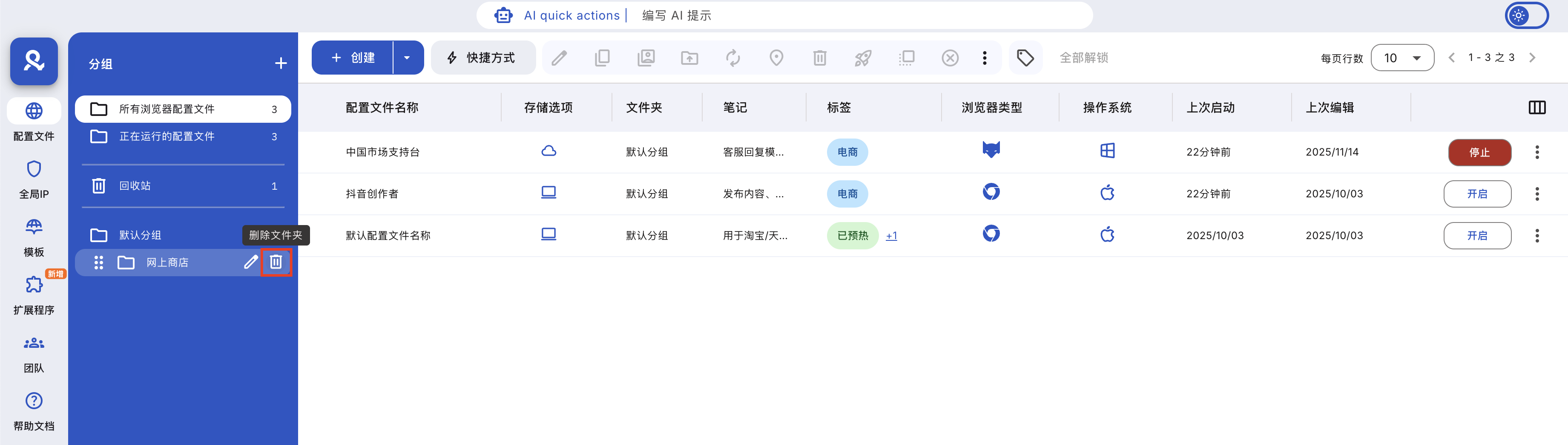
Organize configuration files into custom folders for easy sorting by client, project, or status. Add notes, drag and drop configuration files, and keep your dashboard neat and orderly.
➡️ Just a few clicks to view the complete guide and get organized.
Prefabricated cookies
Multilogin allows you to import pre-made cookies into your profiles, enabling them to immediately present versions with existing history and take effect. It's perfect for managing multiple accounts or quickly starting automation features.
Why use them?
- Save time – no need to manually collect cookies
- Look legitimate – cookies with history from real websites
- Stay safe – each set of cookies is unique
➡️ Check out the full guide and start using pre-made cookies now.
Tags
Each profile can have up to 10 color-coded tags, allowing you to easily group, filter, and quickly find what you need. You can use them for clients, workflows, or anything else that fits your setup.
Why use tags?
- Quickly find profiles using tag-based filtering
- Stay organized with reusable, workspace-wide tags
➡️ Check out the full guide to start tagging like a pro.

Notes
The annotation feature allows you to add brief notes to individual profiles or entire folders. It is perfect for reminders, status updates, or quickly sharing background information with your team. Up to 400 characters—short and thoughtful!

Startup Tab Behavior
With this feature, you can restore previous tabs or open up to 10 custom startup URLs each time you launch a profile—perfect for skipping routine tasks and getting straight to work.
Why use it?
- Save time by opening key pages at startup
- Easily manage multiple accounts
➡️ Check the full guide to set up custom URLs in seconds.

Operating System
Choose the operating system that matches your actual device, such as macOS, Windows, or Linux. This helps maintain consistency in your browser fingerprint and reduces suspiciousness.
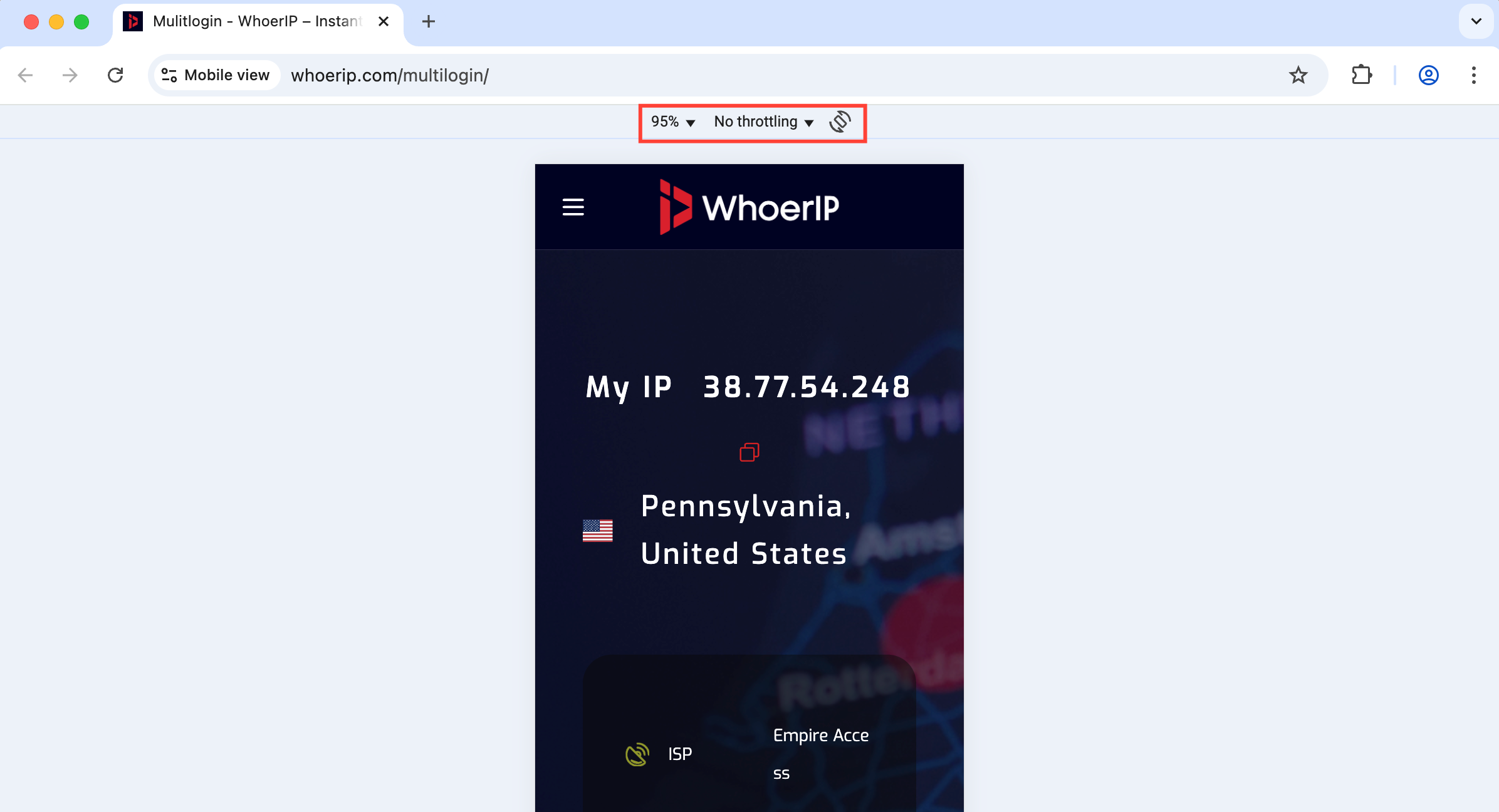
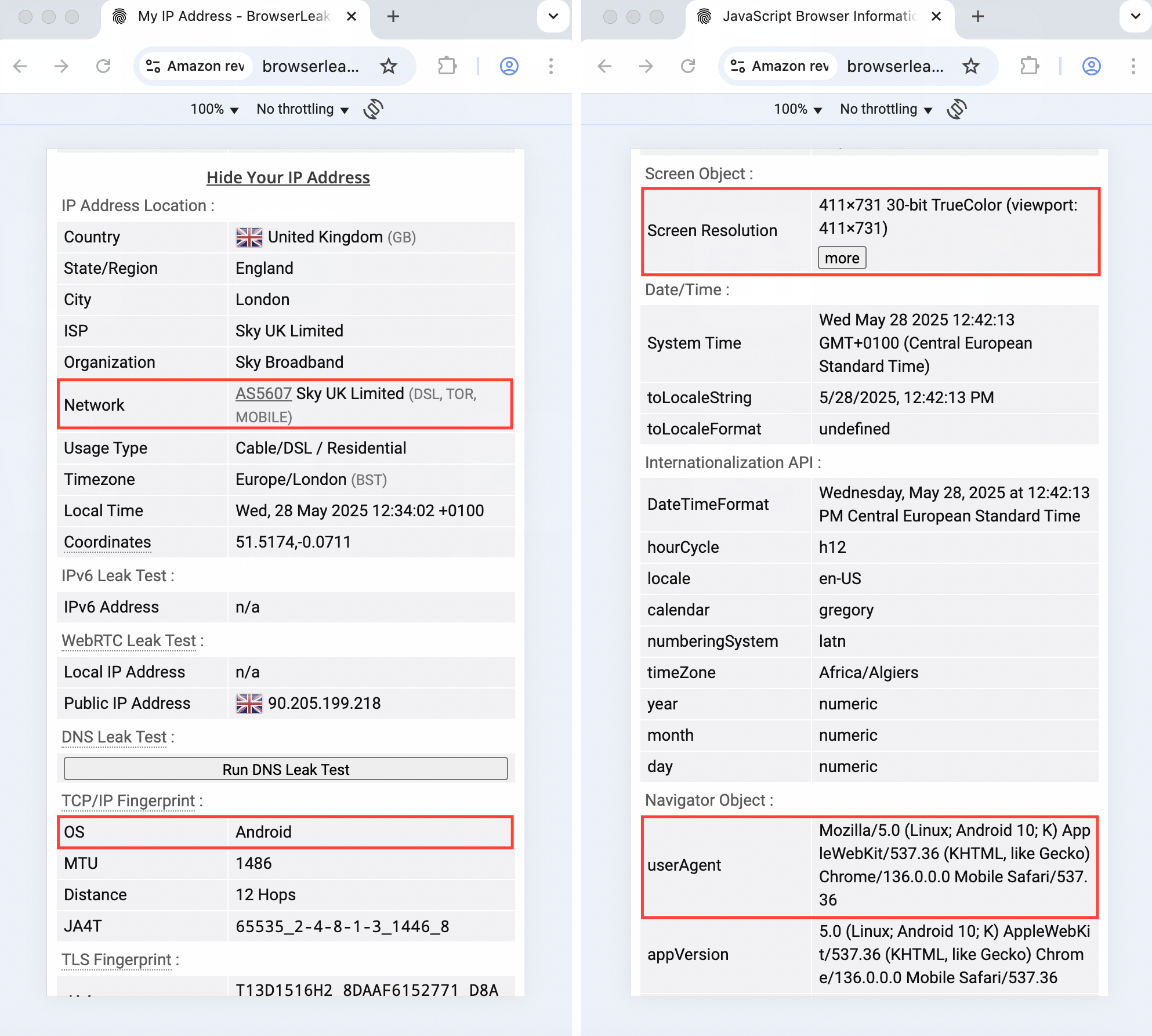
Want to browse the web like on a mobile phone? Choose Android, and no matter what computer you use, you can enjoy a mobile-like experience!
Once the profile is created, this setting cannot be changed.

Browser
Multilogin offers two browser options, both used for browser environment and fingerprint configuration management: Mimic (based on the Chrome engine) and Stealthfox (based on the Firefox engine). Both have built-in browser environment configuration capabilities, providing stable and independent browsing environments for different profiles.
Key points you need to know:
- ✅ Mimic: Suitable for Chrome compatibility requirements, supports automation scenarios, and continues to receive maintenance and updates
- ⚠️ Stealthfox: Use only when Firefox-style behavior or extensions are needed
- 🚫 Stealthfox has entered legacy status and no longer receives engine updates (latest version: v146)
- 🚀 Mimic is the long-term development direction, offering better performance, continuous iteration, and stability support
Once a profile is created, this setting cannot be changed.

Storage
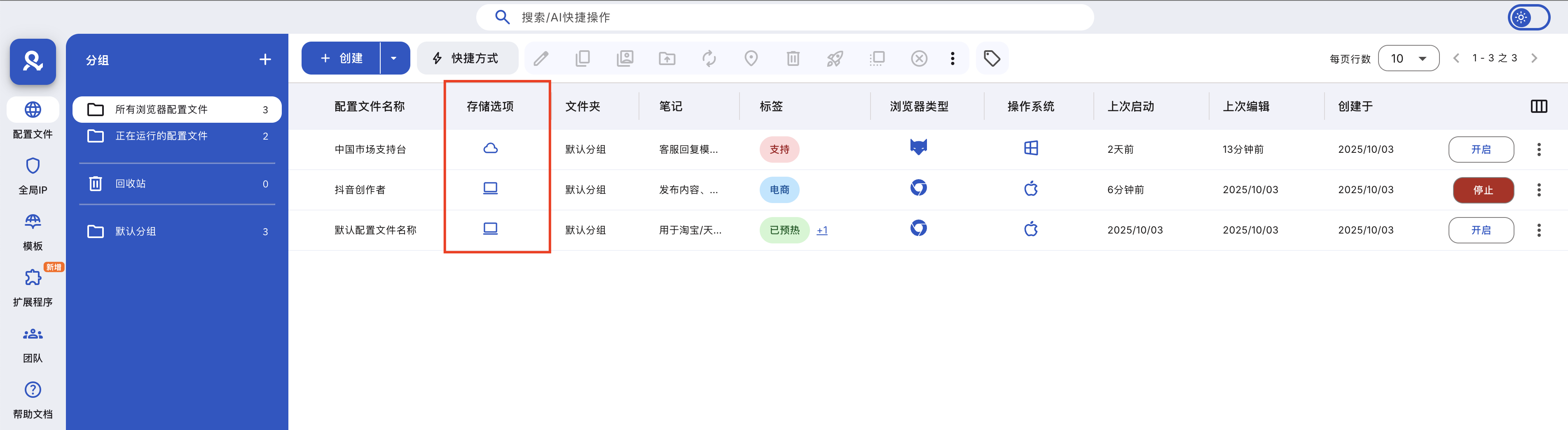
Multilogin allows you to choose between cloud and local profile storage based on how you work:
- Cloud storage — Access profiles from anywhere, ideal for team use
- Local storage — Faster loading times on a single device, ideal for working alone
Easily switch types or convert at any time. ➡️ See the full guide on how storage types work to choose your setup and stay in control.

In this article
- Profile Name
- Profile Template
- Folder
- Predefined Cookies
- Tags
- Notes
- Startup Tab Behavior
- Operating System
- Browser
- Storage
Multilogin Community
Stay informed, share your thoughts, and interact with others!
Read more related content
Related Articles
- How to update the browser core in Multilogin
- How to use mobile Android profiles in Multilogin
- How to understand browser profiles in Multilogin
- How to use Mimic (and older Stealthfox) in Multilogin
- Browser profile settings: Global IP
- Browser profile settings: Fingerprint configuration