- Home
- Solutions to Common Problems
- Basic Troubleshooting
- How to Disconnect and Reconnect the Agent in Multilogin
How to Disconnect and Reconnect an Agent in Multilogin
Author Yelena V (Updated on March 5, 2026)
Updated on March 5, 2026
Disconnecting and reconnecting the Agent has two important functions – it helps resolve technical issues and ensures that you are running the latest version. This is a quick and easy way to refresh the settings and make sure everything runs smoothly.
How to Disconnect the Agent
Windows
Option 1: Open the taskbar, right-click the agent icon and select "Quit":
Option 2: Go to Task Manager, select the following two processes, and then click "End Task":
If you cannot find the agent and Multilogin setup processes, first go to the "Details" tab and then search for them.
agent

Multilogin setup
macOS

Option 1: Right-click the agent icon in the Dock and select "Quit":
Option 2: Go to Activity Monitor, double-click the following two processes, and then select "Quit":
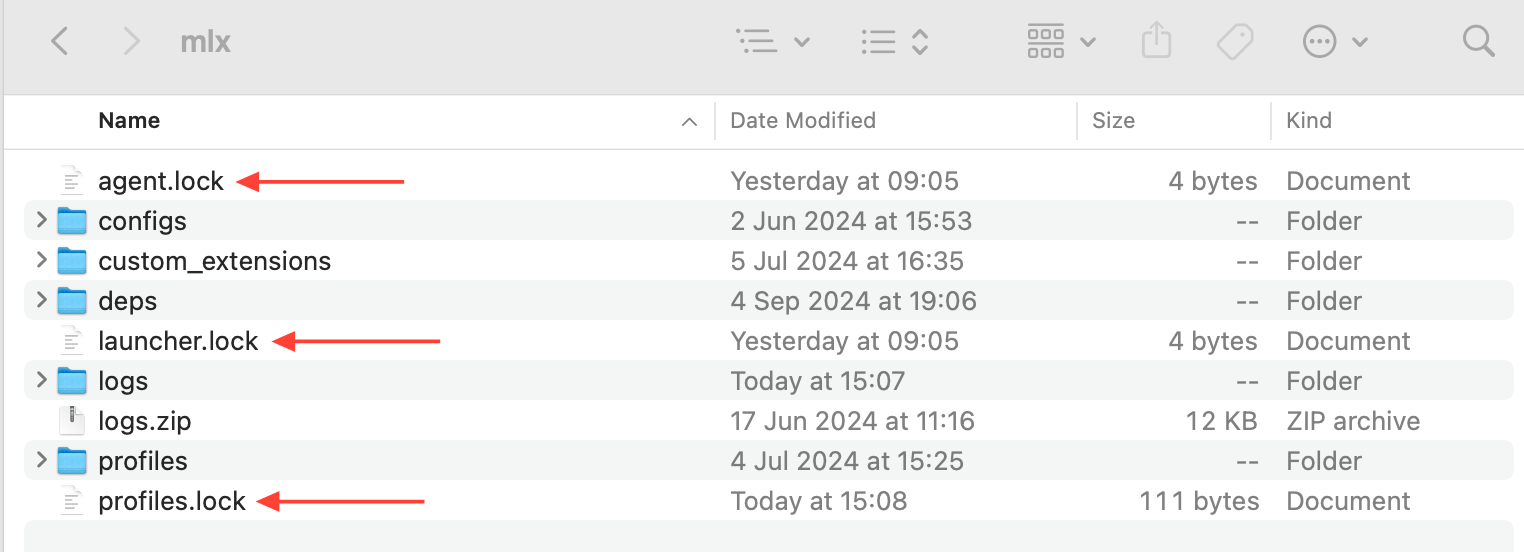
Linux
Enter the system monitor, select the following two processes, and then click 'End Process':
How to Reconnect the Agent
Windows
- Click the “Agent Disconnected” in the upper right corner
- Download the Windows Agent (this ensures you get the latest version with all updates)
- Right-click the file you just downloaded and select “Run as Administrator”
- Follow the on-screen steps to complete the installation
- Click “Connect Agent” and wait for Multilogin to complete all settings (it may take longer if your internet speed is slow)
macOS
- Click the 'Agent Disconnected' in the top right corner
- Ensure your operating system is version 14 (Sonoma) or later
- For M1-M4 chips, select 'M Series'; for other models, select 'Intel', then download the macOS Agent (this ensures you get the latest version with all updates)
- Click the downloaded file to open the installer
- Follow the on-screen steps to complete the installation
- Click 'Connect Agent' and wait for Multilogin to finish all setups (it may take longer if your internet speed is slow)
Linux
- Click on 'Agent Disconnected' at the top right corner
- Download the Agent for Linux (this ensures you get the latest version with all updates)
- Right-click the downloaded file and select 'Run as Administrator'
- Follow the on-screen steps to complete the installation
- Click 'Connect Agent' and wait for Multilogin to complete all settings (it may take longer if your internet speed is slow)
In this article
- How to disconnect the Agent
- How to reconnect the Agent
Multilogin Community
Stay informed, share your thoughts, and interact with others!
Read more related content
Related Articles
- How to fix Multilogin issues caused by antivirus software, VPNs, etc.
- How to fix system timezone synchronization issues in Multilogin
- How to send logs to support staff
- How to refresh application components in Multilogin