- Home
- Solutions to Frequently Asked Questions
- Common Errors
- How to Fix the 'Failed to Fetch Profile Data' Error
How to Fix the 'Failed to Get Profile Data' Error
Author Yelena V (Updated on March 4, 2026)
Updated on March 4, 2026
If you encounter a "Failed to fetch profile data" error when launching the profile, don't worry—the fix is simple!
Possible causes include:
- Agent application malfunction: The Agent application may need to reconnect due to a malfunction
- Global IP issue: You may have lost your global IP connection or your global IP traffic has been exhausted
- Malfunction during profile shutdown: The profile may not have closed properly, which could prevent it from syncing correctly
- Recent device updates or third-party application interference: Changes in device settings or interference from other applications may affect device operation
Follow these solutions to get back on track.
Change Storage Type
This issue usually occurs when you try to launch a local profile on another device. You need to change the storage type on the device where the profile was created. Please follow the instructions in the following article to resolve this issue: How to Convert Profile Storage Type in Multilogin.
Reconnect Agent and Unlock Profile
- The error may have occurred due to an Agent application failure — for safety, please reconnect.
- Then, follow the guide on how to unlock a locked profile.
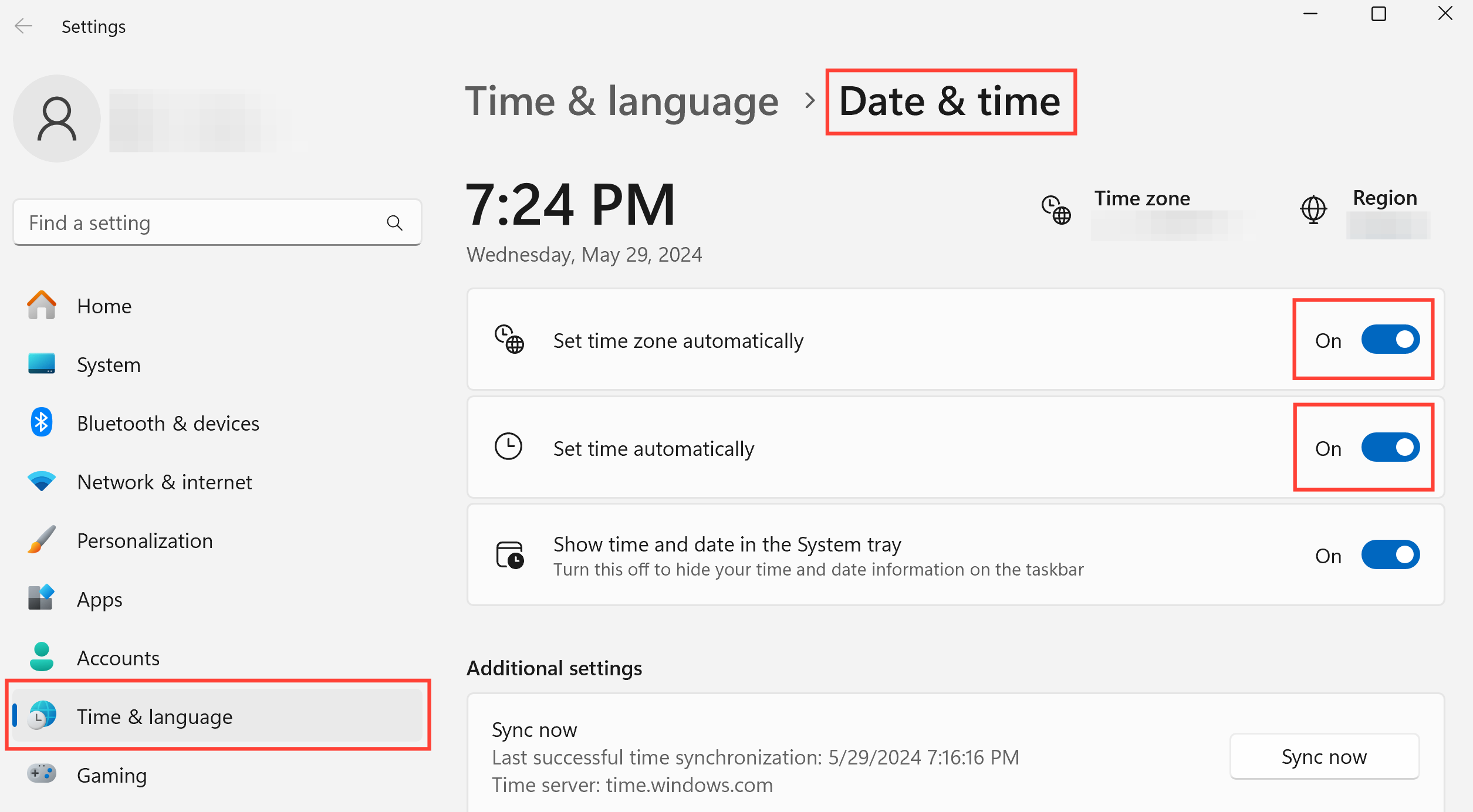
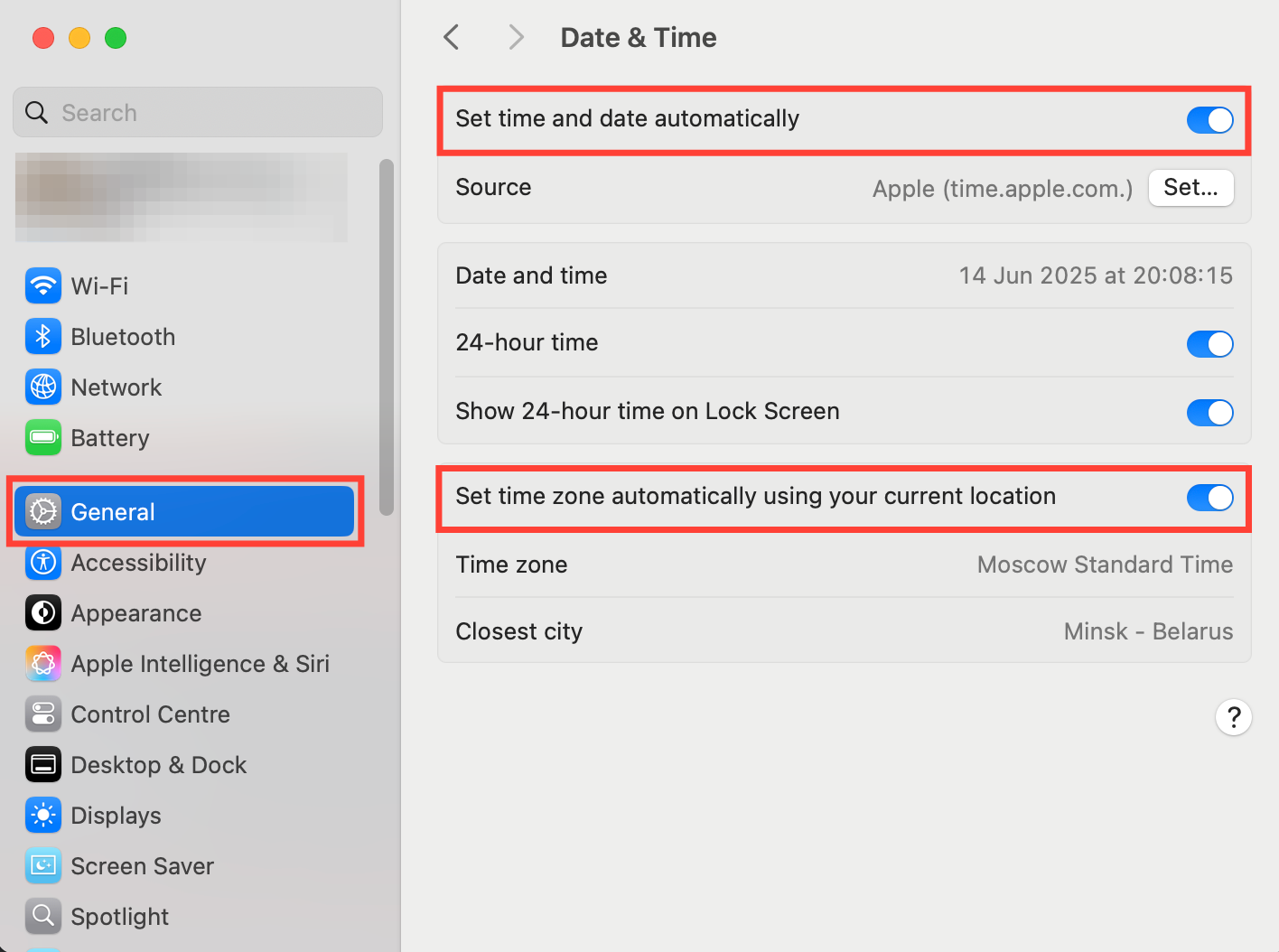
Sync System Timezone
If you manually set the system time, it may cause connection issues. In this case, please synchronize your time zone with the Internet to resolve the problem. This simple step usually restores normal functionality!
Check Global IP
Check proxy CN
Check Global IP Traffic
Multilogin Global IP
First, check your Multilogin global IP traffic. If it is used up, please recharge to continue.
Custom Global IP
Contact your global IP provider to check the current traffic and recharge if necessary.
Check Global IP Connection Status
If your global IP has enough traffic, test whether it is online:
Select a profile from the list, then click 'Check Global IP' in the top menu. If you are using a Multilogin global IP, you can also click 'Refresh IP' to get a new IP address from the same IP pool.
These options are also available in the right-click menu.
The results mean the following:
- Global IP check passed: Multilogin is connected to your global IP and has obtained everything it needs
- Global IP check failed: Find the root cause, your global IP is offline – please replace it to continue working in this profile or get a new IP
Refresh Component
Deps CN
This operation is completely safe! It will refresh the components of the Multilogin program. No data will be lost during this process, so you can proceed with confidence! 😊
Please do not delete the mlx folder, as this may cause partial or complete data loss.
- Disconnect the agent app
- Go to the mlx folder:
Windows: C:Users%username%mlx
macOS: /Users/%username%/mlx
Linux: /home/%username%/mlx
- Windows: C:Users%username%mlx
C:Users%username%mlx
- macOS: /Users/%username%/mlx
/Users/%username%/mlx
- Linux: /home/%username%/mlx
/home/%username%/mlx
- Delete the deps folder
- Reconnect the agent app and wait for it to connect successfully
- Launch the profile – this will automatically start the component download process
Delete .lock File
.lock
A .lock file is a temporary file generated by applications to indicate that a file or resource is in use. You can delete them for the following reasons:
.lock
- Fixing stuck applications: If an application crashes, leftover .lock files can trick the system into thinking it is still running
.lock
- Prevent errors: These files may stop your application from starting or running properly
- Clear update issues: If an update or sync is interrupted, .lock files can block future attempts
.lock
Deleting .lock files is like pressing the reset button – it can clear the mess and get your application running smoothly again!
.lock
Windows
- Go to the mlx folder: C:Users%username%mlx
- Delete all .lock files
.lock
macOS
- Go to the mlx folder: /Users/%username%/mlx
/Users/%username%/mlx
- Delete all .lock files

.lock
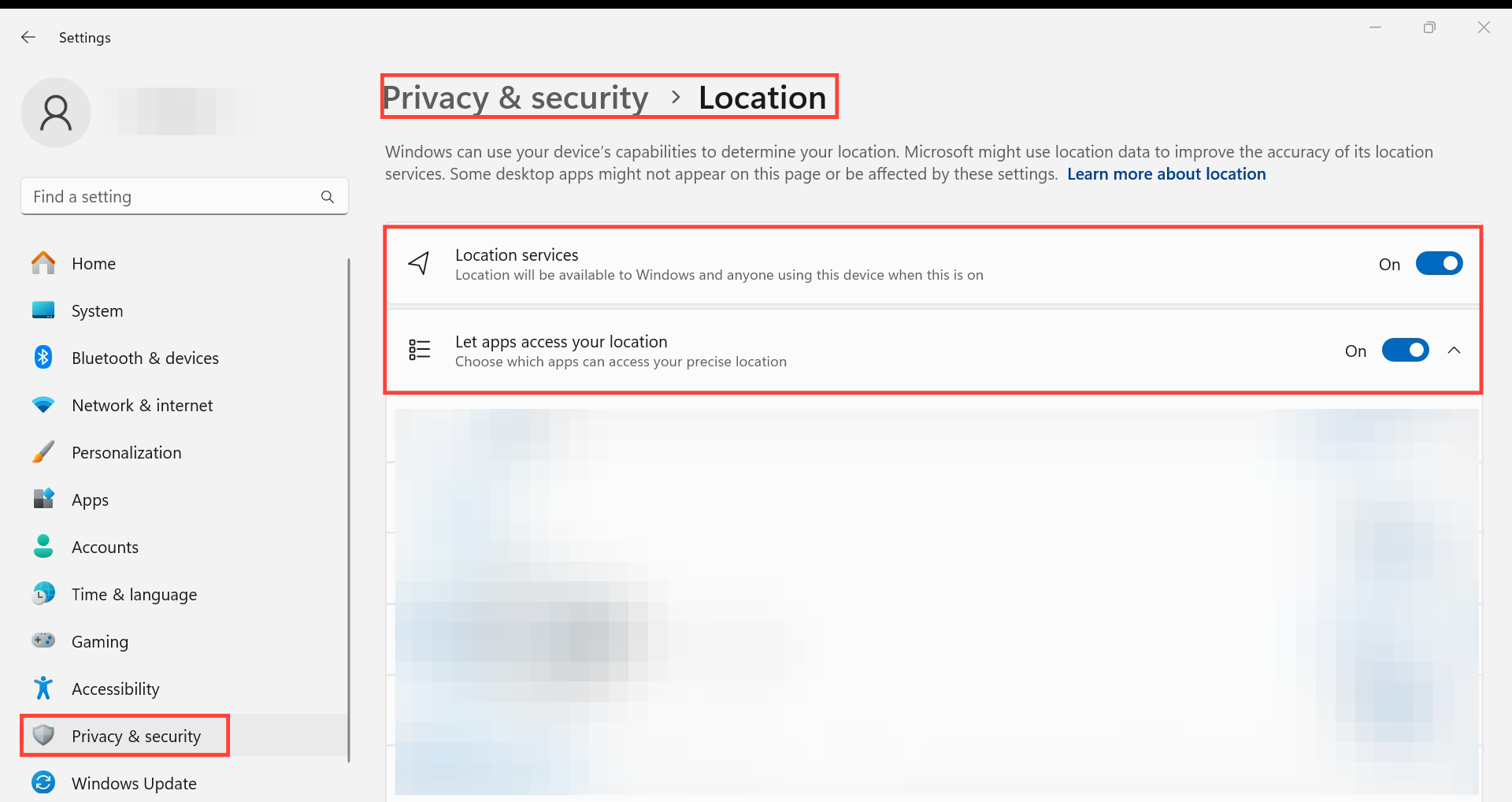
Check Third-Party Applications
Some applications on your computer (such as antivirus programs, firewalls, VPNs, and global IP tools) may interfere with Multilogin. Please refer to the guide 'How to Fix Multilogin Issues Caused by Antivirus Programs, VPNs, etc.' to learn how to resolve this issue.
Roll back the most recent global operating system update
If none of the situations mentioned earlier apply, you may have recently installed a global operating system update. If the error appeared after the update, it is possible that the update changed some settings important to Multilogin.
What to do:
- Roll back the update to restore previous settings
- If you need guidance, please contact our support team
In this article
- Change storage type
- Reconnect the Agent and unlock the profile
- Sync system timezone
- Check global IP
- Refresh components
- Delete .lock file
- Check third-party applications
- Roll back recent global OS updates
Multilogin Community
Stay informed, share your thoughts, and interact with others!
Read more related content
Related Articles
- How to fix the 'Access Denied' error
- How to fix the 'Aw, Snap!' error
- How to fix the 'ERR_CONNECTION_CLOSED/RESET/TIMED_OUT' error
- How to fix the 'Too Many Requests' error
- How to fix the 'Some settings were reset' error
- How to fix the 'Unable to open profile' error