- Home
- Workspace & Team Management
- Best Practices for Multilogin Team Collaboration
Best Practices for Multilogin Team Collaboration
Author Chloe P (Updated on March 5, 2026)
Updated on March 5, 2026
Collaborating with a team in Multilogin? Fantastic—you can speed up progress, stay organized, and handle more profiles without interfering with each other. But teamwork is only effective when everyone follows the same plan.
Here’s how to make sure your team uses Multilogin correctly—roles are clear, no confusion, and synchronization is smooth.
Always use cloud storage to store team data
If you are collaborating in a team, cloud storage is essential. Only configuration files saved in the cloud can be synced across devices and accessed by other team members. Local configuration files are locked to a single device, and no one else can use them.
Correct practice:
- When creating a new configuration file, always choose 'Cloud' as the storage type
- Cloud configuration files are securely stored on AWS and automatically synced after each session
- Avoid using 'Local' storage unless the configuration file is for personal use only and will not be shared
Example:
You created a configuration file with local storage on your office laptop. Later, your teammate tried to open it on their computer, only to find that it didn’t exist. No syncing, no access, and team collaboration was disrupted.
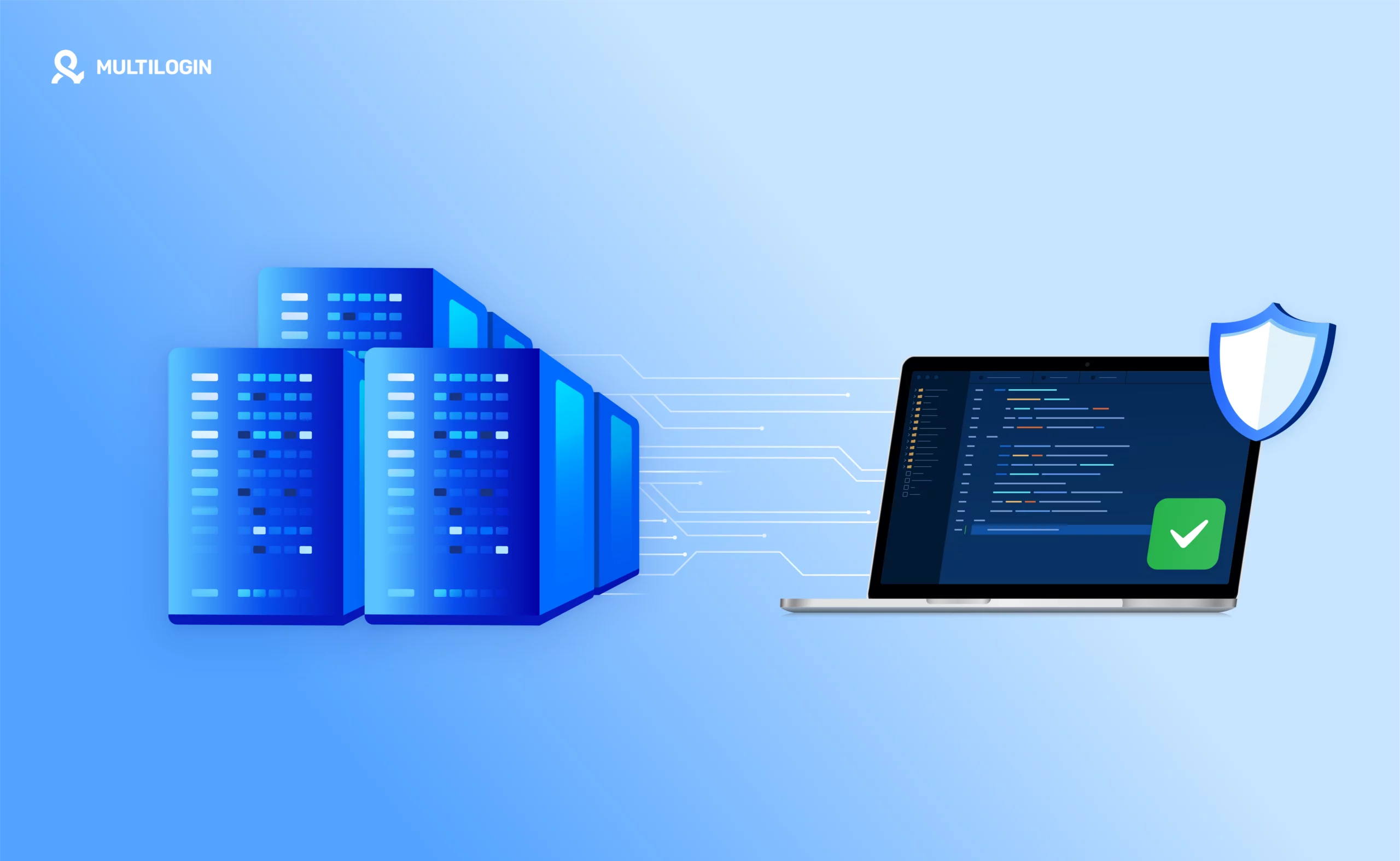
Cloud storage = smooth collaboration. Local storage = single-user mode only.
Use Clear Naming for Configuration Files
If the configuration file names are random, such as 'acc_001' or 'test2', no one knows their purpose.
Correct approach:
- Include platform, client name, and purpose in the name
- Keep it short but specific
Examples:
- Correct: 'FB_ClientA_June2025'
- Incorrect: 'profile123'
Now anyone can understand the configuration file at a glance—no guessing needed!
Organize Profiles Using Folders and Tags
Without folders or tags, it is easy to get lost among a large number of configuration files.
Correct approach:
- Create folders for each client, campaign, or platform (e.g., “Facebook Ads – Client A”).
- Use tags like “Europe” or “Test” so the team immediately knows the purpose of the configuration file.
Example:
You are running Google Ads for 3 clients. Please create the following folders:
- “Client A – Google Ads”
- “Client B – Google Ads”
- “Client C – Google Ads”
Then tag each configuration file with keywords like “Q2 Campaign” or “Retargeting”.
Leave comments in configuration files and folders
Even if you are not online at the same time, notes allow everyone to stay on the same page.
Correct practices:
- Add notes like 'Budget and creative updated – ready to launch'
- Use brief status updates: 'Needs review,' 'In progress,' or 'Completed'
Example:
You just tested a new ad in the profile. Leave a note: 'Ad approved. Scheduled for release next Monday. All metrics look good.' Now, your team clearly knows what to do next—no private messages needed.
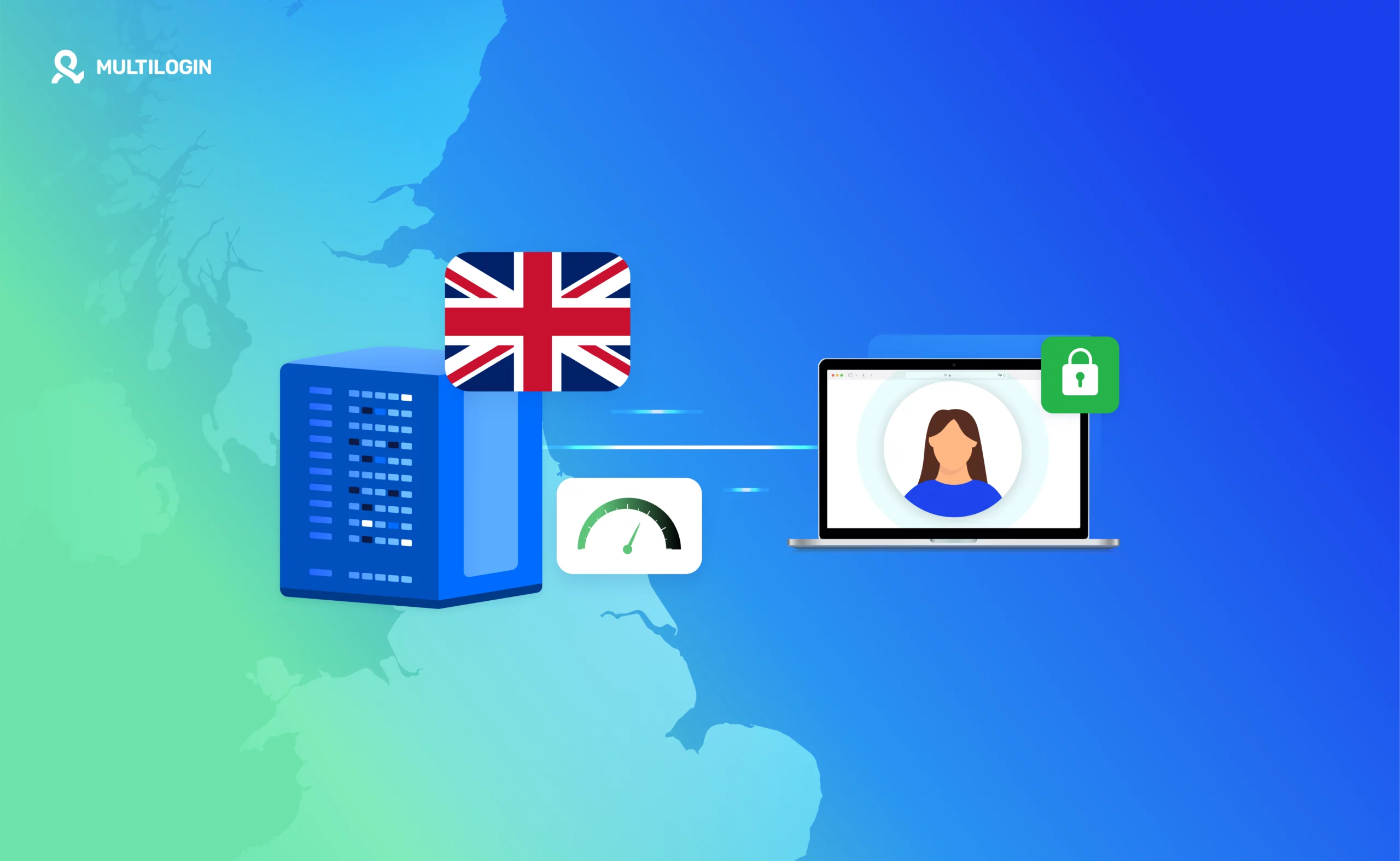
Avoid fingerprint mismatch
Have you ever suddenly encountered a security issue after logging into your account? This is likely caused by a fingerprint mismatch—the website detects that your profile is different from usual and assumes it is a fraudulent activity.
Correct approach:
- Always try to use the same device for your profile whenever possible
- If you must use multiple devices, use the same operating system, browser version, and hardware on all machines
- Use a Mac for a stable, consistent fingerprint
- Use virtual machines (VM) or VPS with the same settings
- Keep the environment stable and use your profile only on designated devices to avoid trouble.
In this article
- Always use cloud storage to store team materials
- Use clear naming for configuration files
- Organize configuration files with folders and tags
- Leave comments in configuration files and folders
- Avoid fingerprint mismatches
Multilogin Community
Stay informed, share your thoughts, and interact with others!
Read more related content
Related Articles
- Team member roles and access levels in Multilogin
- How to manage team members in Multilogin
- Overview of teamwork in Multilogin X
- How to switch between workspaces in Multilogin
- Multilogin team member workspace guide