- Home
- Advanced Features & Custom Fingerprint
- How to Adjust Screen Resolution in Multilogin
How to Adjust Screen Resolution in Multilogin
Author Chloe P (Updated on November 8, 2025)

Updated on November 8, 2025
When you create and launch a profile in Multilogin, the screen resolution may not match your device. This is because the system automatically selects the resolution based on real user data to ensure a more natural fingerprint.
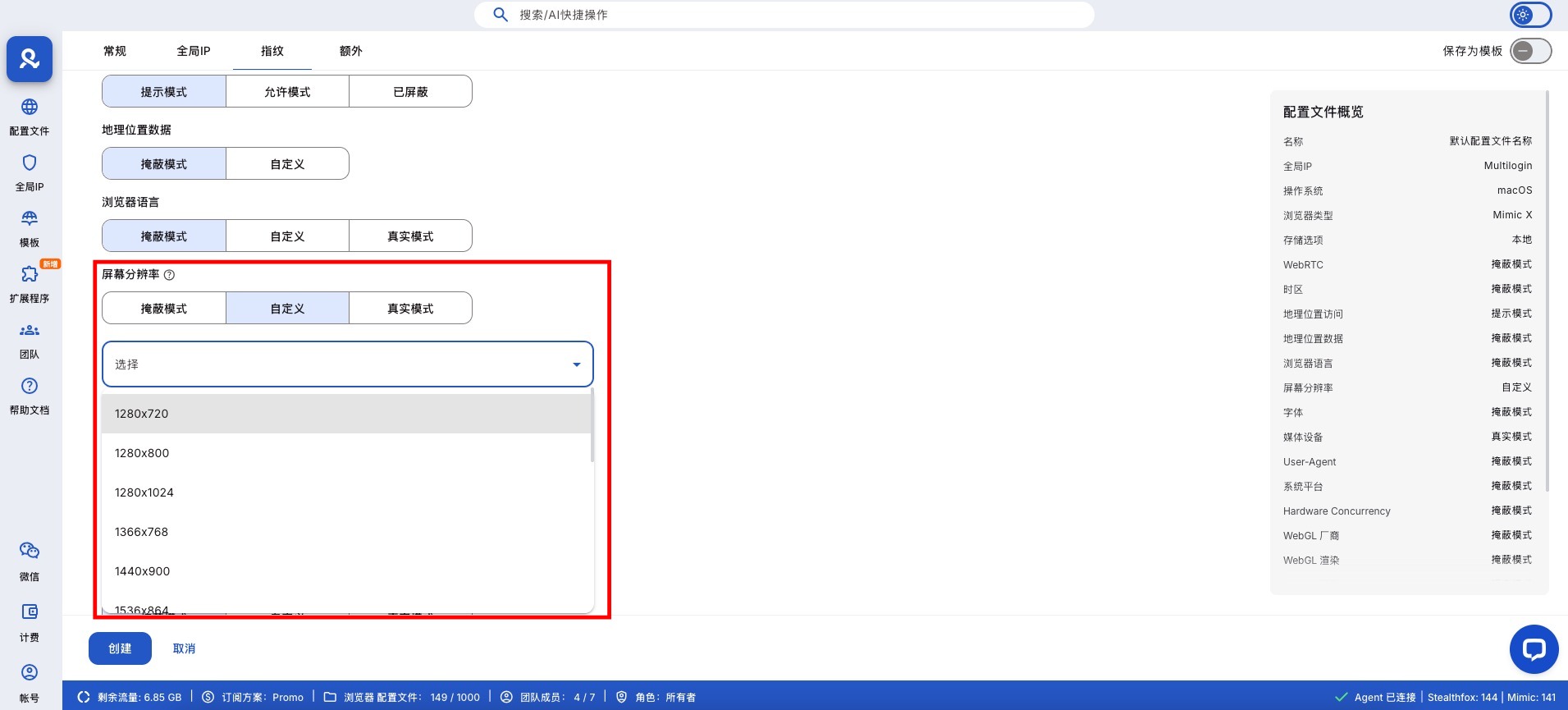
If the profile's resolution is smaller than your screen, you will not be able to zoom in after the browser window opens. This is to maintain consistency and avoid detection by websites.
There is a simple solution: check your device's screen resolution in the system settings and then follow the instructions below to make changes.
- Stop the relevant profile
- Go to the 'Fingerprint' section in your profile settings
- Scroll to 'Screen Resolution' and select 'Custom'
- Choose a screen resolution that matches your device
- Click 'Update Profile' and restart it
Multilogin Community
Stay informed, share your thoughts, and interact with others!
Read more related content
Related Articles
- In-depth study of fingerprint recognition: What websites are actually detecting
- Multilogin's built-in passive OS fingerprint masking (TCP/IP fingerprint)
- Think twice before changing settings: The truth about fingerprint mismatches
- Should my font hash be changed in Multilogin?
- How to replace Multilogin's Mimic icon on Windows
- How to check and understand your browser fingerprint