- Home
- Main Features
- Configuration Management and Operations
- How to Use Cloud and Local Profile Storage in Multilogin
How to Use Cloud and Local Profile Storage in Multilogin
Author Yelena V (Updated on June 12, 2026)
Updated on June 12, 2026
Who can use this feature?
- 👨💻 Account owners and all team members
- 💰 Available for all subscription plans
The Role of Configuration File Storage
Multilogin offers you two ways to store browser profiles — cloud and local. Each method has its own advantages, depending on your working style (and work location).
Overview of Storage Types
Whether you prefer the flexibility of cloud storage or the efficiency of local storage, Multilogin can meet your needs.
| Cloud Profiles | Local Profiles |
| — | — |
How it works | Download once, then launch from the cached version. Changes are synced on the next launch. | Stored on your device after the first launch – always loads instantly. |
Storage | All profile data is securely stored on AWS – accessible from anywhere. | Profile data (cookies, extensions, etc.) stays on your device. Metadata is still backed up to AWS. |
Benefits | Ideal for teams or multi-device setups – stays synchronized across systems. | Fast performance on a single device – no sync delay. |
Download once, then start from the cached version. If there are changes, sync at the next startup.
After the first startup, it is stored on your device – always loads immediately.
All profile data is securely stored on AWS – you can access it from anywhere.
Profile data (cookies, extensions, etc.) remains on your device. Metadata is still backed up to AWS.
Team or multi-device setup – stay synced across systems.
Fast performance on a single device – no sync delay.
How to Set Storage Type
Storage Type Selector
- Click the down arrow next to the 'Create' button on the main dashboard
- Select the storage type to start creating a profile, and pre-select that type
Configuration File Setup Method
- Open the 'General' section in Profile Settings
- Scroll down to the 'Storage' selector
- Choose between cloud or local
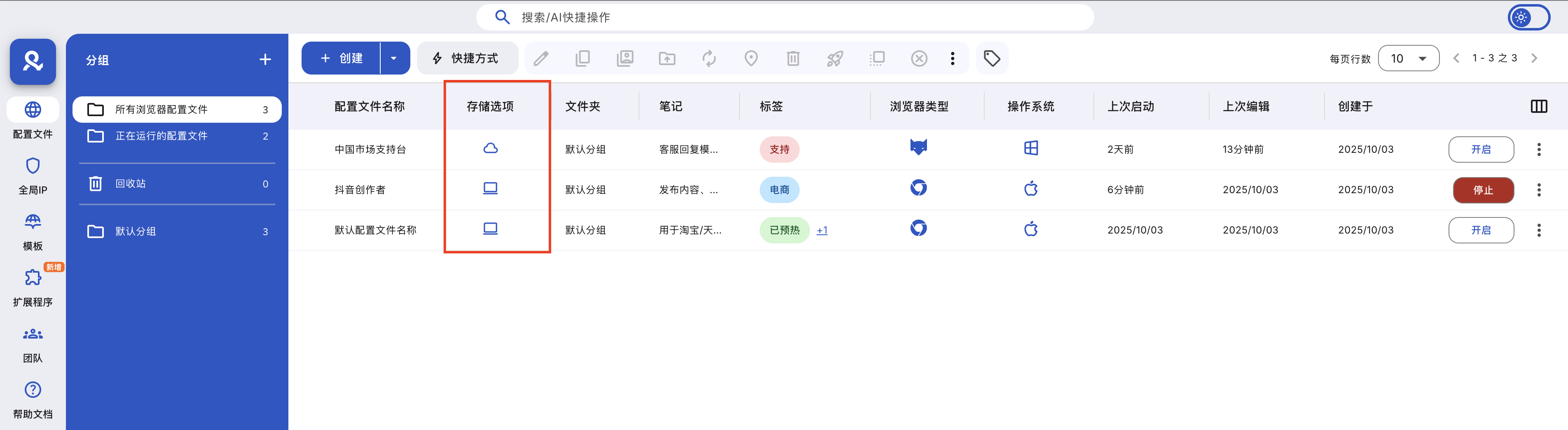
How to Check Storage Type
To check the current storage type, look at the icon in the 'Storage' column:
- Cloud = Online storage
- Device = Stored on your device
How to Find Configuration File Data
Do you want to check the location of your local configuration files? Here are the paths on your system:
- Windows: C:Users%username%mlxprofiles
C:Users%username%mlxprofiles
- macOS: /Users/%username%/mlx/profiles
/Users/%username%/mlx/profiles
- Linux: /home/%username%/mlx/profiles
/home/%username%/mlx/profiles
Each configuration file is stored using a folder structure based on the following:
- Your user ID (learn how to find your user ID in DevTools)
- Workspace and profile ID (learn how to find your workspace and profile ID in DevTools)
Frequently Asked Questions
Can I switch the storage type of the configuration file in the future?
Of course! Using the 'Convert Storage' feature allows you to switch from cloud to local, and vice versa.
Does local storage have a size limit?
It depends on the available space on your device – but Multilogin does not set a hard limit.
If I switch to a new device, will the local configuration files be synchronized?
No. Unless you manually export and import the local configuration files, they will remain on this computer.
In this article
- The purpose of profile storage
- Overview of storage types
- How to set the storage type
- Storage type selector
- Profile setting methods
- How to check the storage type
- How to find profile data
- Frequently Asked Questions
- Can I switch the profile storage type later?
- Is there a size limit for local storage?
- If I switch to a new device, will the local profile sync?
Multilogin Community
Stay informed, share your thoughts, and interact with others!
Read more related content
Related Articles
- How to create and start your first profile in Multilogin
- How to start and stop a profile in Multilogin
- How to use the right-click menu in Multilogin
- How to save quick profiles in Multilogin like usual
- How to use quick profiles in Multilogin
- How to convert profile storage types in Multilogin