- Home
- Main Features
- Configure Behavior and Identity
- How to Use Mimic (and the Old Stealthfox) in Multilogin
How to Use Mimic (and the Older Stealthfox) in Multilogin
Author Yelena V (Updated on June 11, 2026)
Updated on June 11, 2026
Who can use this feature?
- 👨💻 Account owners and all team members
- 💰 Available for all subscription plans
The Roles of Mimic and Stealthfox
Multilogin offers two browser engine options:
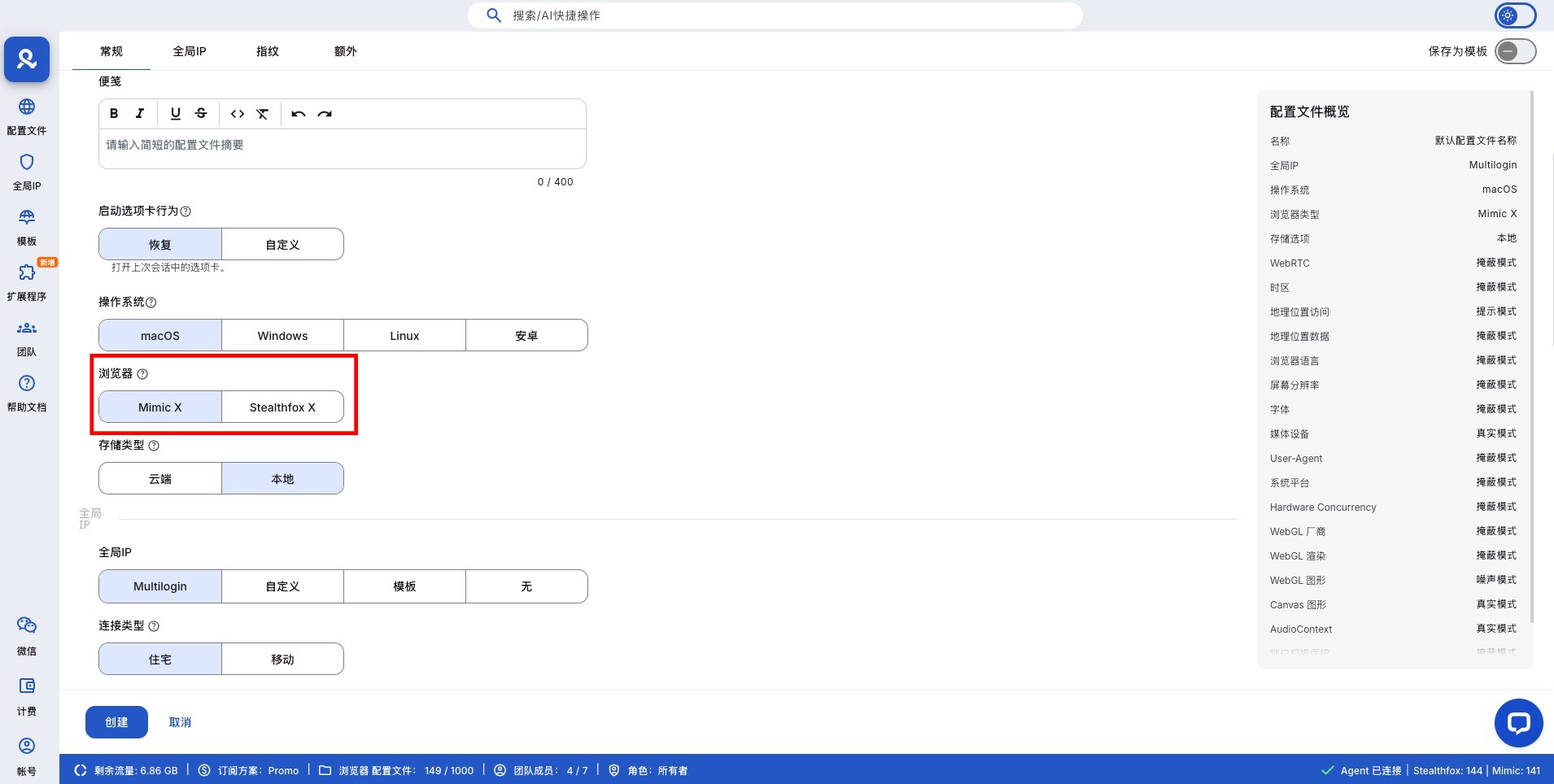
- Mimic: Based on the Chrome engine, suitable for automation scenarios, with higher compatibility
- Stealthfox: Based on the Firefox engine, currently an older option, but still usable
Both are used in the same way as regular browsers, while providing backend browser environment and fingerprint configuration management for:
- Building a browser environment close to real users
- Fine-tuned management of browser configuration and behavior parameters
- Supporting stable and compliant use of multiple profiles
In the future, we will focus on the continuous development of Mimic, including:
- Faster performance
- Fewer issues and more new features
- Stealthfox will no longer receive updates (latest version: 146)
You can continue to use your existing Stealthfox profiles; however, for new use cases, Mimic is recommended as the priority.
What is the difference
| Mimic | Stealthfox
Based on | Chrome | Firefox
Best for | Users who like Chrome-style browsing and tools | Users who rely on Firefox extensions or behavior
Fingerprint Protection | Advanced technology can change your browser fingerprint to make it look like a natural, unique user | Built-in full stealth mode similar to Firefox environment
Performance | Uses more system resources | Lightweight and efficient
Automation | Works with Puppeteer, Selenium, and Playwright | Only works with Selenium and Puppeteer
Update Status | Continuously maintained and optimized | No longer releasing new versions (latest version: v146)
Users who rely on Firefox extensions or behavior
Built-in identical full incognito mode in Firefox-like environments
Lightweight and efficient
Only applicable to Selenium and Puppeteer
No longer releasing new versions (latest version: v146)
How to Set the Browser Type
- Click 'Create' or 'Quick' to create a regular or quick profile
- Select browser type – Mimic or Stealthfox
How to check the browser type
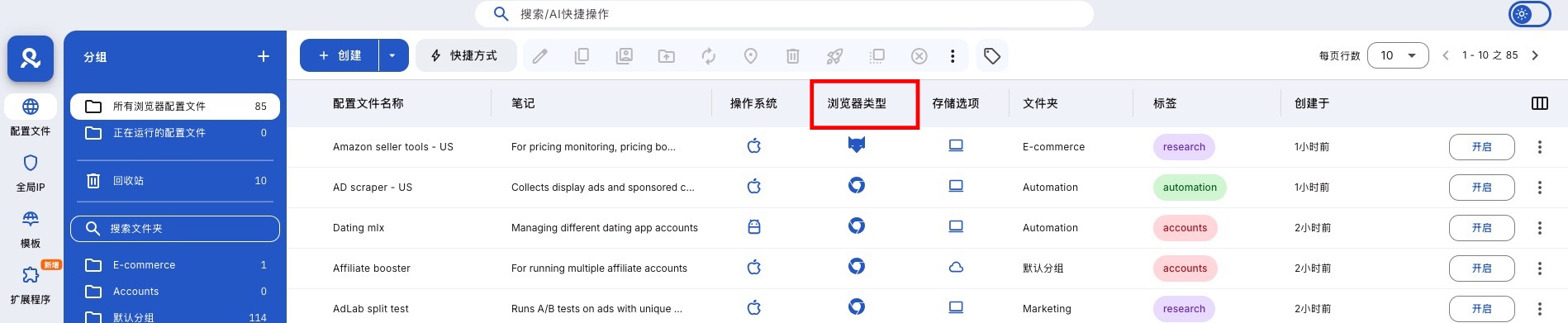
To see the browser type, check the icon in the 'Type' column. You can also filter this column by type.
Frequently Asked Questions
Can I still continue using Stealthfox?
It is possible, but this kernel will no longer receive updates or bug fixes.
Do I need to switch to Mimic now?
It is recommended to switch. Mimic runs faster, more stably, and continuously receives feature updates.
Can the browser engine be changed after creating the configuration file?
No. The browser engine needs to be selected when creating the profile.
Do fingerprint-related settings take effect automatically?
Yes. Browser environments and fingerprint configuration management are built into the Mimic and Stealthfox profiles.
In this article
- The role of Mimic and Stealthfox
- What are the differences
- How to set the browser type
- How to check the browser type
- Frequently Asked Questions
- Can I still continue to use Stealthfox?
- Do I need to switch to Mimic now?
- Can the browser engine be changed after creating a profile?
- Does the fingerprint-related configuration take effect automatically?
Multilogin Community
Stay informed, share your thoughts, and interact with others!
Read more related content
Related Articles
- How to update the browser core in Multilogin
- How to use mobile Android profiles in Multilogin
- How to understand browser profiles in Multilogin
- Browser profile settings: General
- Browser profile settings: Global IP
- Browser profile settings: Fingerprint configuration