- Home
- Main Features
- Profile Organization and Sorting
- How to Use Profile Tags in Multilogin
How to Use Profile Tags in Multilogin
Author Yelena V (Updated on June 11, 2026)
Updated on June 11, 2026
Who can use this feature?
- 👨💻 Account owners and administrators have full permissions to create, edit, and manage tags
- 👨💻 Operators can only add or remove tags in profiles
- 💰 Available for all plans
What is a Configuration File Tag
Profile tags are like digital sticky notes for your profiles. You can add up to 10 tags to each profile to organize them by client, purpose, workflow, or any other way that makes sense to you. Tags are color-coded for quick identification, and you can reuse colors throughout your workspace to keep everything organized and easy to navigate.
Benefits of Configuration File Tags
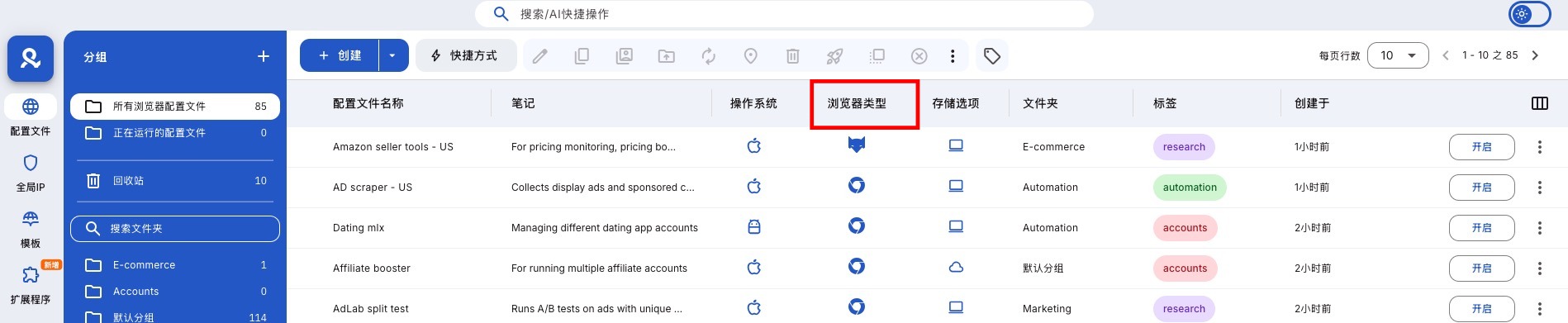
- Find profiles faster: Search and filter using tags to say goodbye to endless searching
- Stay organized: Tag profiles by use case, status, team, or any way that suits you
- Simplify your workflow: Visual grouping is easier than folders
- Tag color magic: Color-coded tags allow you to instantly distinguish profile types
How to Add Configuration File Tags
Add from configuration file list
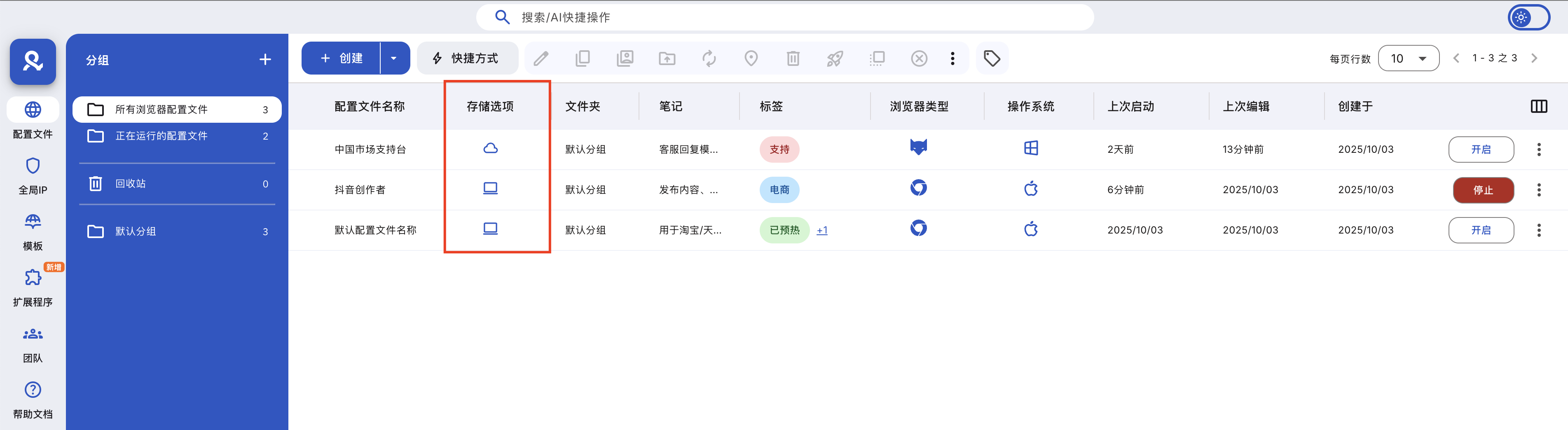
- Click the pencil icon in the 'Tags' column next to the desired profile
- Enter the tag in the popup window, then press Enter to add
Add from configuration file
- Open the configuration file settings and scroll to the tags section
- Enter your tags and press Enter to add
- Save changes by creating or updating the configuration file
How to Manage Configuration File Tags
Tags are saved in the workspace section, which means that all profiles in this workspace can access them. You can store up to 100 tags at a time, providing enough space to meet all your organizational needs.
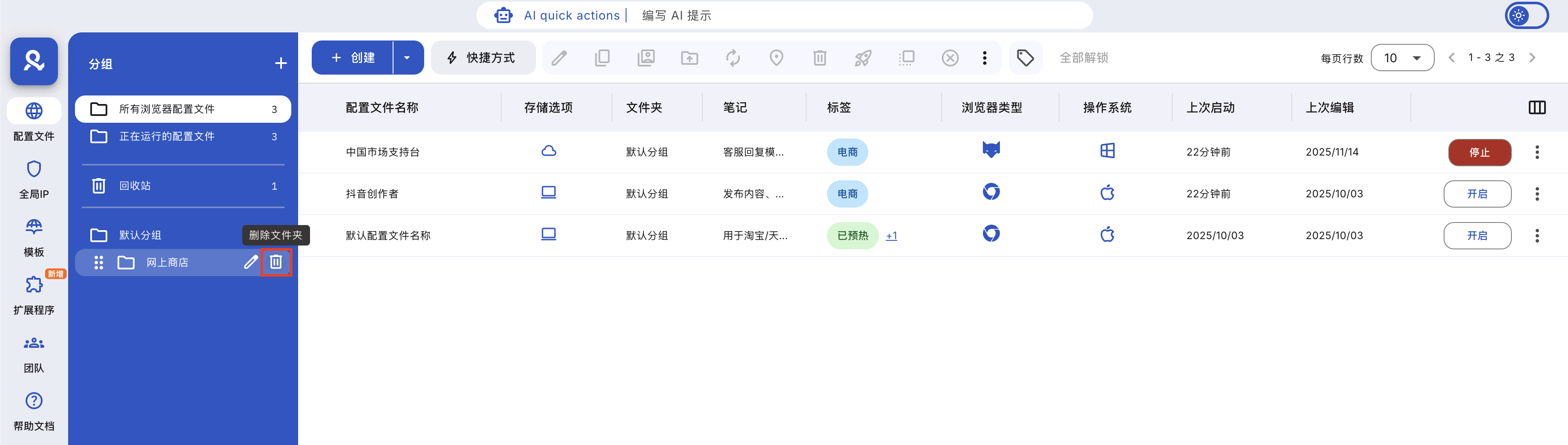
- Click the "Manage Tags" icon in the top menu of the main profile dashboard
- Here, you can: create new tags, edit existing tags, delete tags from the workspace (when a tag is deleted, it will be removed from all profiles in the workspace that use this tag)
- Create new tags
- Edit existing tags
- Delete tags from the workspace (when a tag is deleted, it will be removed from all profiles in the workspace that use this tag)
How to Filter Profiles by Tags
Want to quickly filter configuration profiles? Use the brand new filtering system and filter by tags! It is based on 'any match,' which means any profile with the selected tags will be displayed.
- Click the filter icon in the 'Tags' column on the main profile dashboard
- Select the tags you want to filter by
- Click 'Filter' to view profiles with the selected tags
Professional Tips
- Combine tags with filters to customize profile views
- Stick to naming patterns (e.g., 'Client-A', 'Test-01') to maintain consistency
- Use color-coded tags to quickly identify items in large collections
Frequently Asked Questions
Can I delete or edit tags later?
Of course! You can make changes at any time by simply clicking the pencil icon next to the tag again.
Are the tags shared with my team?
If you are in a team, yes — others can also see the tags.
Can I use emojis in tags?
Of course! You can use emojis, but remember—keep it simple and clear.
In this article
- What is a profile tag
- Benefits of profile tags
- How to add a profile tag
- Add from profile list
- Add from profile settings
- How to manage profile tags
- How to filter profiles by tags
- Pro tips
- Frequently Asked Questions
- Can I delete or edit tags later?
- Are tags shared with my team?
- Can I use emojis in tags?
Multilogin Community
Stay informed, share your thoughts, and interact with others!
Read more related content
Related Articles
- How to use profile folders in Multilogin
- How to find important files in Multilogin
- How to use the profile trash in Multilogin
- How to copy profile IDs in Multilogin
- How to manage running profiles in Multilogin
- How to quickly rename profiles in Multilogin