- Home
- Main Features
- Profile Organization and Sorting
- How to Use Profile Folders in Multilogin
How to Use Profile Folders in Multilogin
Author Yelena V (Updated on June 12, 2026)
Updated on June 12, 2026
Who can use this feature?
- 👨💻 Account owners, administrators, and operators
- 💰 Available for all plans
Purpose of the Configuration File Folder
The profile folder can help you group and manage browser profiles more professionally. Whether you are handling multiple clients, projects, or test sets, folders keep everything organized and easy to find. All profiles without folders will be automatically saved in the default folder.
Why Folders Are Useful
- Stay organized: You can group profiles by purpose, client, or status
- Add notes: Leave reminders or context in folders
- Smart search: Quickly find folders using the sidebar search
How to use folders
How to Create a Folder
- Open your profile list
- Click the 'Create Folder' icon at the top of the left menu
- Enter the folder name
- Enter a note (optional)
- Click 'Create'
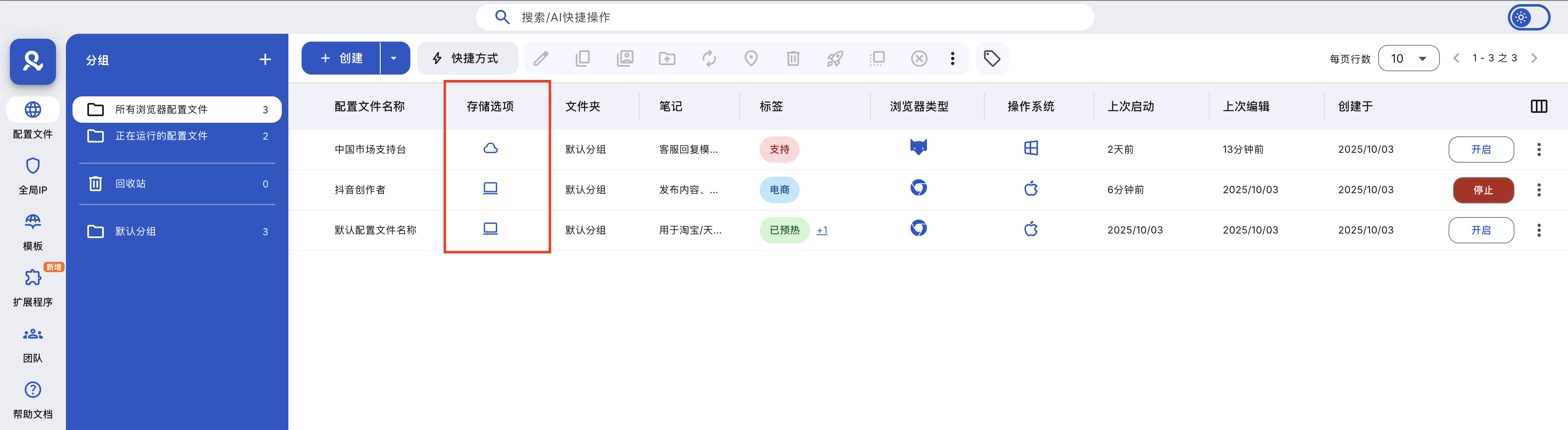
How to Move the Configuration File to a Folder
- Select the profile you want to move: right-click the profile in the list, use the checkbox to select the profile, and use the top menu
- Right-click the profile in the list
- Use the checkbox to select the profile and use the top menu
- Click 'Move to Folder'
- Find the folder you need in the popup window
- Click 'Move' to confirm your choice
How to Edit a Folder
- Hover the mouse over the folder name
- Click the pencil icon
- Make the desired changes
- Click 'Update' to save
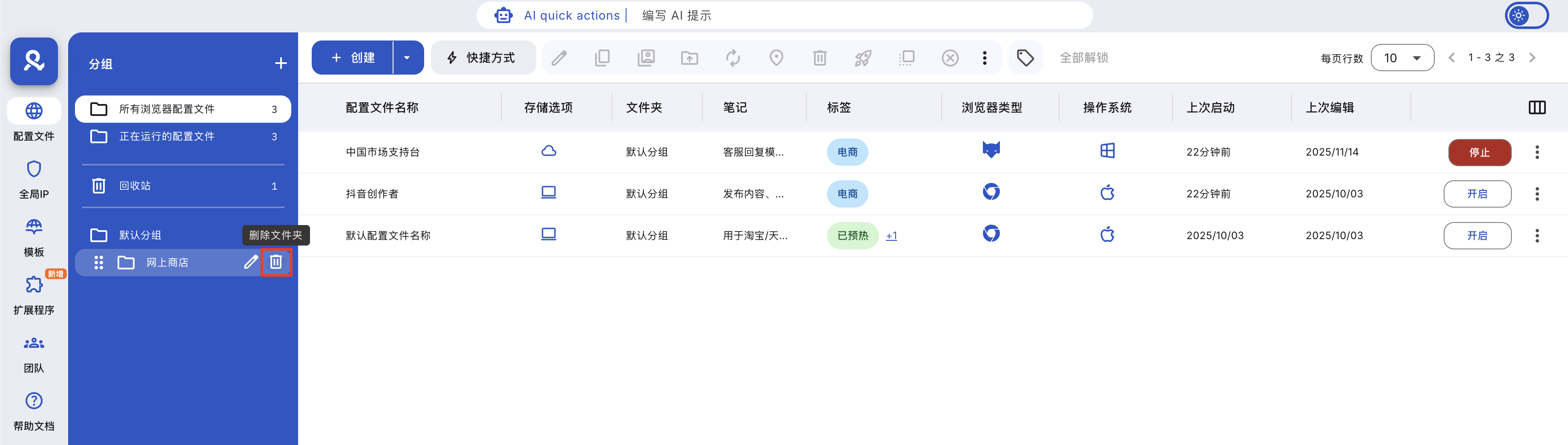
How to delete a folder
- Hover the mouse over the folder name
- Click the trash can icon
- Choose whether to permanently delete all configuration files in the folder
- Click "Delete" to confirm your choice
How to Sort Folders
- Hover the mouse over the folder list
- Click and hold the vertical dot icon
- Drag the folder to the position you need
- Release the mouse

Professional Tips
- Use folders to categorize 'Clients,' 'Test Profiles,' or 'Browsing Accounts'
- Pair folder comments with profile tags to achieve maximum categorization
- Keep names short and clear to improve visibility
Frequently Asked Questions
What happens if I try to delete a folder?
Two options will appear – move the profiles to the trash or permanently delete them.
Can I move configuration files between folders?
Yes—you can drag and drop the configuration file into any folder.
What is the default folder?
All unassigned profiles are here. This is perfect for quick cleanup.
Can my team see folder comments?
Yes—if they have access to the folder, they will see the comment.
In this article
- Purpose of the configuration file folder
- Why folders are useful
- How to use folders
- How to create folders
- How to move configuration files into folders
- How to edit folders
- How to delete folders
- How to sort folders
- Professional tips
- Frequently asked questions
- What happens if I try to delete a folder?
- Can I move configuration files between folders?
- What is the default folder?
- Can my team see folder notes?
Multilogin Community
Stay informed, share your thoughts, and interact with others!
Read more related content
Related Articles
- How to find important files in Multilogin
- How to use the profile trash in Multilogin
- How to copy profile IDs in Multilogin
- How to manage running profiles in Multilogin
- How to quickly rename profiles in Multilogin
- How to use profile tags in Multilogin