- Home
- Main Features
- Configuration Management and Operations
- How to Transfer Browser Profiles to Another Multilogin Account
How to Transfer Browser Profiles to Another Multilogin Account
Author Yelena V (Updated on May 21, 2026)
Updated on May 21, 2026
Which users can use this feature?
- 👨💻 Account owners
- 💰 All plans except the trial plan
The Function of This Feature
Profile transfer allows you to move cloud browser profiles from your account to another Multilogin account owner.
This is useful in the following scenarios:
- Handing over prepared browser profiles to clients
- Transferring completed work to another company account
- Restructuring profiles without rebuilding from scratch
For example, you can prepare a browser profile that includes settings, cookies, extensions, and proxy settings, and then transfer it to your client after the work is done.
The transfer includes the following:
- Profile name
- Notes and tags
- Profile and proxy settings
- Cookies
- Local storage
- Sessions
- Extensions
- Browser settings
- Last session tabs
This ensures that the recipient continues from the previous setup instead of starting over.
Browser profiles may contain active sessions, cookies, extensions, and saved website data. Please only transfer profiles to people you trust. If you receive a transfer request, only accept it when you know the sender and the reason.
What are the limitations?
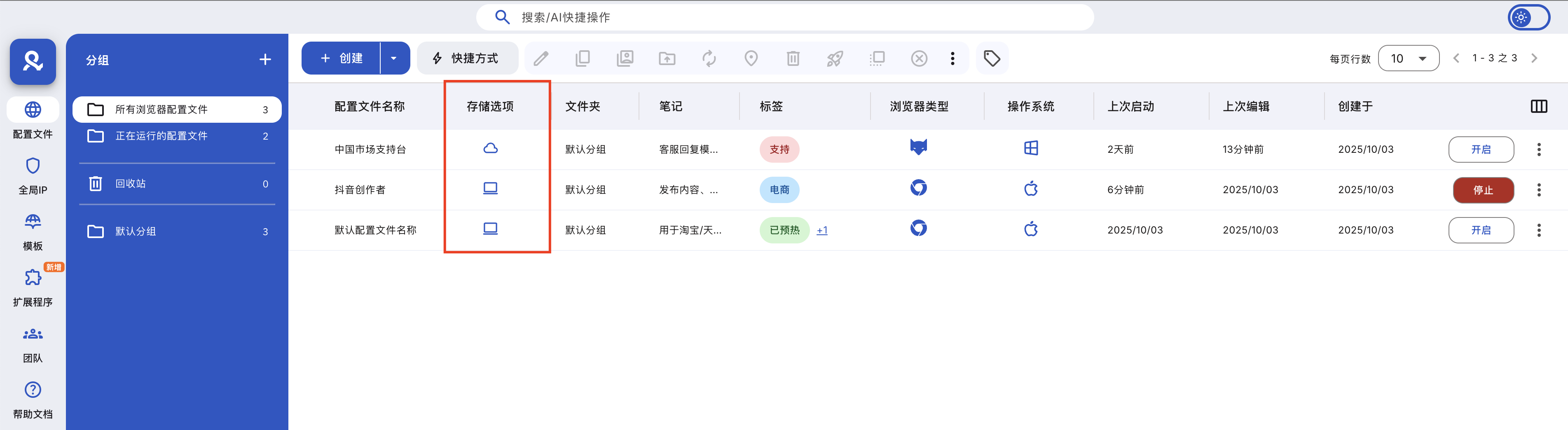
- Only the account owner can send and receive transfers.
- Only applicable to cloud browser profiles.
- Up to 10 browser profiles can be transferred at a time.
- The recipient must have a Multilogin account with a valid subscription.
- The recipient's account must have enough profile slots.
- Transfer requests should be accepted within 48 hours.
- Transfers are permanent and cannot be undone.
How to Transfer Browser Profiles
Step 1 (Sender): Open the configuration file transfer menu
- Go to the 'Profile' tab in the top menu
- Select 'Browser' from the left selector
- Choose the profile you want to transfer
- Right-click any profile in the list, or use the top menu and click 'Transfer'
Step 2 (Remitter): Confirm the Remittance
At this time, a window will pop up, displaying the list of profiles you have selected.
- Enter the email address of the recipient to whom you want to send the profile — this email address must belong to a Multilogin account owner.
- Click 'Send' to confirm.
Your transfer request will be sent to the recipient, and both of you will receive a confirmation email.
Step 3 (Recipient): Accept the Transfer
Before reviewing and accepting the transfer, please check your account limits and ensure that there is enough space in your account to accommodate the new profile. You can delete unnecessary profiles, but remember to empty the recycle bin afterward.
Once the sender confirms the transfer, you will receive a message titled 'Browser Profile Transfer Request.'
- Click 'Evaluate'
- In the confirmation window, click 'Accept' or 'Reject.'
You will have 48 hours to accept or reject this transfer.
- If you accept, the profile will immediately appear in your account and disappear from the sender's account.
- If you reject, the transfer will be canceled and the profile will remain in the sender's account.
- If you take no action within 48 hours, the request will automatically expire.
Frequently Asked Questions
Can the transfer be canceled after it is completed?
No! Once the personal data has been transferred, it cannot be changed.
What should I do if the other party does not accept the transfer in time?
If the recipient does not accept within 48 hours, the transfer will automatically expire, and the profile will be retained in the sender's account.
Can I transfer more than 10 user profiles at once?
No, each transfer can only transfer up to 10 profiles at most.
Can I transfer local configuration files?
No, only cloud browser profiles can be transferred.
Will cookies and extensions be transmitted?
Yes. This includes cookies, local storage, sessions, extensions, and supported profile data.
In this article
- Purpose of this feature
- What are the limitations?
- How to transfer browser profiles
- Step 1 (Sender): Open the profile transfer menu
- Step 2 (Remitter): Confirm the transfer
- Step 3 (Recipient): Accept the transfer
- Frequently Asked Questions
- Can the transfer be undone once completed?
- What if the other party does not accept the transfer in time?
- Can I transfer more than 10 user profiles at once?
- Can I transfer a local profile?
- Will cookies and extensions be transferred?
Multilogin Community
Stay informed, share your thoughts, and interact with others!
Read more related content
Related Articles
- How to create and start your first profile in Multilogin
- How to start and stop profiles in Multilogin
- How to use the right-click menu in Multilogin
- How to save quick profiles like normal in Multilogin
- How to use cloud and local profile storage in Multilogin
- How to use quick profiles in Multilogin