- Home
- Global IP & Masked IP Address
- IP Masking Solutions
- How to Use Multilogin on 4G/5G Connection
How to Use Multilogin While Connected to 4G/5G
Author Yelena V (Updated on December 3, 2025)
Updated on December 3, 2025
To manage multiple accounts in Multilogin without being flagged, you need to set a unique IP address for each browser profile. While a global IP is the preferred solution, you can also use a 4G/5G mobile connection.
Using a 4G/5G connection is a reliable alternative to a global IP, but it has limitations—such as supporting only one profile at a time. If you need to run multiple profiles simultaneously, a residential or mobile global IP may be more suitable.
Mobile Connections and Global IP
- Global IP → Change the IP of a specific configuration file, allowing multiple configuration files to run simultaneously
- 4G/5G connection → Change the IP of the entire device, which means you can only use one configuration file at a time
If you need multiple mobile IPs, consider using a mobile global IP farm with USB dongles. Each dongle requires a unique IP, port, username, and password to work properly.
How to Use Multilogin on 4G/5G Connection
- Connect your device to a mobile hotspot or modem
- Launch any browser profile in the app and check its IP address
- If you need to switch, close the current profile and change your IP (see suggestions below)
After changing your IP address, be sure to check to ensure a new IP address has been assigned.
How to Change the IP of a Mobile Connection
You can use any of the following methods to change your mobile IP.
- Turn the mobile hotspot's airplane mode on or off
- Unplug the router or modem for at least five minutes (depending on how frequently your ISP updates IP addresses)
How to Check Your IP
Ready to check if your profile fingerprint is secure? Checking your fingerprint is very simple, so let's get started right away!
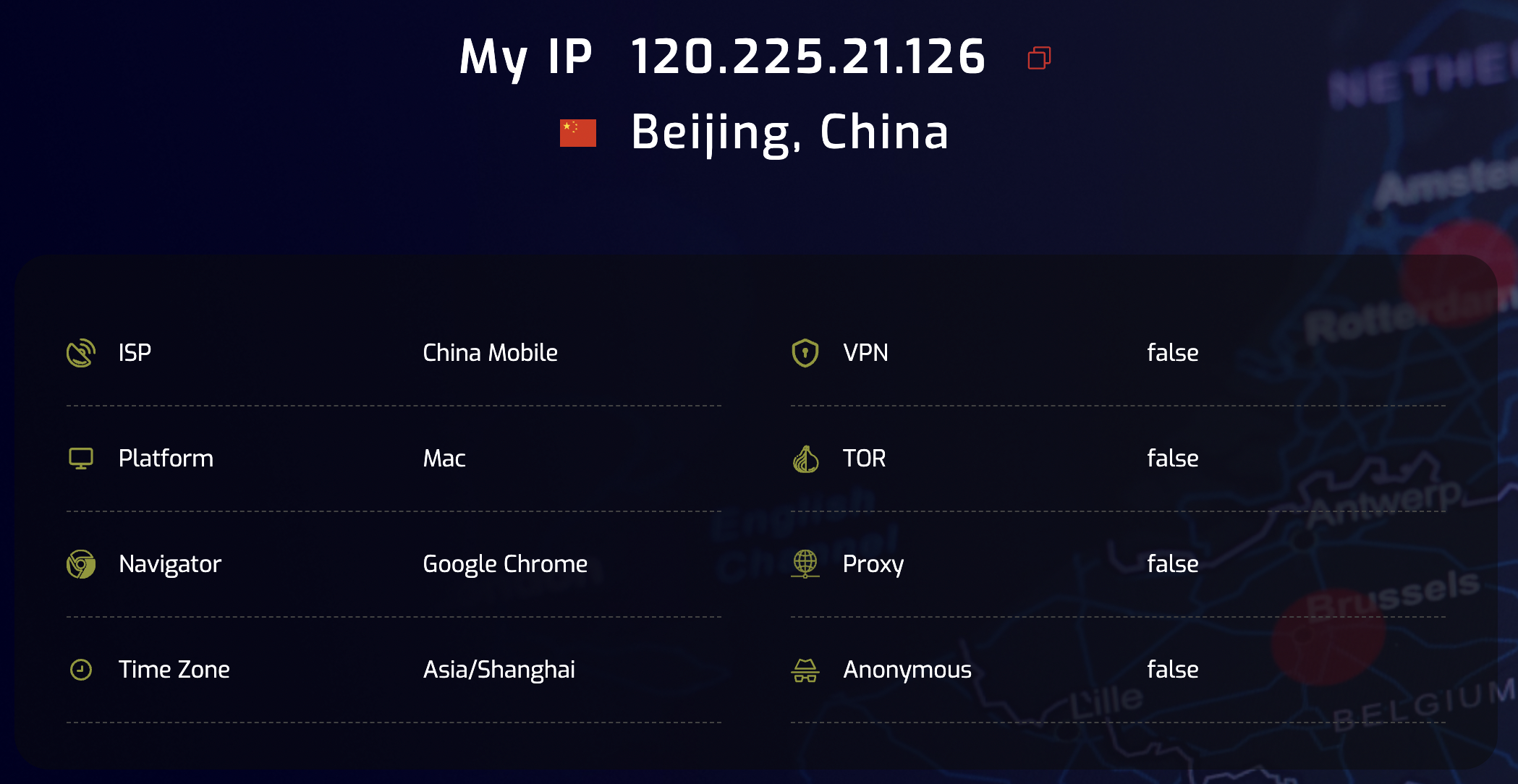
Use these tools to check your browser fingerprint:
- Whoer IP: Check your IP address and make sure it matches your expected location (default Multilogin checker)
- MaxMind: Used to get the most accurate IP geolocation details
- Pixelscan: Get detailed information about your browser fingerprint
- BrowserLeaks: Detect any fingerprint inconsistencies that might expose your real identity
Can websites see that I visited the 'Whoer IP' page or other checkers?
No. If you’re concerned that a website could read its cookies and detect that you are a Multilogin user, we have good news for you!
Websites can only access cookies associated with their own domain. In other words, Multilogin cookies are only visible to Multilogin, while Facebook only recognizes its own cookies. This principle is called the "Same-Origin Policy" (SOP), a foundational concept dating back to the earliest web browsers.
Here’s how to check your fingerprint:
- Open your Multilogin profile
- Test your fingerprint using any of the tools mentioned above
- Look for inconsistencies in your IP address, browser version, or operating system
- Adjust settings in Multilogin to fix any mismatches
In this article
- Mobile connections and global IP
- How to use Multilogin on 4G/5G connections
- How to change the IP of a mobile connection
- How to check your IP
Multilogin Community
Stay informed, share your thoughts, and interact with others!
Read more related content
Related Articles
- How to use NodeMaven global IP to set Multilogin
- How to use custom HTTP and SOCK global IP in Multilogin